
Binary options broker Pocket Option has long offered high-quality service and everything traders need to work with binary options, including a fully functional trading platform. One of the broker's key advantages is its presence in the Forex market, giving traders access to two browser-based versions of the MetaTrader 5 trading terminal.
This means Pocket Option traders can trade on any market without opening accounts with multiple brokers. They can choose between the standard MT5 terminal from MetaQuotes — whose web version is nearly on par with the desktop client — and the Forex MT5 web terminal developed by PocketOption.
Below, we cover the features, pros, and cons of the MetaTrader 5 terminal available through Pocket Option.
Contents:
- What Is the MetaTrader 5 Terminal;
- Forex MT5 Terminal from PocketOption;
- Account Management;
- Platform Settings;
- Working with Charts;
- Trading Panel;
- Indicators;
- Graphical Tools;
- Additional Tools and Settings;
- MetaTrader 5 Web Terminal from MetaQuotes at Pocket Option;
- Functionality and Capabilities of the MT5 Web Terminal from Pocket Option;
- Working with Charts;
- Trading Panel;
- Indicators;
- Graphical Tools;
- Chart Settings;
- One-Click Trading;
- Conclusion.
What Is the MetaTrader 5 Terminal
MT5 is a widely used trading terminal adopted by brokers worldwide. It offers a familiar interface and a comprehensive feature set, and is developed by MetaQuotes Ltd., which has been operating since 2000:
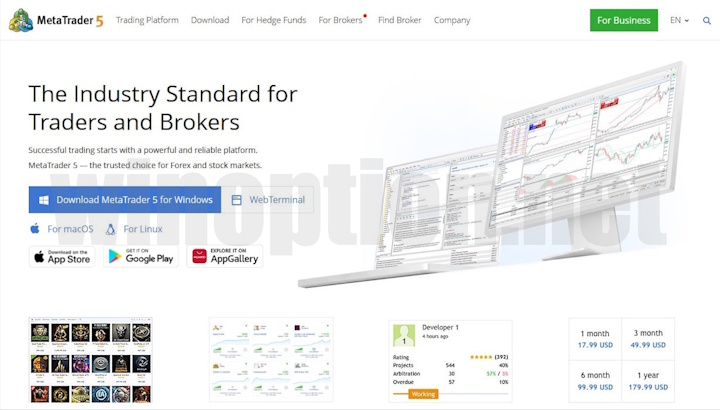
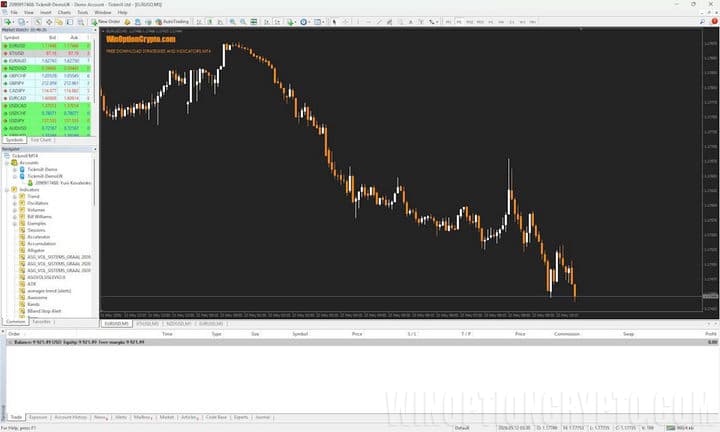
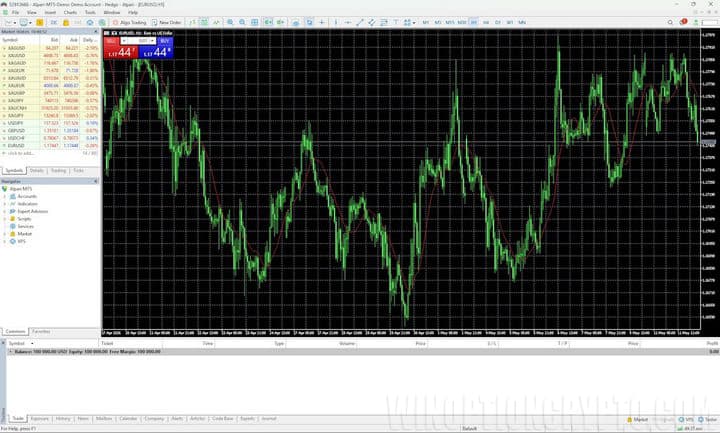
The predecessor to MT5 is MetaTrader 4. The key improvement in the newer version is its ability to connect to major global exchanges, enabling trading on the stock markets of the US, Europe, and other regions. MT5 also offers more advanced functionality and additional features. Visually, the two platforms are very similar:
| MT4 | MT5 |
 |
 |
Forex MT5 Terminal from PocketOption
Pocket Option supports both live and demo accounts for MT5. To access the terminal, select the "Trading" section from the left sidebar, then choose either "MT5 Forex Real Account" or "MT5 Forex Demo Account":
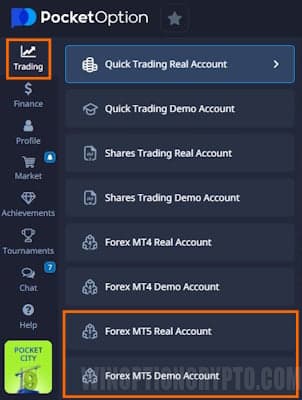
Once open, the Forex MT5 terminal from PocketOption lets you start trading right away. All key elements of the platform are logically laid out and easy to find:
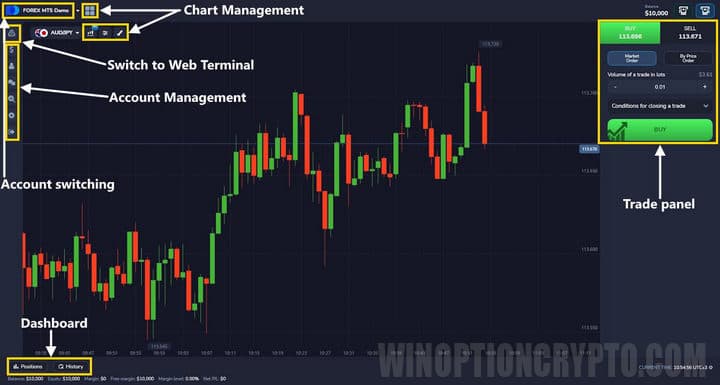
Within the Forex MT5 platform from PocketOption, you can:
- switch between different trading accounts;
- open multiple charts simultaneously;
- add indicators and graphical tools to charts;
- place trades on the Forex market;
- monitor your account balance and trade history;
- manage funds;
- manage your account settings;
- contact support;
- access trading analytics and economic event data;
- adjust terminal settings.
Account Management on the Forex MT5 Platform from PocketOption
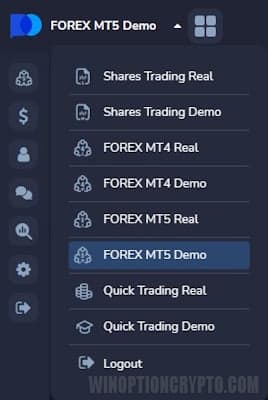
In the top left corner, a drop-down menu lets you switch between a demo and a live account, as well as toggle between the binary options fast-trading platform and the MT5 Forex platform. A sign-out button is also available here.
Forex MT5 Platform Settings from PocketOption
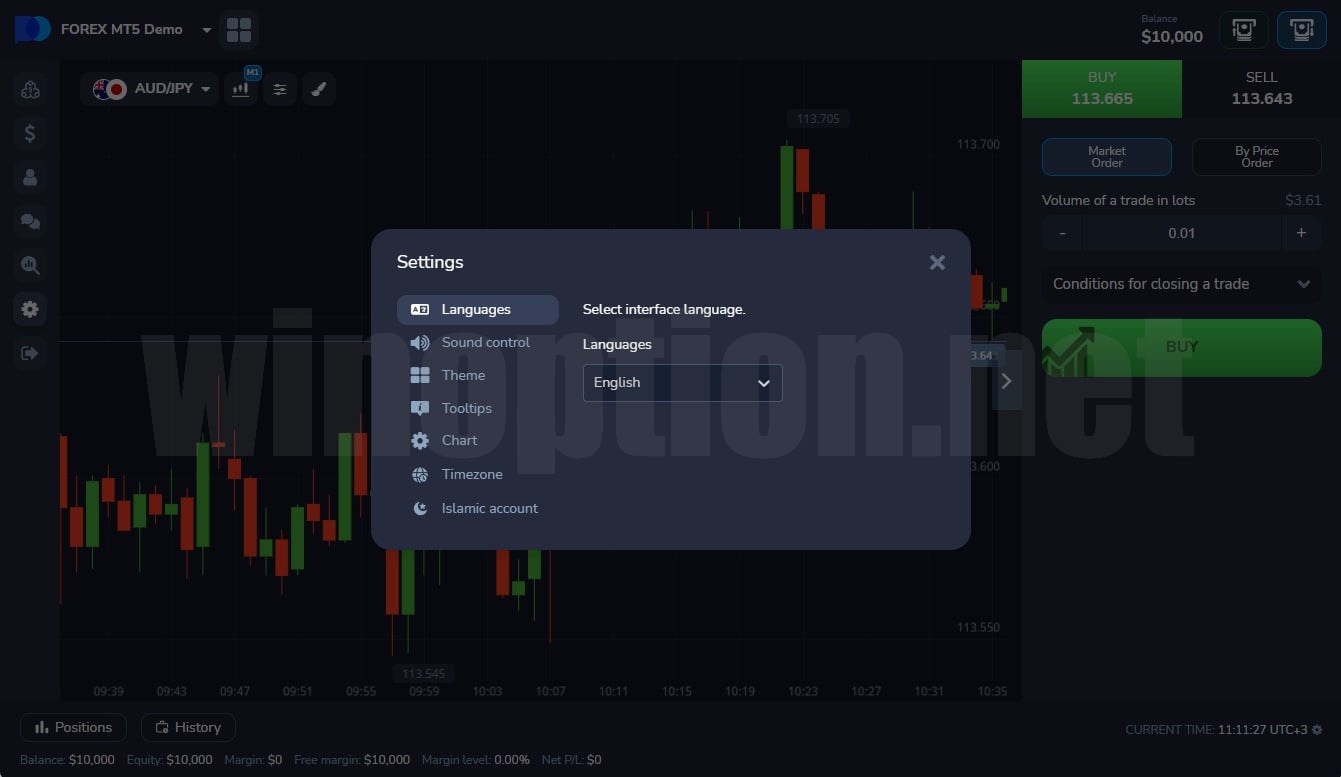
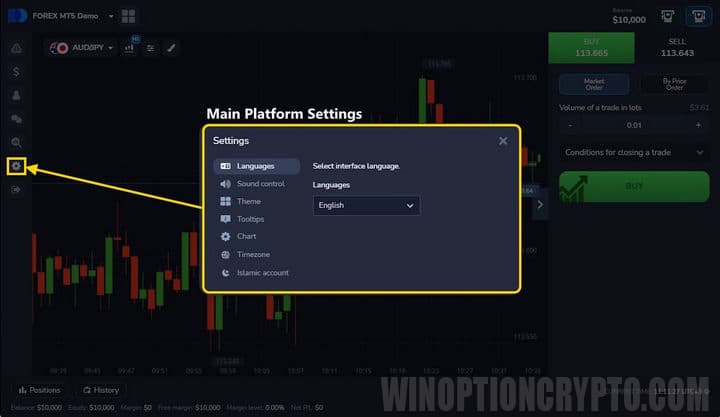
The main settings for the Forex MT5 platform are found in the left sidebar. Here you can:
- select the platform language;
- configure sound alerts;
- switch between light and dark themes;
- enable the display of trade results on the trading interface;
- enable chart optimization to reduce system load;
- set your time zone.
Working with Charts on the Forex MT5 Platform from PocketOption
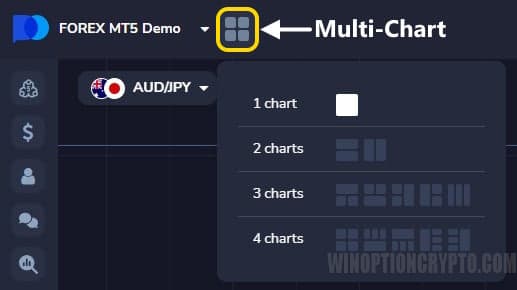
Next to the account drop-down menu is a "Multi-chart" button that lets you choose how charts are arranged on the main screen. By default, the terminal displays a single chart for the selected trading asset:
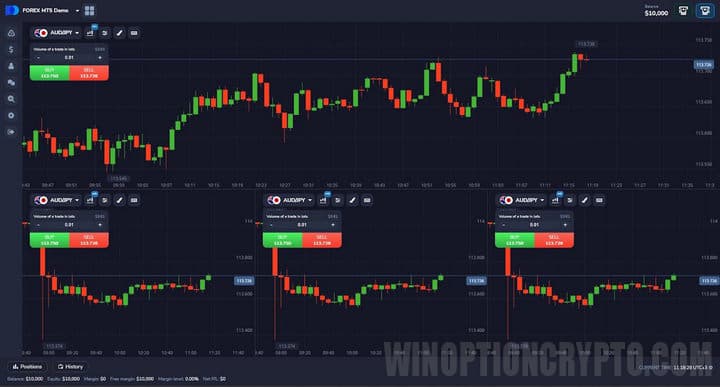
Traders can display up to four charts simultaneously in the Forex MT5 platform from PocketOption and choose a convenient layout. This makes it easy to monitor price movements across different timeframes or trade multiple assets at once:
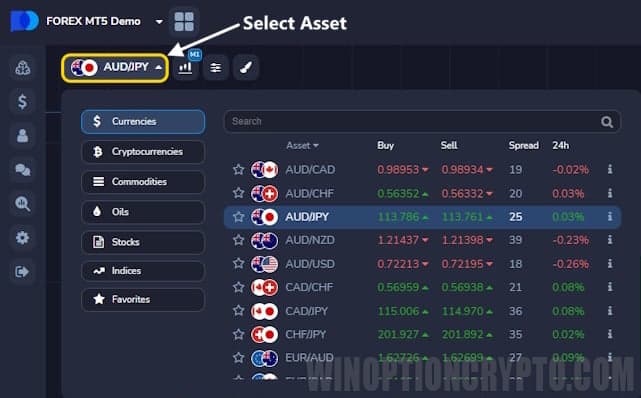
The buttons in the upper left corner allow traders to select from a wide range of trading instruments, change the timeframe, and switch the chart type:
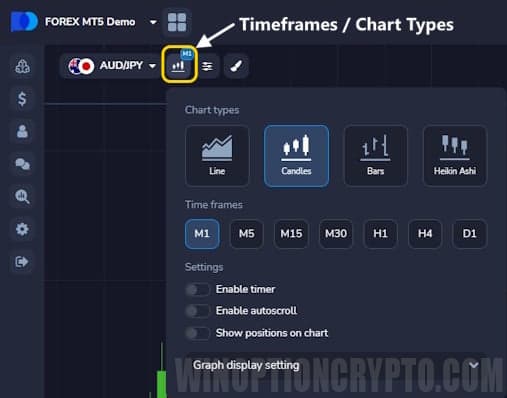
The chart settings button lets you display price data as a line, candlesticks, bars, or Heiken Ashi. Additional options include a timer, auto-scrolling, and position display on the chart. Candlestick and bar color schemes can also be customized here:
Trading Panel of the Forex MT5 Platform from PocketOption
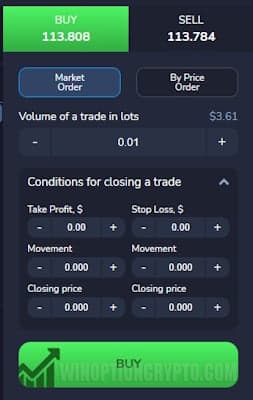
The trading panel is located on the right side of the Forex MT5 platform. From here you can:
- select the trade direction: buy or sell;
- choose between a market order and a pending order at a specified price;
- set the trade volume in lots;
- define the conditions for closing the trade.
Trade closing conditions can be set using one of three criteria:
- by profit (Take Profit) or loss (Stop Loss) in dollars;
- by the number of pips the price has moved;
- upon reaching a specified closing price.
Forex MT5 Platform Indicators from PocketOption
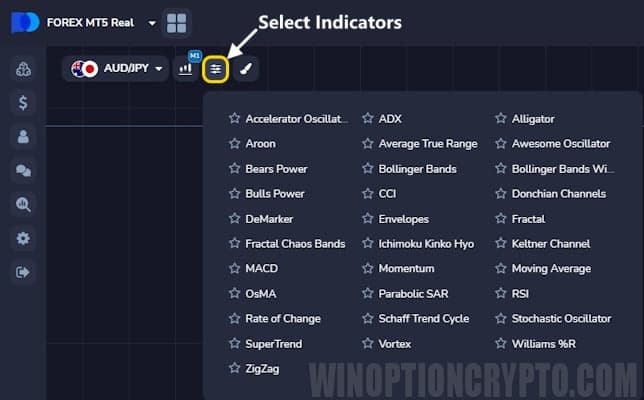
To add indicators to a chart in the Forex MT5 platform from PocketOption, click the indicators button. Select the desired tool from the list, and it will appear either directly on the chart or in a separate panel below it, in the case of oscillators:
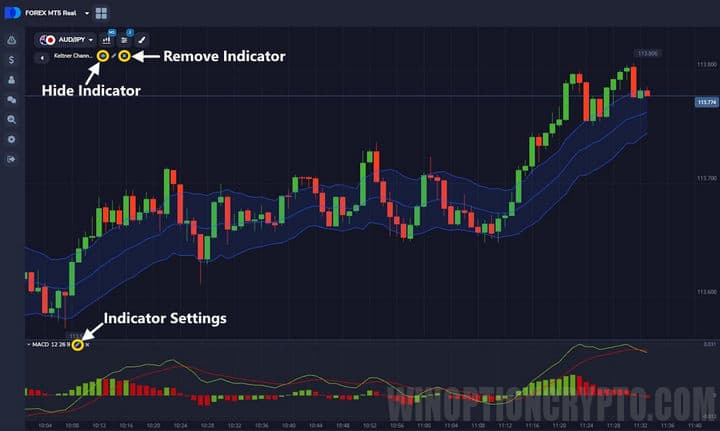
Any number of indicators and oscillators can be added to the chart. Their names are listed on the left side of the screen along with control buttons. Indicators can be temporarily hidden or removed entirely using the corresponding buttons:
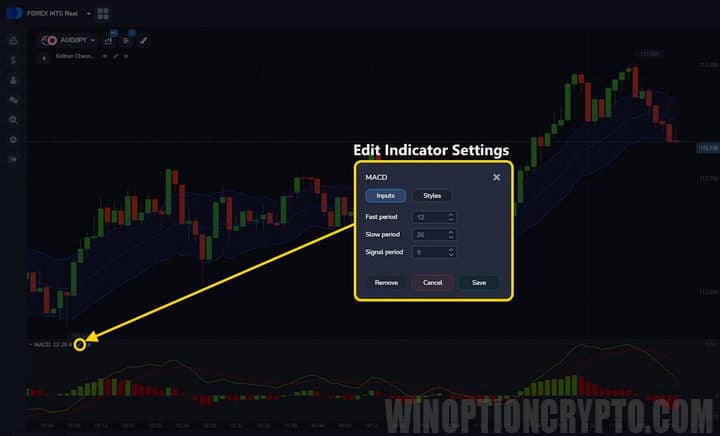
Clicking the pencil icon next to an indicator or oscillator name opens a dedicated settings window for that tool:
Graphical Tools of the Forex MT5 Platform from PocketOption
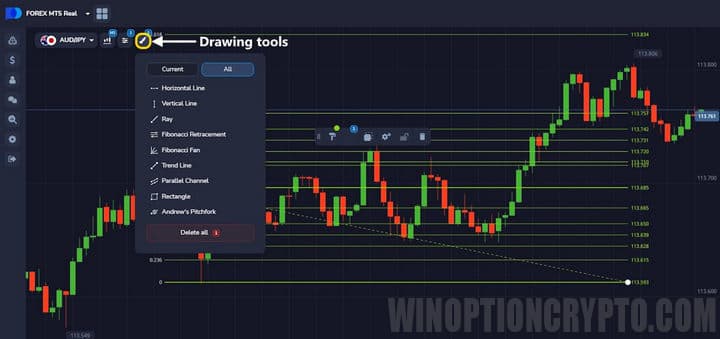
The Forex MT5 platform from PocketOption supports the following charting tools:
- horizontal lines;
- vertical lines;
- rays;
- Fibonacci lines;
- trend lines;
- parallel channels;
- rectangles;
- Andrews' Pitchfork.
These tools are accessed via the brush icon in the upper left corner:
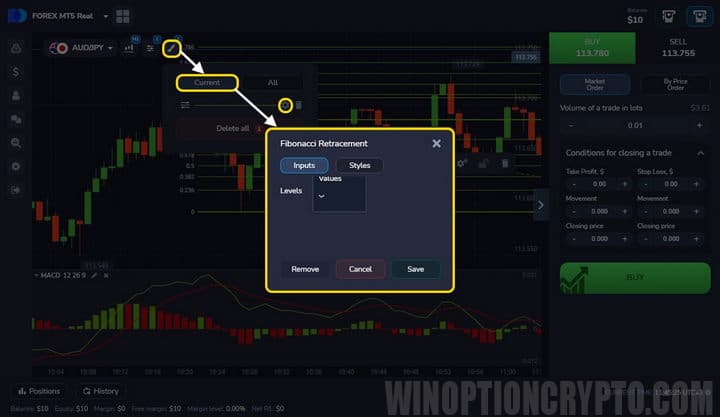
Drawings can be edited in two ways: directly on the chart by dragging key points, or through the individual settings menu. For the second method, select "Active" from the brush button menu and click the gear icon next to the desired drawing:
Additional Features and Settings of the Forex MT5 Platform from PocketOption
In addition to basic platform settings, the left sidebar in Forex MT5 allows you to:
- manage funds;
- update account settings;
- access chats;
- view analytics and the economic calendar;
- sign out of your account;
- switch to the MT5 platform from MetaQuotes.
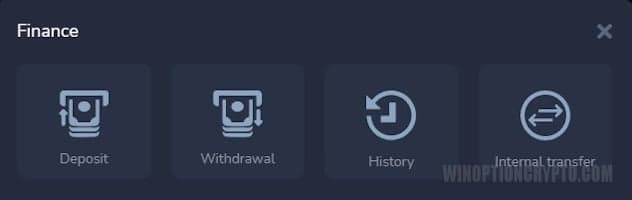
The fund management button opens a menu where you can deposit funds, withdraw earnings, view payment history, or make an internal transfer between your PocketOption binary options and Forex trading accounts:
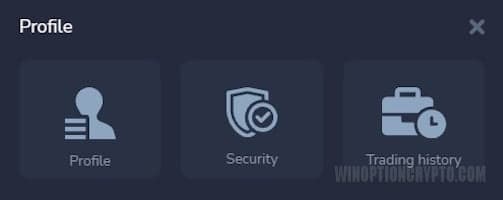
The account settings button provides access to your profile information, security settings, and a detailed view of your trading history:
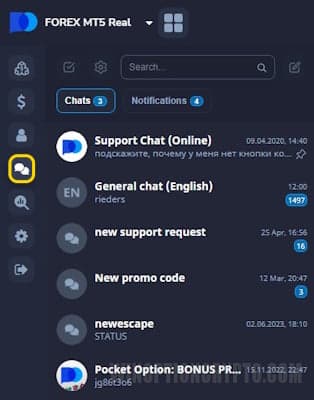
Clicking the "Chats" button opens or closes a panel where you can browse chats and information channels, view notifications, search for chats and users, and create your own chat or channel:
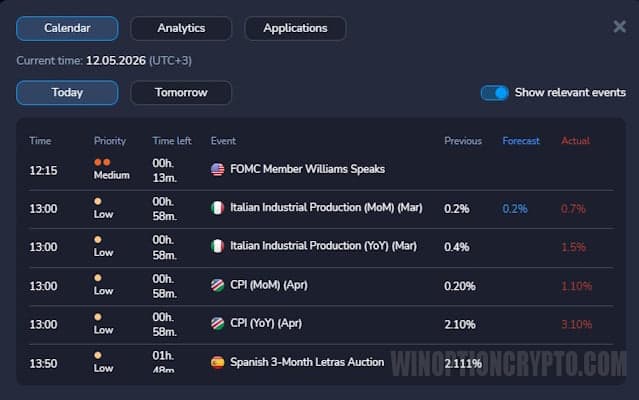
The magnifying glass button in the left sidebar opens the economic calendar and trading analytics from PocketOption, and provides quick links to companion analytics apps for mobile devices:
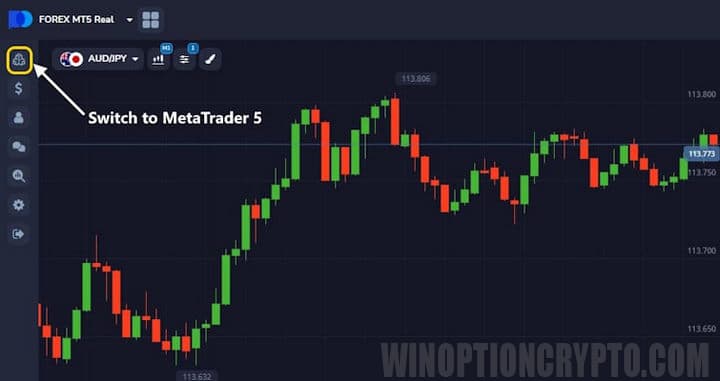
The bottom button in the left sidebar signs you out of the platform. The top button switches you to the MetaTrader 5 web terminal developed by MetaQuotes.
MetaTrader 5 Web Terminal for Pocket Option Developed by MetaQuotes
To switch to the MetaTrader 5 web terminal developed by MetaQuotes, click the top button in the left sidebar of the Forex MT5 platform from PocketOption:
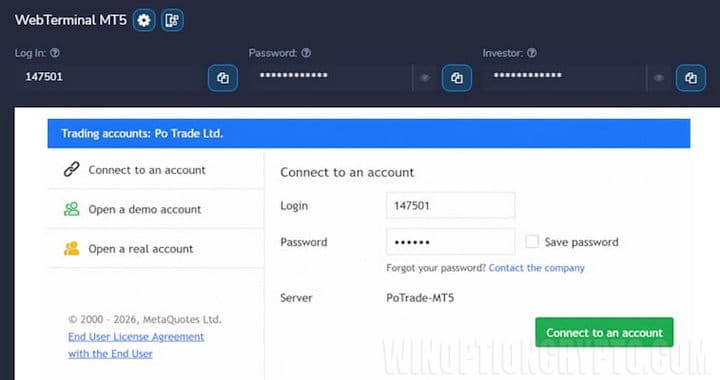
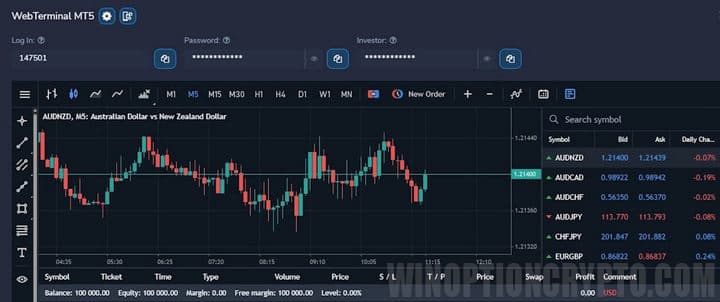
The page that opens will display your demo account credentials. The login process follows the standard MT4/MT5 procedure:
Once logged in, the terminal opens and you can begin trading immediately:
Functionality and Capabilities of MetaTrader 5 in Pocket Option
The web terminal is somewhat more limited than the desktop version — third-party indicators cannot be loaded — but in all other respects it is equivalent to the desktop client. In the web version you can:
- open any number of charts;
- monitor your trading account status and open positions;
- use the built-in indicators available through Pocket Option;
- use graphical tools;
- switch between chart types (candlesticks, bars, line);
- use one-click trading.
Working with Charts
To open a chart, use the "Market Watch" panel or click "File" in the top menu and select "New Chart":
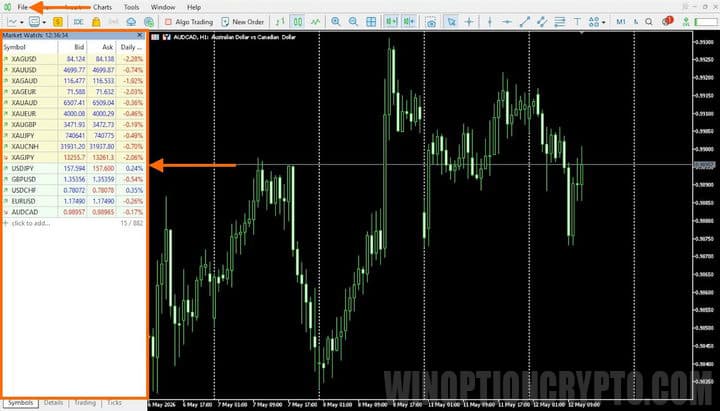
You can open as many charts as needed and switch between them using the tabs at the bottom. Timeframes can be changed from the top toolbar:

Trading Panel
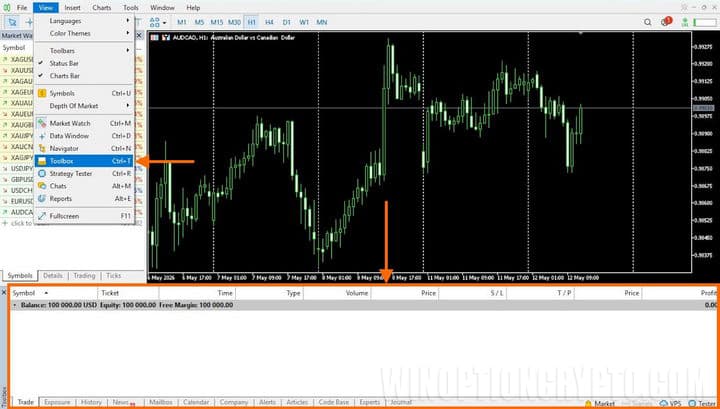
Under the "View" tab, you can enable the "Tools" panel — the trading panel that displays all open trades, the current account status, and the activity log:
Indicators
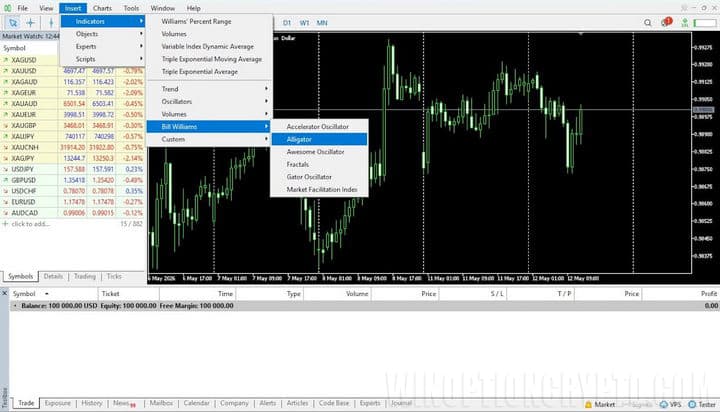
MetaTrader 5 in Pocket Option includes all the standard indicators found in the desktop version, among them:
- Alligator;
- Moving Average;
- Stochastic Oscillator;
- RSI;
- MACD and others.
To add an indicator to a chart, click "Insert" in the top menu, then select "Indicators":
After selecting an indicator, adjust the settings if needed and click "OK":
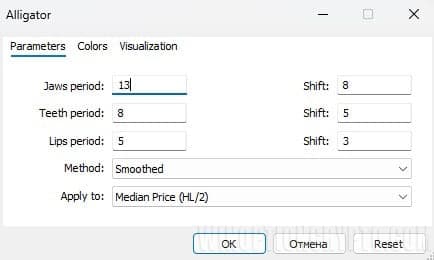
To manage indicators already on the chart, right-click the chart and select "Indicators List" from the context menu:
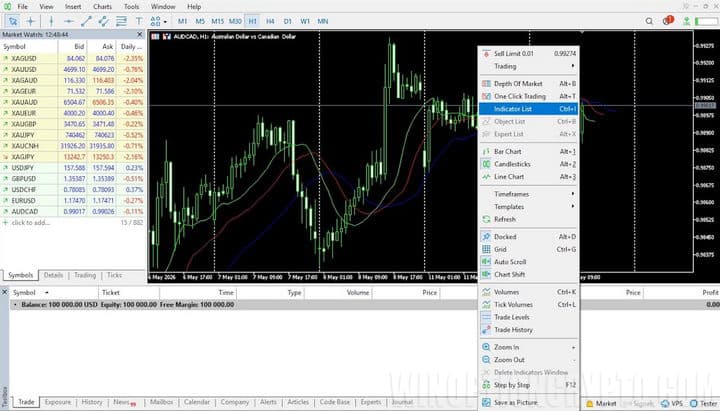
From there, you can modify indicator settings or remove them from the chart.
Graphical Tools
Graphical tools are added in the same way as indicators. The following tools are available for chart analysis in MT5 in PocketOption:
- lines;
- channels;
- Gann tools;
- Fibonacci tools;
- Elliott Wave tools;
- shapes (rectangle).
Some tools are also available directly on the toolbar for quick access:

To remove a tool from the chart, right-click the element and select "Delete Object." To adjust color and other properties, select "Properties":
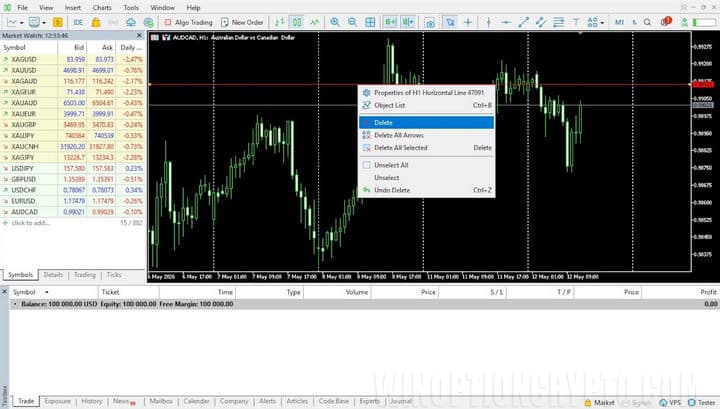
Chart Settings
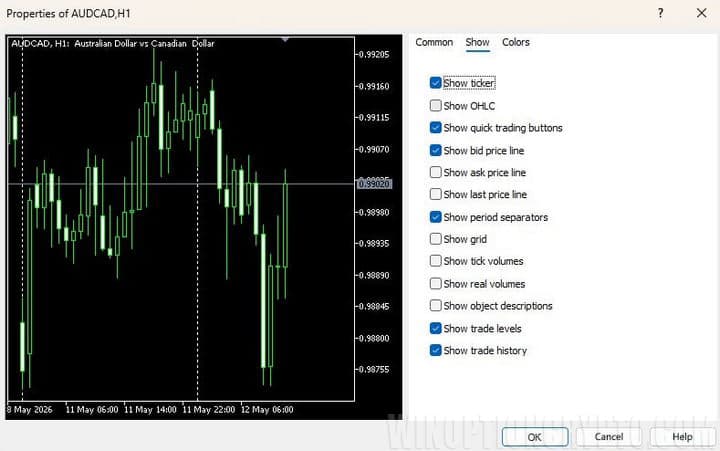
Right-clicking on the chart and selecting "Properties" opens the chart settings window, where you can choose from three color themes:
- Yellow on black;
- Black on white;
- Green on black.
You can also select the price display format — bars, candlesticks, or a line — and customize the grid, Bid and Ask lines, volume display, and more:
One-Click Trading
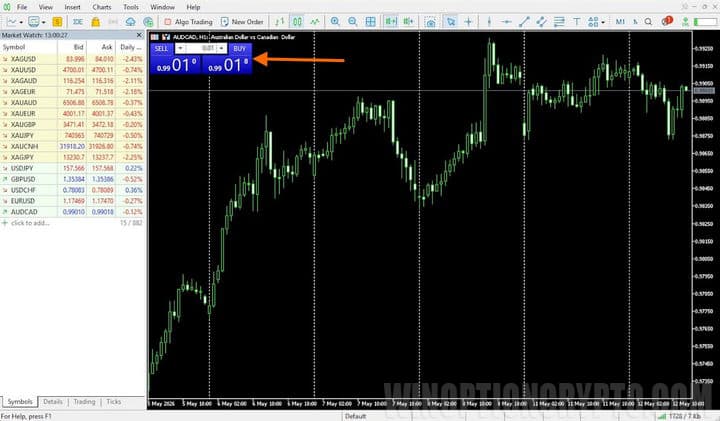
The MetaTrader 5 terminal in PocketOption supports one-click trading, as in standard MT4/MT5 clients. To enable it, click the small red-and-blue icon in the upper left corner of the chart; the panel that appears can then be used for fast order execution:
Pocket Option offers the following asset classes for Forex trading:
- currency pairs;
- indices;
- cryptocurrencies;
- commodities.
Conclusion
Pocket Option offers Forex trading through two terminals: the Forex MT5 platform built by PocketOption and the MT5 web terminal developed by MetaQuotes.
Traders familiar with the standard PocketOption interface for binary options will likely find the Forex MT5 terminal more intuitive, as it includes all the tools needed for technical analysis and charting. Traders who are used to the classic MT4 or MT5 platforms, on the other hand, will probably feel more at home with the MetaQuotes MT5 web terminal.
Both terminals are slightly less feature-rich than the desktop versions of MetaTrader 5, but unless you rely on custom paid indicators or a strategy tester, either browser-based version will fully support technical and graphical analysis and unrestricted Forex trading with this broker.
If you are new to binary options trading, start with a demo account to get comfortable with the terminal before switching to a live account. When funding your live account, be sure to use a Pocket Option promo code — our site always has current codes, which can earn you a deposit bonus of up to 150%.
Open an Account with PocketOption

To leave a comment, you must register or log in to your account.