
With smartphones now a fixture of daily life, it was only a matter of time before trading software developers brought binary options and Forex trading to mobile. The result is a mobile version of MT4 for Android, designed for smartphones and tablets running that operating system. With MetaTrader 4 on Android, traders can analyse charts and stay on top of market developments at any time, from anywhere.
Content:
- MetaTrader 4 for Android: overview of the mobile version
- MT4 for Android: main screen
- Opening trades in MetaTrader 4 on Android
- Managing open positions in MT4 for Android
- Working with charts in MetaTrader 4 for Android
- Additional features of MT4 for Android
- Conclusion
MetaTrader 4 on Android: Overview of the Mobile Version
Before exploring the app, you will need to download MT4 for Android. The application is free and available from the Google Play Store, where the latest version is always available.
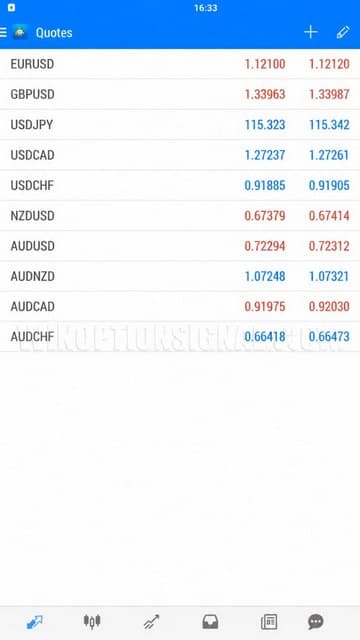
After downloading and installing MT4, you can register a free demo account, or log into an existing account using your username and password. Once logged in, the platform opens to a screen displaying live quotes for popular assets:
To open a new demo account or switch to a different one, go to Account Management:
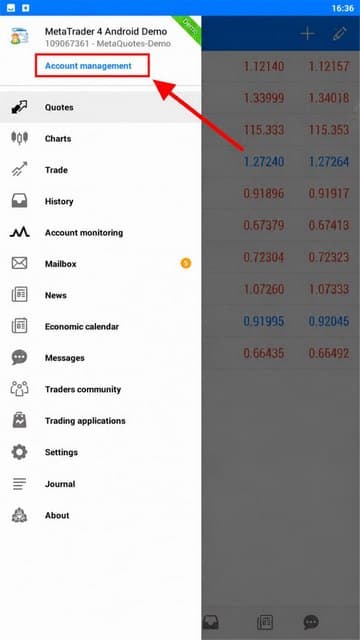
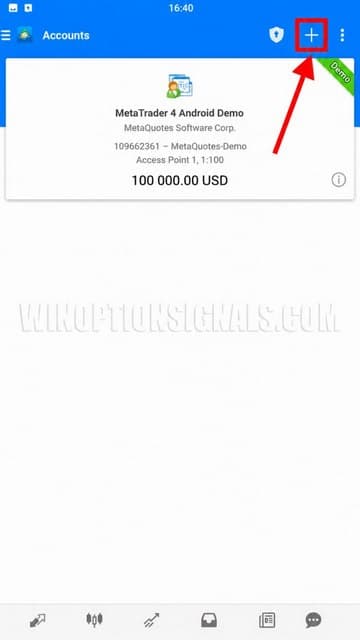
This section displays all your accounts and allows you to switch between them. To add a new account, tap the "+" button in the top right corner:
Whether you are opening a new demo account or connecting an existing one, you will need to select a broker. When connecting an existing account, enter your login credentials. When opening a demo account, fill in the required personal details:
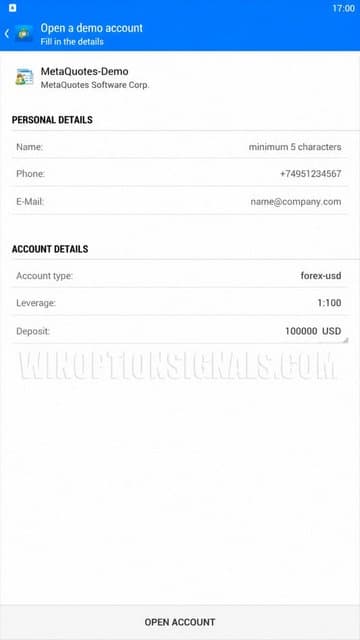
Once this is complete, the platform automatically loads the latest quotes and you can begin practising risk-free.
MT4 for Android: Main Screen
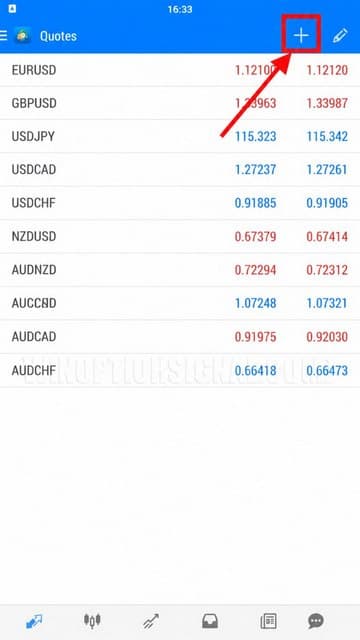
From the main quotes screen, you can add new assets. Tap the plus icon (located to the right) to add a trading instrument. The selected currency pair will then appear at the bottom of the list:
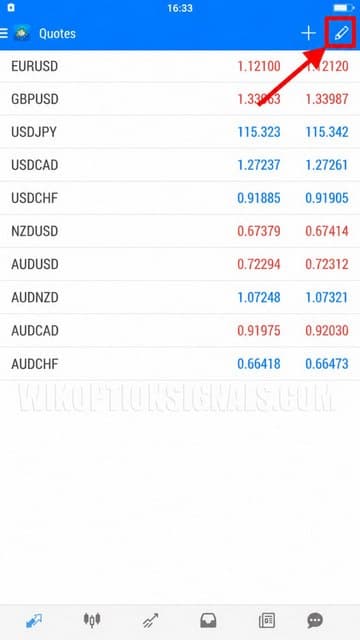
To remove instruments from the list, tap the pencil icon located next to the "+":
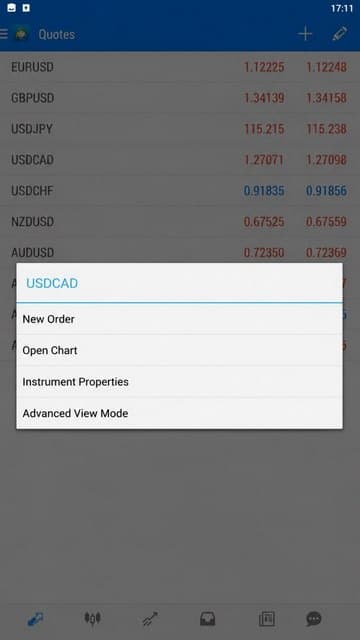
Tapping an asset opens a menu with the following options:
- Open a new trade
- Open chart
- View instrument properties
- Switch to detailed view
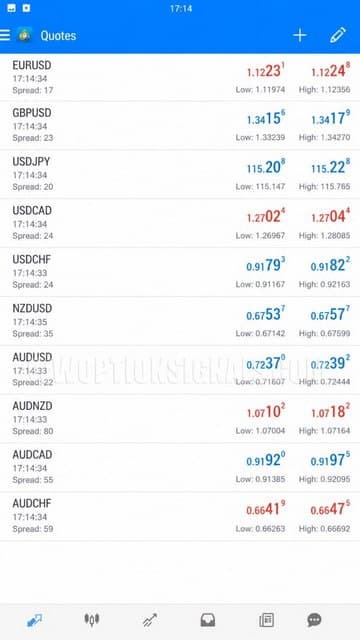
Detailed view shows the Ask and Bid prices, as well as the day's high and low:
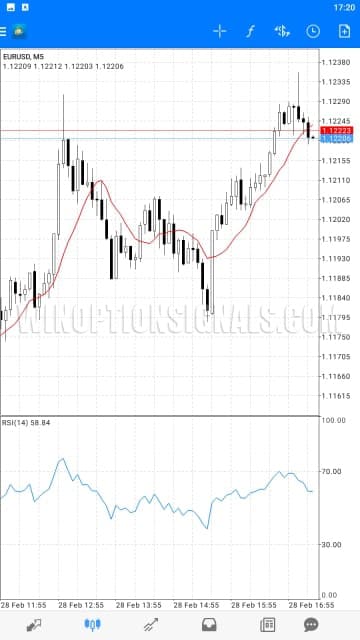
Tapping any asset and selecting Open Chart takes you directly to the price chart:
Opening Trades in MetaTrader 4 on Android
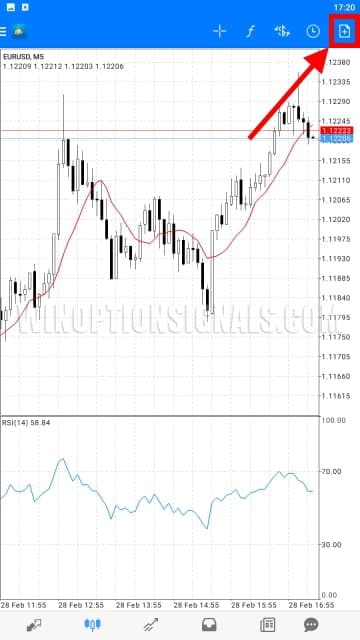
Trades can be opened in MT4 on Android either from the quotes screen or directly from the chart. On the quotes screen, select New Order. From the chart, tap the "page with a plus" icon:
When placing a trade, you can select the order type, set the lot size, define stop loss and take profit levels, then tap Buy or Sell to execute:
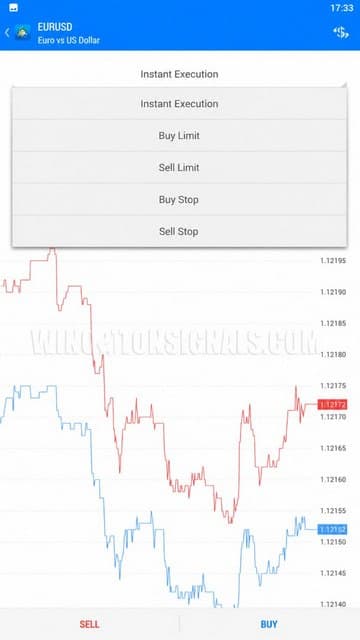
Five order types are available:
- Market execution
- Buy Limit
- Sell Limit
- Buy Stop
- Sell Stop
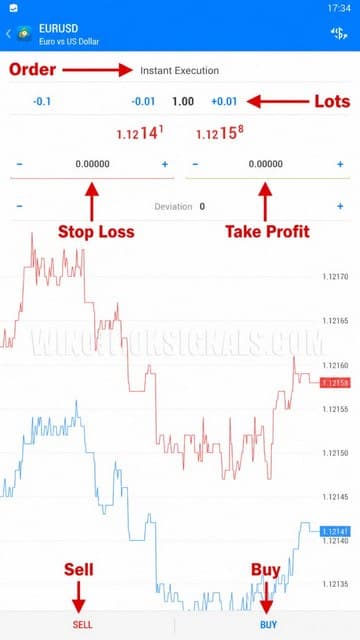
Managing Open Positions in MT4 for Android
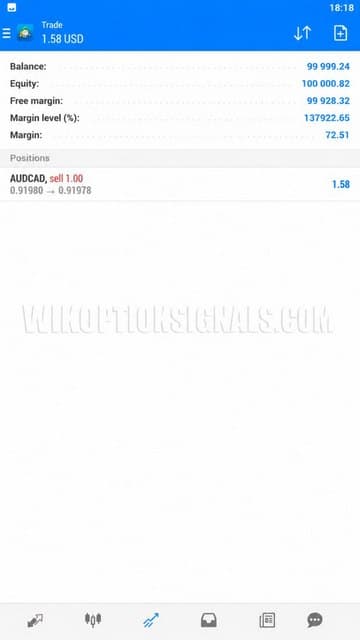
Once a trade is open, additional management tools become available. To view all open positions, go to the Trading tab in the menu, where you will find details of your trades and account status:
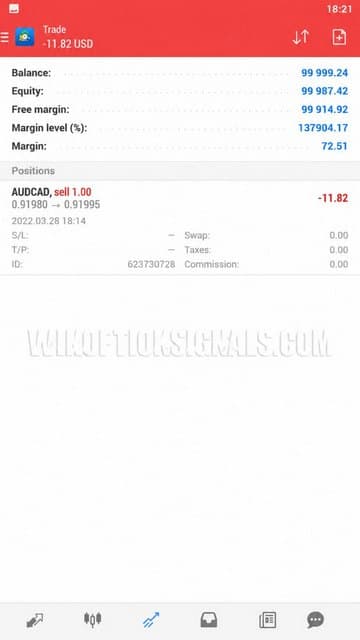
Tapping a trade opens a detail view showing the stop loss, take profit, tax, swap, commission, and trade ID:
Long-pressing a trade opens a context menu with the following options:
- Close order
- Open a new order
- Modify order
- Open chart
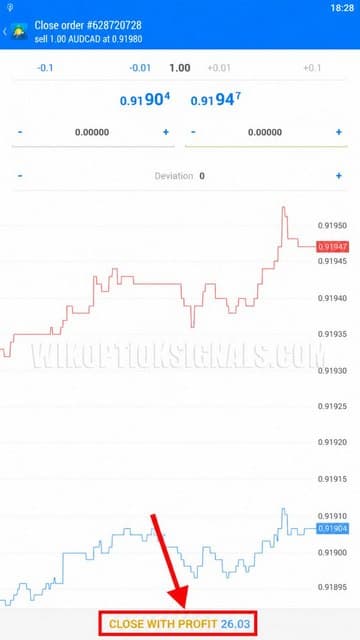
Selecting Modify Order allows you to adjust the stop loss and take profit. Selecting Close Order gives you the option to close the position fully or partially:
Working with Charts in MetaTrader 4 for Android
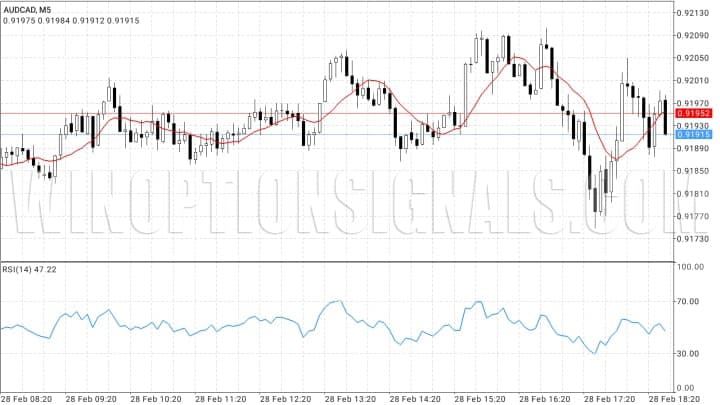
The chart view can be accessed from the trades menu or from the main navigation menu by selecting Charts. Charts open with default indicators applied, which can be removed if preferred. The chart works in both landscape and portrait orientation. Landscape mode looks like this:
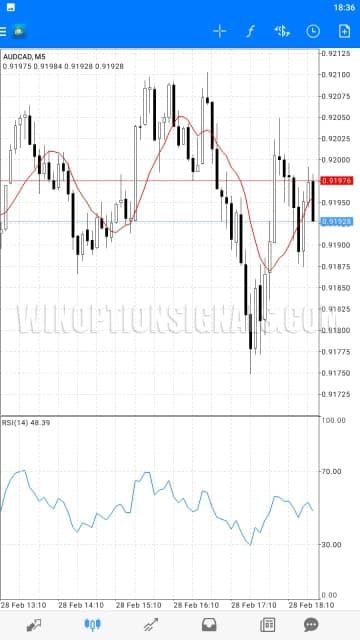
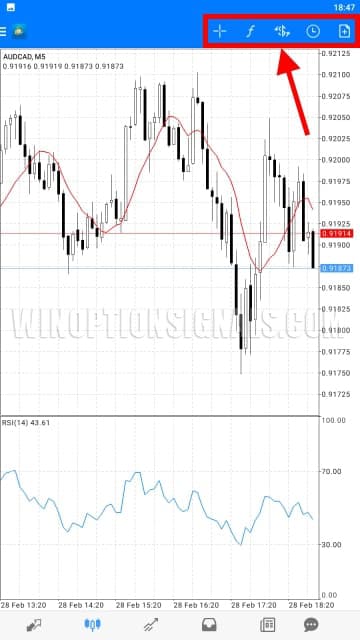
Portrait mode looks like this:
The toolbar above the chart provides access to:
- Crosshair
- Indicators
- Instruments
- Timeframes
- Place order
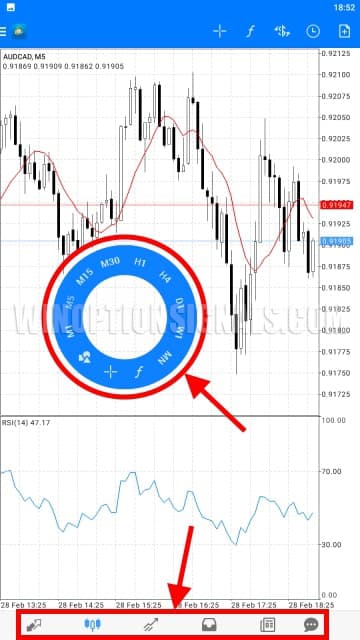
A subset of these functions — plus drawing tools — can also be accessed by tapping directly on the chart. The bottom navigation bar provides quick access to:
- Quotes
- Charts
- Trades
- Trade history
- News
- Messages
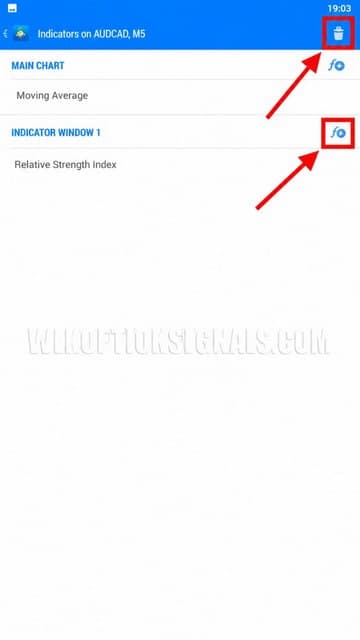
To manage indicators, tap the "f" icon to open the indicator list. From here you can add a new indicator or edit an existing one. Tap the bin icon to remove an indicator, or "f+" to add one:
Custom indicators cannot be added in MT4 for Android — only the built-in indicators from the desktop version are available. This is a known limitation of mobile trading platforms. That said, the built-in selection covers the indicators most commonly used by traders, including:
- SMA
- Bollinger Bands
- Stochastic Oscillator
- MACD
- RSI and others
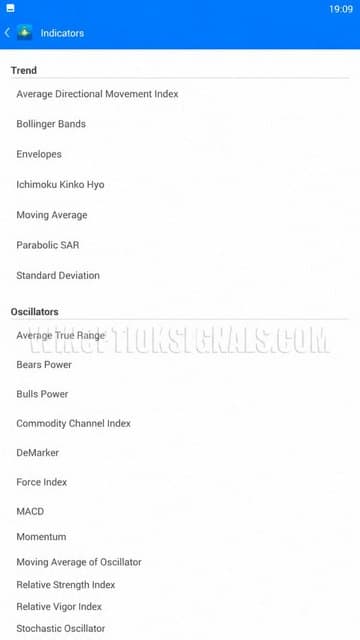
Once you have selected an indicator, you can configure its parameters — such as period, colour, and so on:
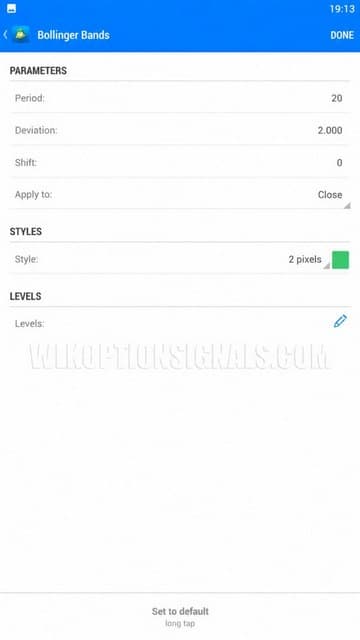
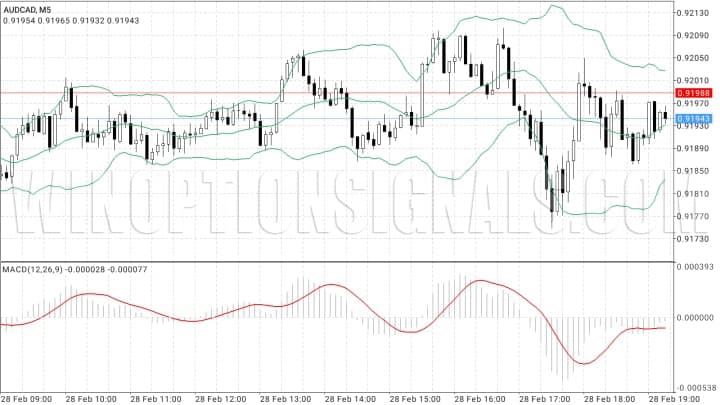
Tap Finish to apply the indicator to the chart:
The app also supports drawing tools, with over twenty objects available — including rectangles, trend lines, horizontal levels, channels, and more:
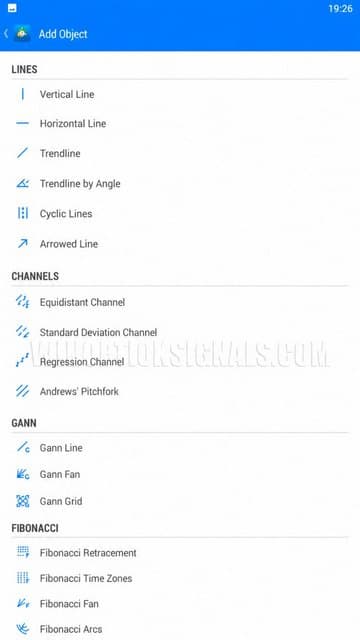
To add a drawing object, tap the chart to open the radial menu and select the shapes icon. Then tap the "+" in the top corner to choose the object and configure it. Drawing tools are particularly useful for plotting support and resistance levels:
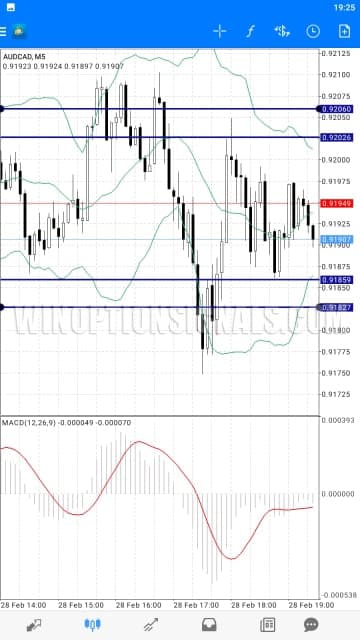
Added objects can be moved and resized. To delete an object, tap the bin icon in the objects menu. There is no limit to the number of objects that can be added.
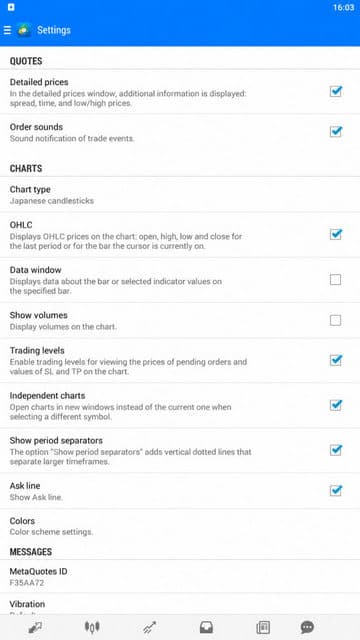
Additional chart settings are available under Settings in the side menu. In the Charts section, you can enable or adjust the following:
- Chart type (candlesticks, bars, or line)
- OHLC display (open, high, low, and close prices)
- Data window (information shown when using the crosshair)
- Volume display (tick volumes)
- Trading levels (stop loss and take profit lines on the chart)
- Linked charts (apply drawing objects across all timeframes for the selected instrument)
- Period separators
- Ask price line
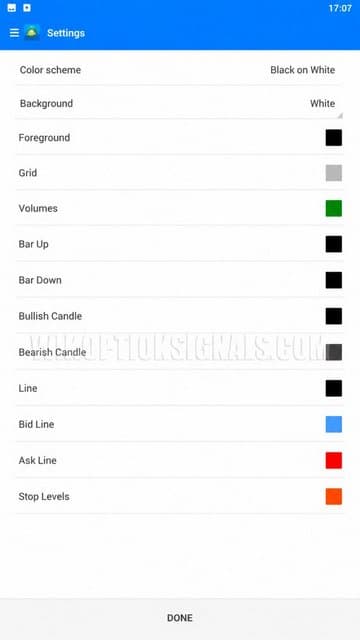
- Colour scheme (chart and candle colours)
MT4 for Android includes both a light and dark colour theme, and all colours can be customised individually:
Additional Features of MT4 for Android
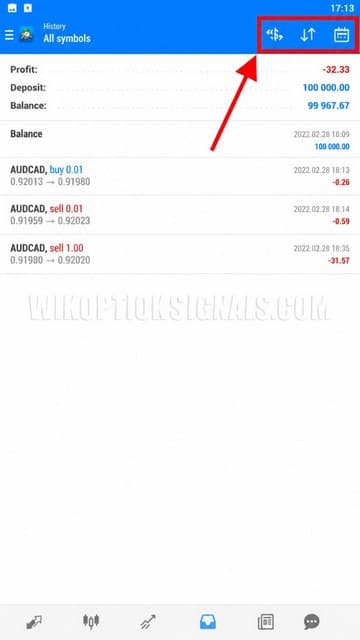
As mentioned earlier, the bottom navigation bar also provides access to account information and trade history, where data can be filtered by instrument, time, profit, and date:
The News section provides financial and economic news, which can be filtered by category:
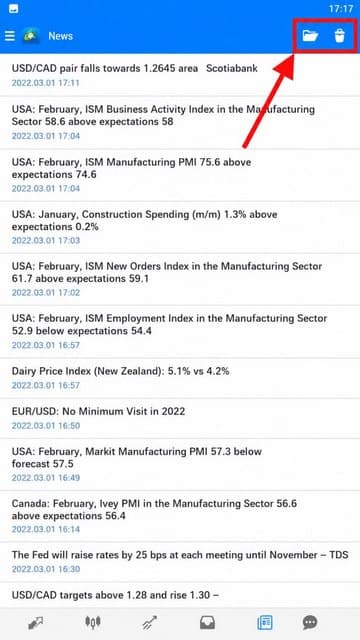
The side menu provides access to all of the above functions, along with the following additional features:
- Account monitoring
- Economic calendar
- Trader community
- Trading applications
- Journal
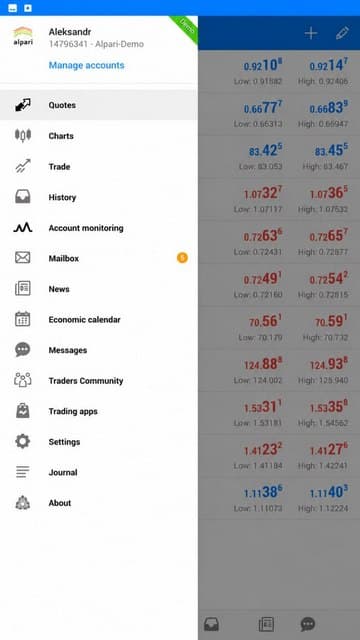
Note that Account Monitoring requires registration in the MQL5 community, and the economic calendar only functions through a dedicated application.
Conclusion
MetaTrader 4 for Android delivers the same core trading functionality as the desktop version, accessible from any location. If you have an Android smartphone or tablet, you can download MT4 for free from the Google Play Store and get started immediately.

See Also:
- How to choose a binary options broker
- How do binary options brokers make money
- What novice traders need to know about binary options
- MetaTrader 4 — user guide for beginners
To leave a comment, you must register or log in to your account.