
The MetaTrader 4 terminal is popular in the trading world, as every Forex broker and even some binary options brokers provide access to trading through it.
This trading platform was created by MetaQuotes in 2005. The terminal is easy to use and, at the same time, offers extensive functionality and supports many languages, which is why it has earned its popularity.
Contents:
- Why do all brokers use the MetaTrader 4 terminal?
- Installing the MetaTrader 4 terminal for dummies.
- Demo account and real account in the MetaTrader 4 terminal for dummies.
- Trading assets in the MetaTrader 4 terminal.
- Time in the MetaTrader 4 terminal for dummies.
- Working with charts in the MetaTrader 4 terminal for trading binary options.
- Setting up charts in the MetaTrader 4 terminal.
- Types of charts in the MetaTrader 4 terminal.
- Timeframes in the MetaTrader 4 terminal.
- Indicators in the MetaTrader 4 terminal.
- Trading in the MetaTrader 4 (Forex) terminal.
- What to do if MetaTrader 4 displays hieroglyphs instead of letters.
- Conclusion.
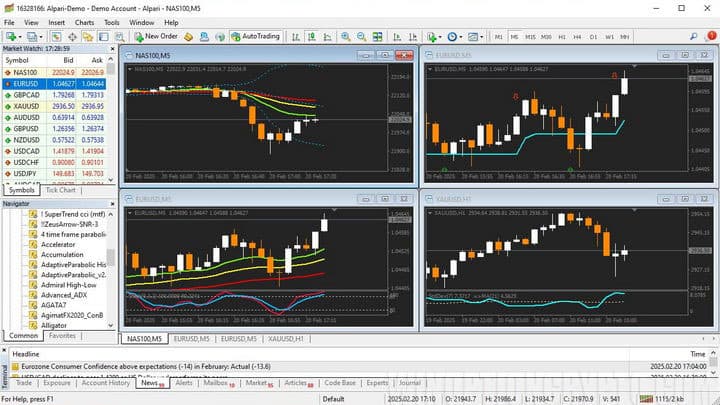
Why Do All Brokers Use the MetaTrader 4 Terminal?
Initially, the terminal was created for trading currency pairs on the Forex market, but it now supports virtually any financial instrument a broker provides. These include:
- Currencies.
- Metals.
- Indexes.
- Futures.
- Cryptocurrencies.
- CFDs.
- Stocks.
Brokers use this terminal because of its versatility and straightforward interface, which includes everything necessary for trading. Next, we'll look at how to use MetaTrader 4 for analysis and trading.
Installing the MetaTrader 4 Terminal for Dummies
To start using MetaTrader 4, you need to select a broker, open an account, and then download MT4 from the broker's website. You can also download the terminal from the official website metatrader4.com or at the end of this article.
MetaTrader 4 is available on Windows PCs and as a broker-provided version for Mac OS, as well as on Android and iOS smartphones and tablets.
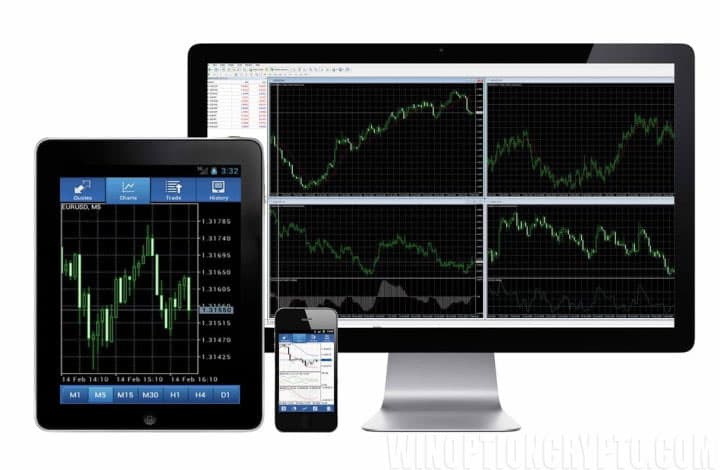
After the terminal installation file has been downloaded, run it, and the following window will appear:
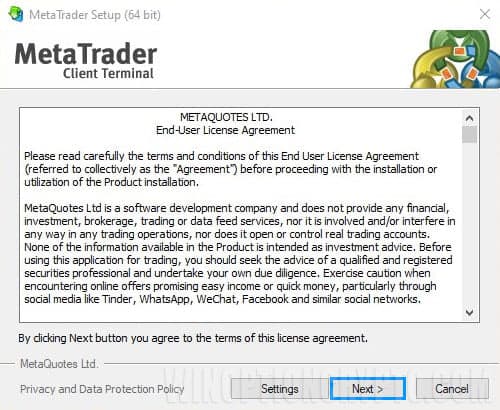
By clicking the "Settings" button, you can specify the installation path. By default, the C: drive is used.
After making your selection, click the "Next" button to continue the installation. Once complete, the terminal will launch automatically.
Demo Account and Real Account in the MetaTrader 4 Terminal for Dummies
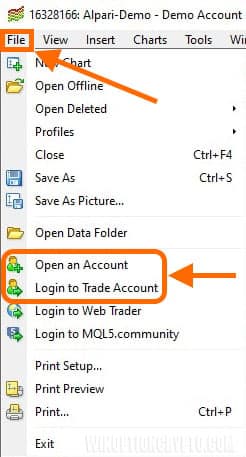
After launching MetaTrader 4, you can connect to an existing account or open a new real or demo account. To do this, click the "File" tab and select either "Open an account" or "Connect to a trading account" from the menu that appears:
After scanning the broker's servers, a window for registering a new account will open:
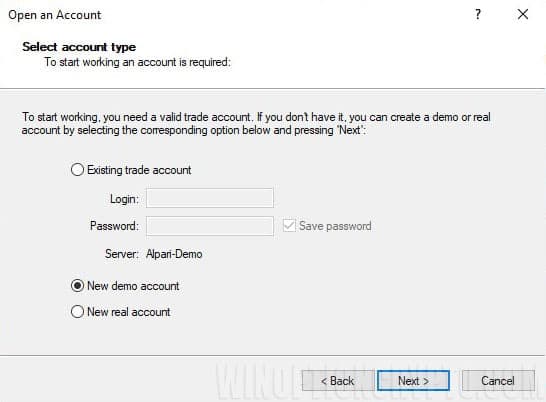
To open an account, enter your details and select your preferred leverage and account size. Once registered, you will be able to use MetaTrader 4 and all its features on a virtual account. A demo account is primarily useful because it allows you to learn how to:
- use the terminal;
- place trades;
- work with charts and graphical tools;
- work with indicators.
If you already have a real account, you can connect to it in the same way by entering your account credentials.
Trading Assets in the MetaTrader 4 Terminal
Depending on the broker, the terminal may offer a wide variety of trading assets, but currency pairs are the most popular choice among traders. EUR/USD and GBP/USD are consistently the most traded pairs, with gold and silver close behind.
To view the trading instruments your broker provides, click the "Market Watch" button on the top panel:
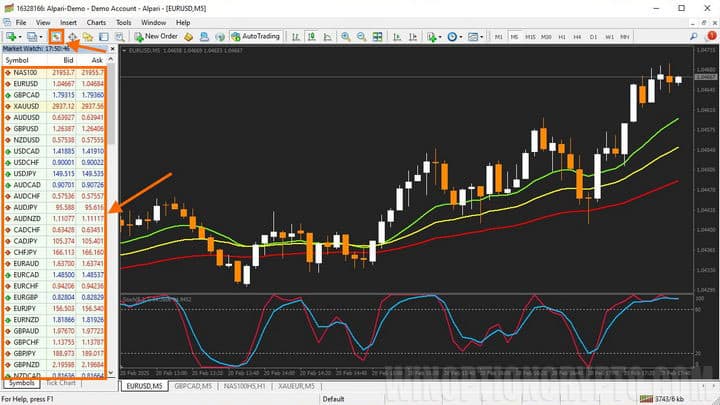
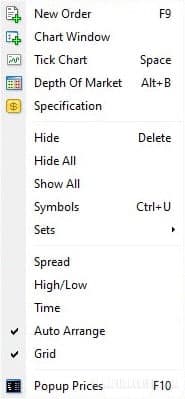
You can open a chart for any trading asset to perform technical analysis or assess the current market situation. To do this, right-click on the desired instrument and select the relevant option from the menu that appears:
Time in the MetaTrader 4 Terminal for Dummies
Some brokers do not have servers located in Europe, so the time displayed in the terminal may differ from your local time. In that case, you can either calculate the time difference manually or use time indicators to do this more quickly.
To better understand exchange and market activity, you can also refer to trading session times.
It is worth noting that all markets are closed on weekends. The Forex market closes at 10:00 PM UTC on Friday and reopens at 10:00 PM UTC on Sunday.
Working with Charts in the MetaTrader 4 Terminal for Trading Binary Options
Traders who trade binary options often use the MT4 terminal for chart analysis. When working with charts, you can use:
- Indicators.
- Various timeframes.
- Expert Advisors and scripts.
- Alerts.
- Different chart types.
- Templates.
Comparing the web terminals of binary options brokers with the MetaTrader 4 terminal, the difference in charting tools and overall capabilities is immediately apparent.
Setting Up Charts in the MetaTrader 4 Terminal
One of the key advantages of MetaTrader 4 is the ability to have a large number of charts open simultaneously and switch between them quickly using the tabs on the bottom panel:
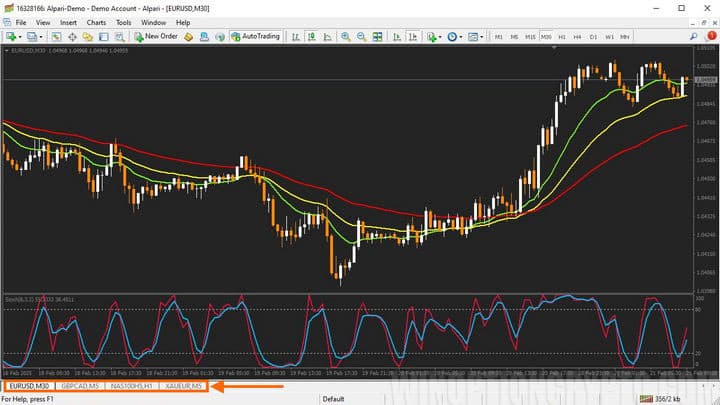
You can scroll back through any chart to view historical data and adjust the chart scale using the toolbar buttons or the "+" and "−" keys on your keyboard.
The visual appearance can also be customized by right-clicking on the chart and selecting "Properties." In the panel that opens, you can choose the background color, text color, candle or bar colors, and pre-configured standard template settings:
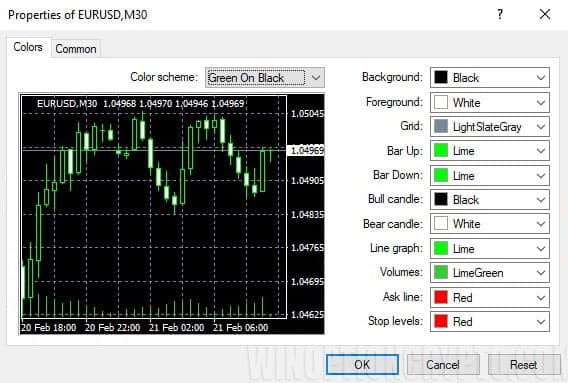
Once a chart is configured to your preference, it can be saved as a template and applied each time without needing to reconfigure it.
Working with charts in MetaTrader 4 is straightforward and easy to grasp, even for beginners.
Types of Charts in the MetaTrader 4 Terminal
There are three types of charts in MT4:
- Candlesticks;
- Bars;
- Line.
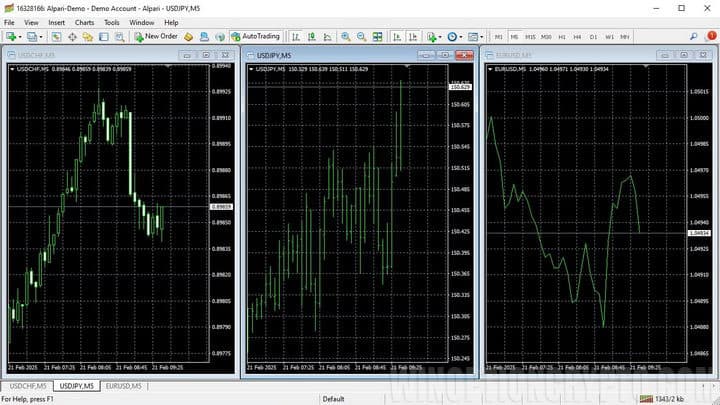
The candlestick chart is the most popular worldwide. In binary options trading, the line chart is often preferred. Bar charts are rarely used today, though they were widely popular in the past.
Timeframes in the MetaTrader 4 Terminal
A timeframe is the time period represented by each bar or candle on the chart. In theory, a timeframe can range from one second to a full year, but MetaTrader 4 offers nine built-in timeframes:

Timeframes can be divided into:
- Long-term. Daily, weekly, and monthly;
- Medium-term. 30-minute, hourly, and 4-hour charts;
- Short-term. Charts from 1 minute to 15 minutes.
Trading is possible on any timeframe, but the strategy should be chosen to match the specific trading style used on that timeframe.
Note: do not assume that shorter timeframes are easier to trade. In fact, shorter timeframes tend to create the most difficulty. Many beginners are drawn to 60-second binary options expirations hoping for quick profits, while overlooking the risk of equally quick losses. The same applies to Forex trading — the shorter the timeframe, the more price noise appears on the chart, which can frequently mislead traders.
Indicators in the MetaTrader 4 Terminal
MetaTrader 4 allows you to easily add a large number of custom indicators — either created yourself or downloaded from the internet. The process of installing third-party indicators is straightforward.
How to install indicators in MetaTrader 4:
Indicators are widely used to anticipate future price direction, and almost all trading strategies incorporate them. However, it is important to understand that indicators follow price — not the other way around. Understanding the market context should always come first, with indicators serving as a supporting tool.
Understanding how to identify a trend is also essential in trading, as trading with the trend is one of the most reliable ways to maximize profitability. This topic can be broken down into:
- Identifying and using bullish and bearish trends;
- How to correctly determine trend phases;
- How to identify a flat market;
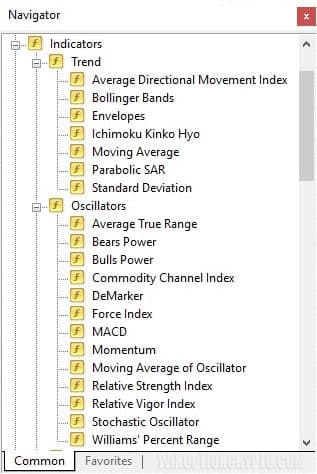
The MetaTrader 4 terminal also includes a set of standard built-in indicators, which can be added via the "Insert" tab on the top panel or from the "Navigator" panel:
Trading in the MetaTrader 4 Terminal (Forex)
If you plan to trade on the Forex market, you will be able to open positions on all trading assets your broker provides.
The terminal supports market orders (to open a trade at the current price) and limit orders (to set pending orders at a specified price). Take profit, stop loss, and trailing stop are used to manage open positions:
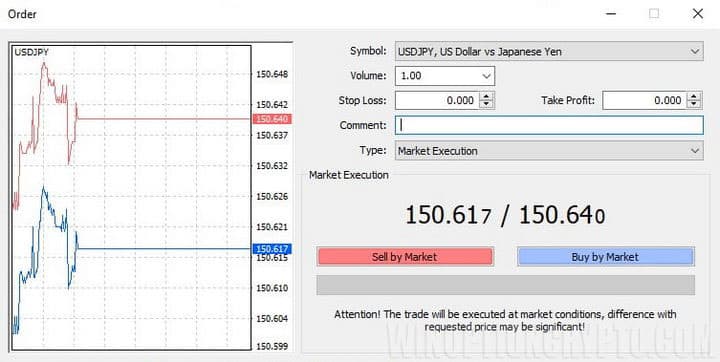
The best way to learn how orders work in the terminal is to practice on a demo account. After some practice, you will gain a thorough understanding of the order execution process.
When trading through MT4, you will also make frequent use of the "Terminal" panel at the bottom of the screen. This panel lets you track a wide range of information useful to traders and contains the following sections:
- Account balance and all active trades.
- Assets currently held in the account.
- Full history of all trades and orders, including pending and cancelled ones.
- News, where the most important economic events from around the world are published.
- Alerts, where all alerts you have set are displayed.
- Mailbox, which receives messages from the broker regarding company updates, trading schedules, platform notices, and interruptions.
- Market, where you can find both paid and free indicators, strategies, and Expert Advisors for download directly into the terminal.
- Signals, where other traders post their trading signals — both paid subscriptions and free signals are available.
- Articles, where materials on various topics are published — from trading techniques to indicator and system development.
- Library, where original indicators and Expert Advisors are published with detailed descriptions of their algorithms.
- Experts, where you can view all activity and logs related to the Expert Advisors you have used.
- Journal, which records all actions performed by the trader in the terminal.

What to Do if MetaTrader 4 Displays Hieroglyphs Instead of Letters
Some users encounter font display issues in MetaTrader 4. Instead of regular text, hieroglyphs may appear in indicator settings, menus, text labels on the chart, or in pop-up alerts:
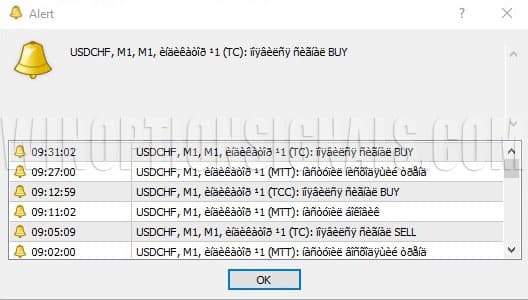
This issue can be resolved by changing the regional settings for non-Unicode programs in your operating system.
On Windows, go to Language Settings — Administrative Language Settings. In the "Language for non-Unicode programs" section, set the current system language to Russian (Russia), then restart your computer when prompted.
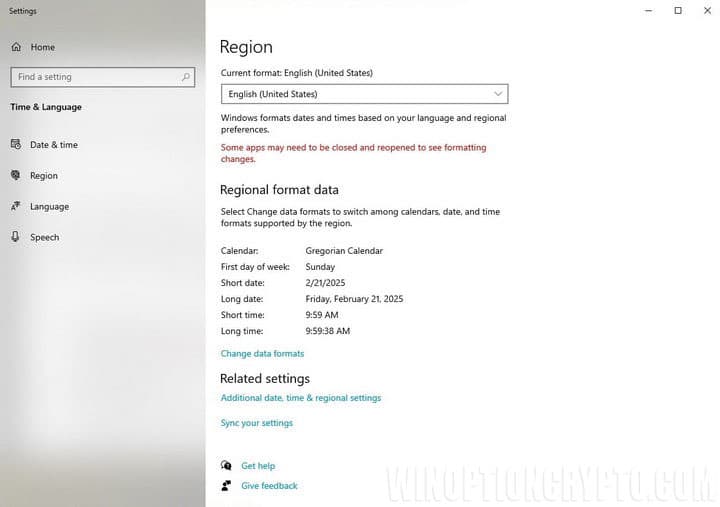
On macOS, go to System Preferences — Advanced — Region and select "Russia" to enable correct Cyrillic character display in MT4.
After restarting the system, the font display issue in MT4 will be resolved.
Conclusion
As this guide has shown, MetaTrader 4 is suitable for all traders, whether they trade binary options or currencies on the Forex market. The best way to get familiar with the terminal is through a demo account, which lets you explore all its features and understand the details of working with MetaTrader 4 without any financial risk. A demo account is also useful for testing strategies and indicators.
For most traders, MetaTrader 4 remains an indispensable platform that allows you to trade, test, and analyze a wide variety of assets at any time and from anywhere.
Download the MetaTrader 4 Trading Terminal

See Also:
- Psychology in trading - what does a beginner need to know?
- Pros and Cons of Binary Options Trading
- Books on trading
- How to make money on binary options
To leave a comment, you must register or log in to your account.