
For a long time, the development of online trading platforms for binary options lagged behind the financial asset trading programs already popular among traders. In particular, the MetaTrader 4 developers resisted releasing a web version of the application for years — but the MT4 web terminal is now available to traders. The interface of the web version, however, differs slightly from its desktop counterpart.
Contents:
- Main tabs of the MT4 web version;
- File;
- View;
- Insert;
- Charts;
- Settings;
- Icons on the working panel of the MT4 web version;
- New chart;
- Placing an order;
- Adding new trading assets;
- Market Watch;
- Chart interface;
- Setting up chart parameters;
- Opening an order;
- Trading terminal interface;
- Order history;
- Journal;
- Advantages and disadvantages of the MT4 web version;
- MetaTrader 5 web version;
- Conclusion.
Main Tabs of the MT4 Web Version
The list of main menus remains unchanged. Experienced binary options traders will therefore find the MT4 web version easy to navigate.
File
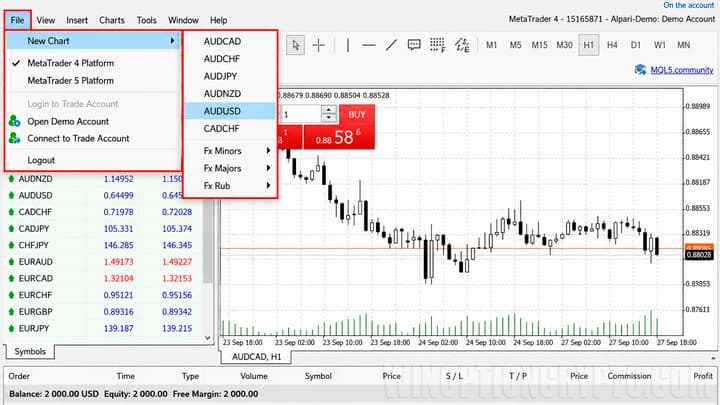
The sections in this menu will be familiar to anyone who has used MT4 before. Through "File" you can open charts available in the online terminal, launch a demo account, or switch to a live account:
View
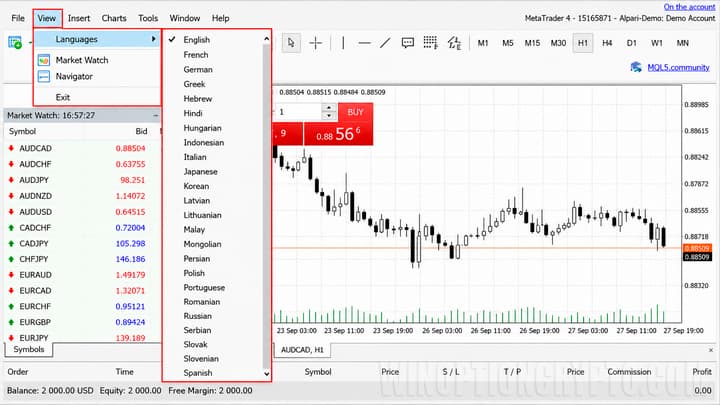
This menu lets you set the display language for the web platform. You can also enable or disable the Market Watch window and the toolbar (trading terminal) from here:
Insert
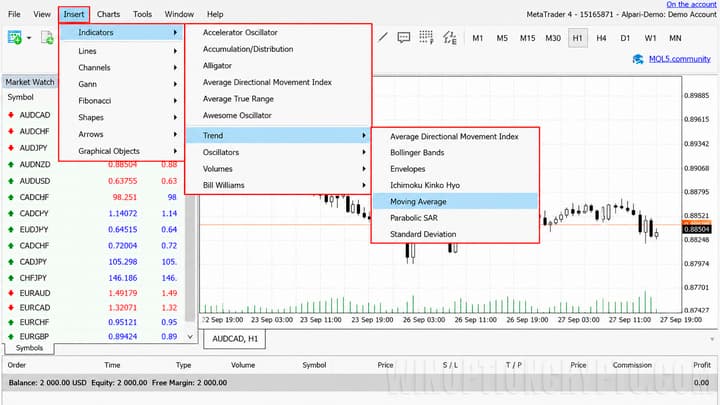
To add technical analysis tools, go to the "Insert" menu. Compared to earlier versions, it now includes a broad range of indicators:
Charts
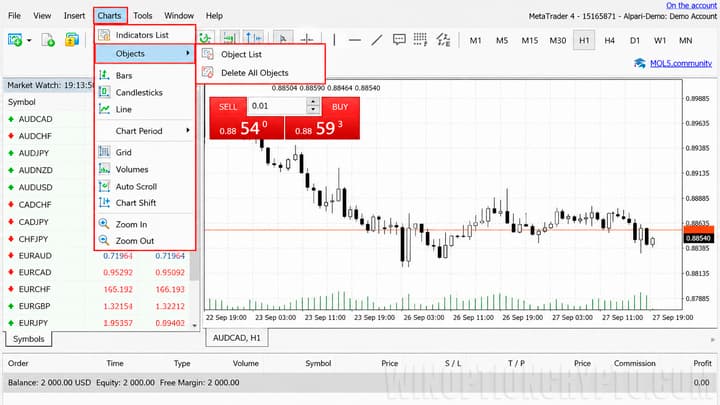
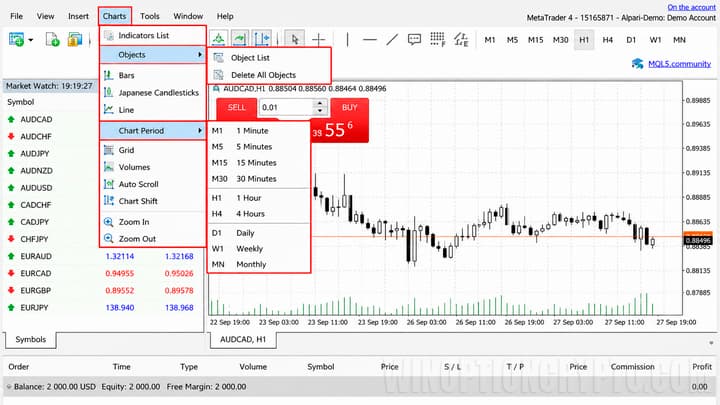
Through this menu you can:
- Display or delete a list of objects added to the open chart.
- Switch between chart display modes — bars, candlesticks, or line.
- Change the timeframe. Like the desktop version, the web terminal supports all standard time intervals from one minute to one month.
- Add or remove the grid and enable trading volumes.
- Change the chart scale.
- Enable auto-scroll and chart shift.
| List of objects in the MT4 web version | Timeframes in the MT4 web version |
 |
 |
Settings
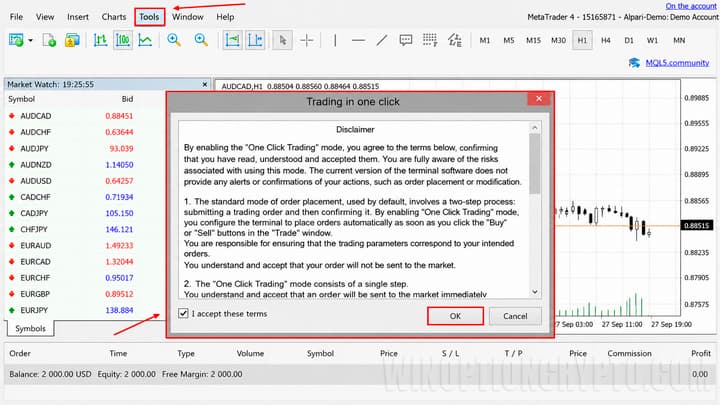
The Settings menu in the MT4 web version remains limited in scope. Here, traders can enable one-click trading for faster order execution:
Icons on the Working Panel of the MT4 Web Version
For ease of use, the MT4 web version places a number of icons on a dedicated toolbar, giving quick access to the most frequently used functions.
New Chart
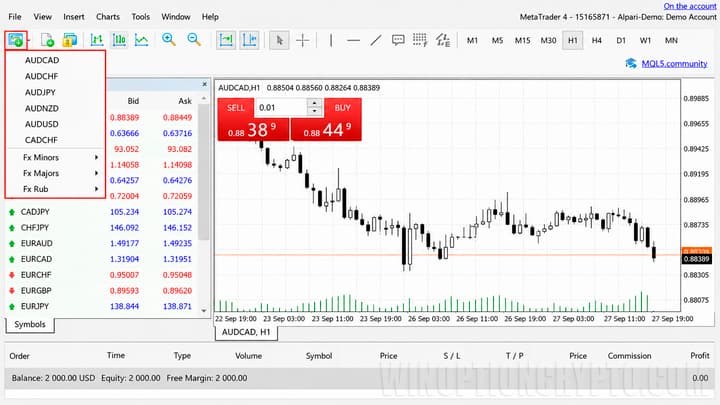
Clicking this icon opens a new chart from the list of instruments available through the connected Forex broker:
Placing an Order
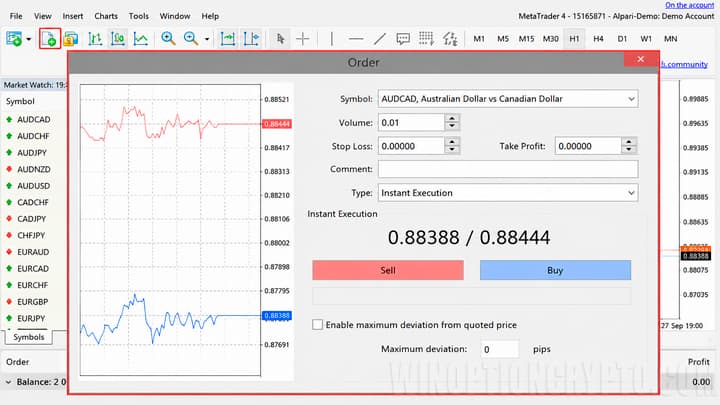
Clicking this icon opens the order placement panel for submitting a new trade:
Adding New Trading Assets
When creating a chart, the web terminal displays a limited list of instruments by default. Traders working with metals, currency pairs, indices, cryptocurrencies, or CFDs can click this icon to add additional assets:
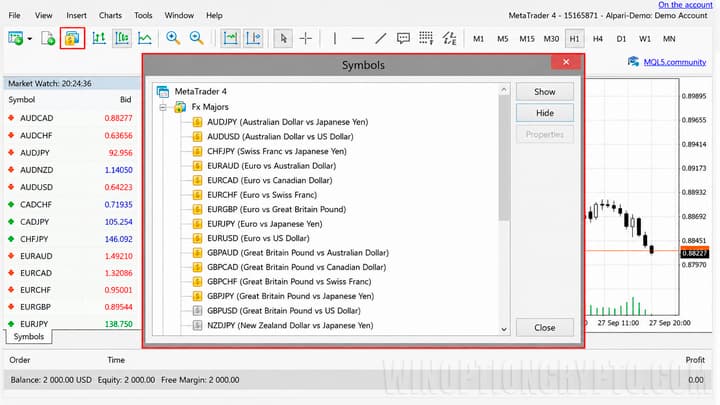
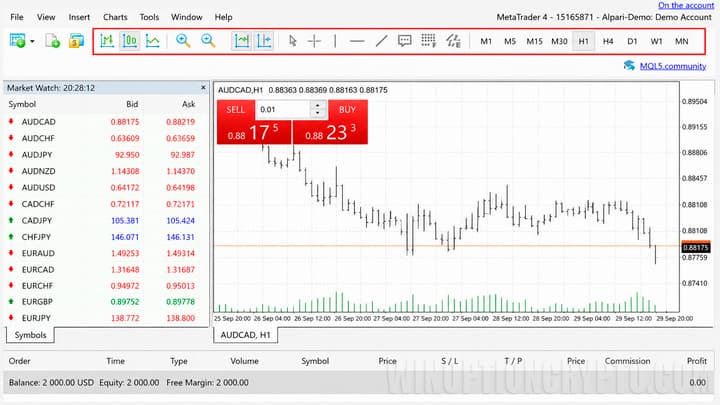
The remaining toolbar icons duplicate the functions described above, allowing traders to:
- switch between chart display types (candlesticks, bars, etc.);
- adjust the chart scale;
- enable chart shift and auto-scroll;
- use graphical analysis tools, including Fibonacci lines and trend lines;
- change the timeframe.
Market Watch
After the first launch, traders have access to a limited set of assets. To display all available instruments, right-click anywhere in the Market Watch panel and select "Show All." The same context menu can be used to open an order placement window or launch a chart for the selected asset. It also allows you to view the contract specification, enable display of highs and lows, spreads, and time intervals:
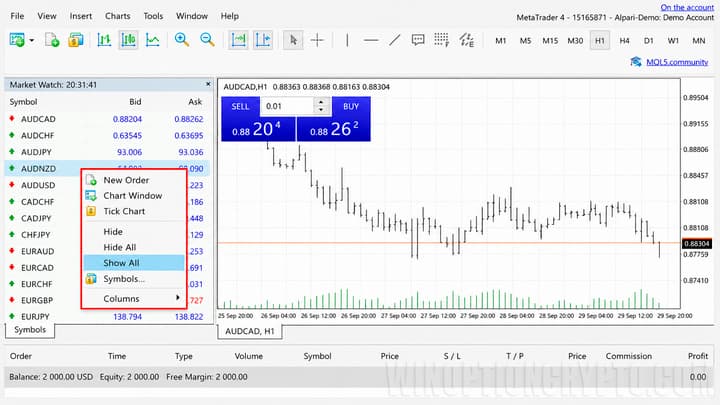
Chart Interface
A small icon on the left side of the chart opens the one-click trading toolbar, which allows traders to:
- open orders with a single click;
- select the order direction (buy or sell);
- adjust lot size manually or using the arrows.
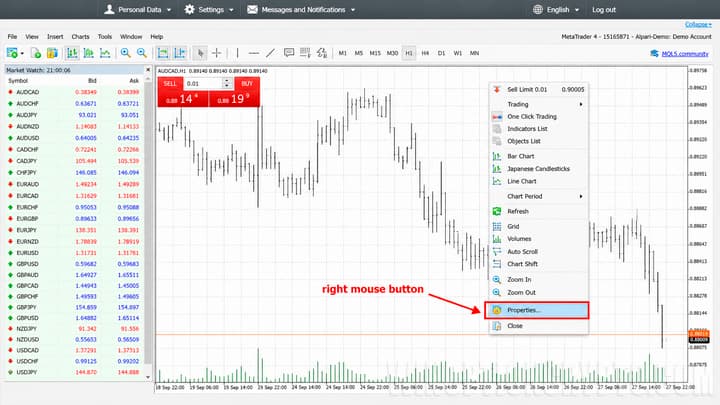
Right-clicking on the chart opens a quick-access menu:
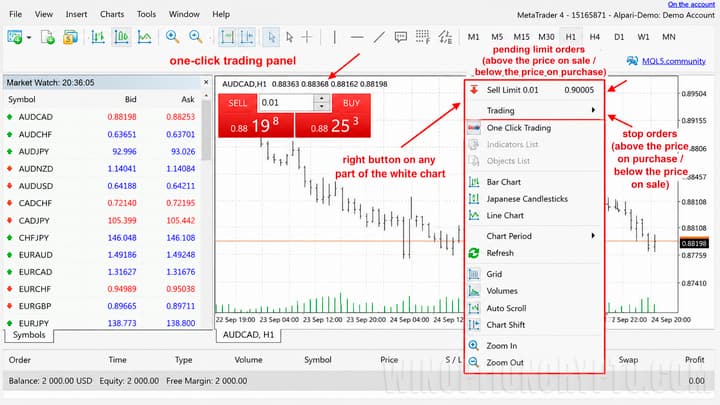
From this menu, traders can set pending limit orders with the appropriate parameters (above or below the current price), place stop orders that trigger execution at a specified price level, or configure chart properties.
Setting Chart Parameters
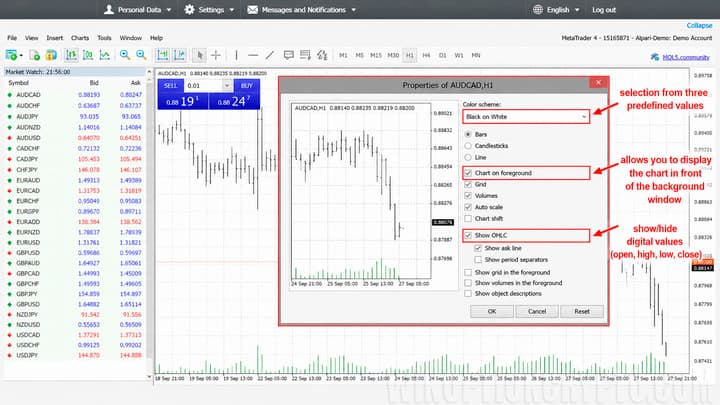
This menu is used primarily to improve chart readability. Traders can change the color scheme by choosing from three available options. Checking "Chart on top" keeps the chart displayed above any overlaid analysis tools. The menu also allows traders to show or hide ask, high/low, open/close lines, and daily period separators, as well as toggle object display and other settings:
| Properties menu | Chart properties settings |
 |
 |
Opening an Order
The new order window contains all the information a trader needs. It displays available instruments by their ticker symbols and allows you to specify the trade volume, stop loss, take profit, and execution price. The order type is also set here — pending or market execution:
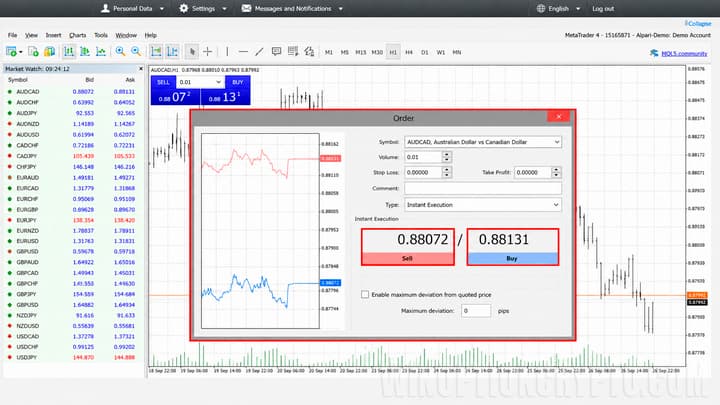
When market execution is selected, the terminal shows the current bid and ask prices along with Buy and Sell buttons. In this mode, traders can also specify the maximum allowed price deviation (in points).
When placing a pending order, traders set the target price, expiration date/time, and other relevant parameters.
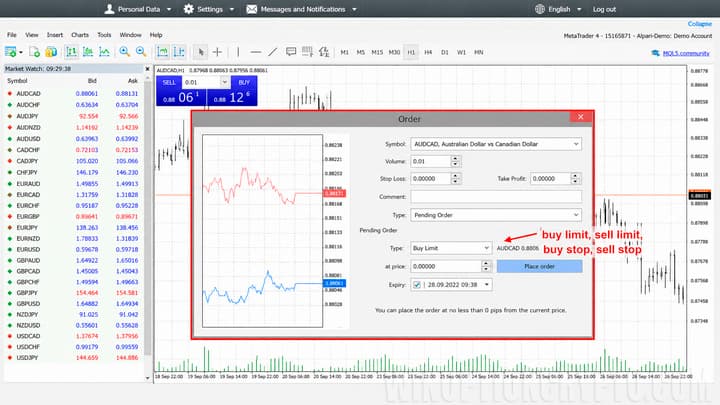
Order management in the MT4 web version works the same way as in the desktop version. Stop loss, take profit levels, and pending orders can be moved directly on the chart by holding the left mouse button.
Trading Terminal Interface
The trading terminal displays the following information as standard:
- order ticket number;
- time the trade was opened;
- trade type (buy or sell);
- volume;
- asset symbol;
- open price and current price;
- floating profit/loss;
- stop loss and take profit levels.
Positions can be closed with a single click using the close button:
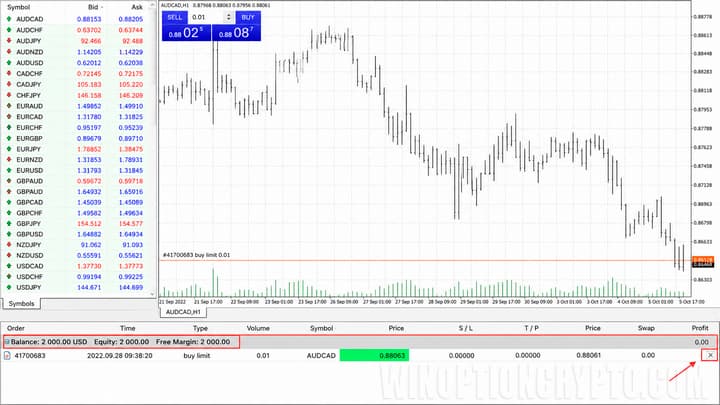
The separator line between open positions and orders displays the account balance, equity, and three margin values: margin used, free margin, and margin level.
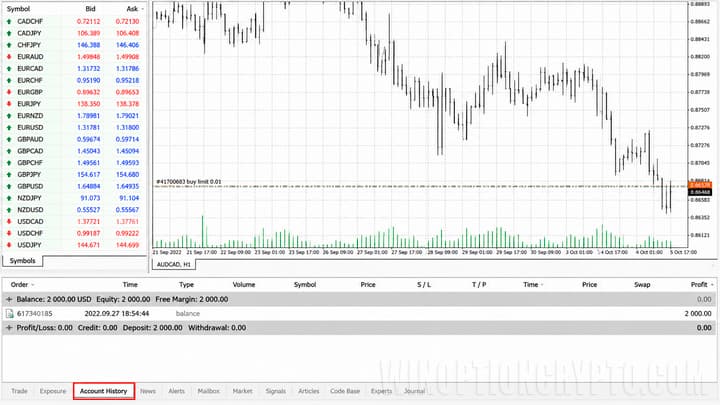
Order History
This section is used to review previously closed trades:
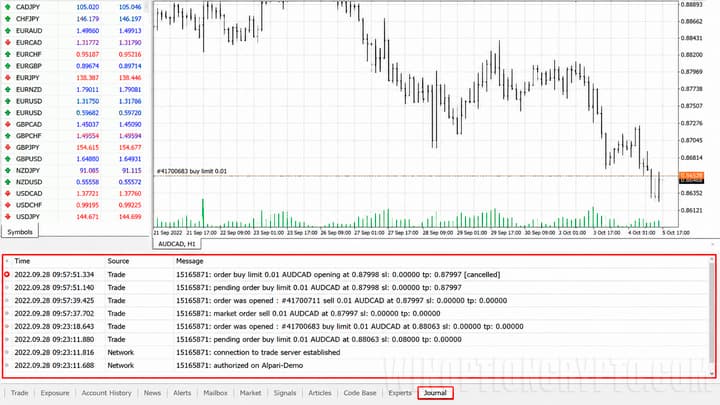
Journal
The Journal logs all operations carried out through the trading terminal:
Advantages and Disadvantages of the MT4 Web Version
The MT4 web version has improved significantly compared to its early releases. Traders are no longer restricted in their choice of built-in indicators or graphical analysis tools. That said, the web terminal does not support custom indicators, Expert Advisors, or strategy testing. It also lacks the ability to reconfigure the interface layout or change the color scheme beyond the available presets, and price alerts are not supported.
On the other hand, the web version gives traders access to MT4 from any device with an internet connection, requires no software updates, and runs on any operating system.
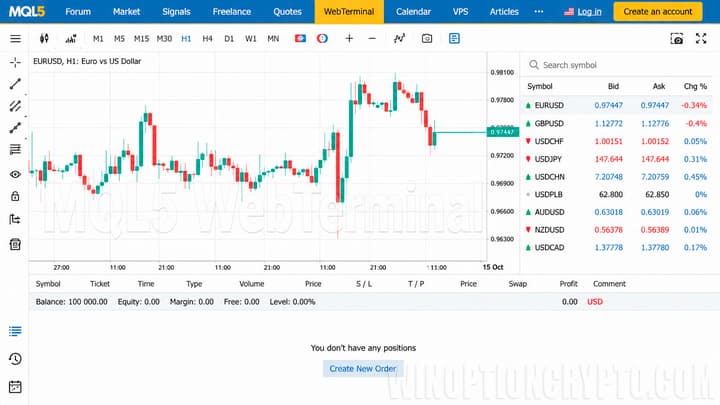
Web Version of MetaTrader 5
The MT5 web terminal is also available and represents a newer, more advanced version of the platform. It features an updated interface and expanded functionality, including:
- real and tick volumes;
- graphical toolbar;
- Order menu and much more.
Conclusion
The MT4 web terminal still has room for improvement, but the availability of an online version significantly expands trading opportunities for those who prefer not to install desktop software. Due to its limited set of analysis tools, however, this platform is best suited to traders who rely on standard built-in indicators rather than custom or automated approaches to binary options trading.

To leave a comment, you must register or log in to your account.