
Installing MetaTrader 4 on a Mac has never been straightforward. MT4 was built for Windows, and MetaQuotes has not released a true native macOS application. However, in 2021, MetaQuotes updated their official macOS package — a Wine-based installer that makes setup much simpler than it used to be. The package supports both Intel and Apple Silicon Macs (M1, M2, M3, M4) running macOS Big Sur (version 11) or later, and no additional programs are required to get started.
Below, we cover two methods for installing MT4 on a Mac.

Option 1: Installing the MetaTrader 4 Terminal on macOS
The simplest installation method is to download the installation package from the official website. The installation works like any standard Mac application — simply drag the downloaded file into the Applications folder and wait for it to finish:
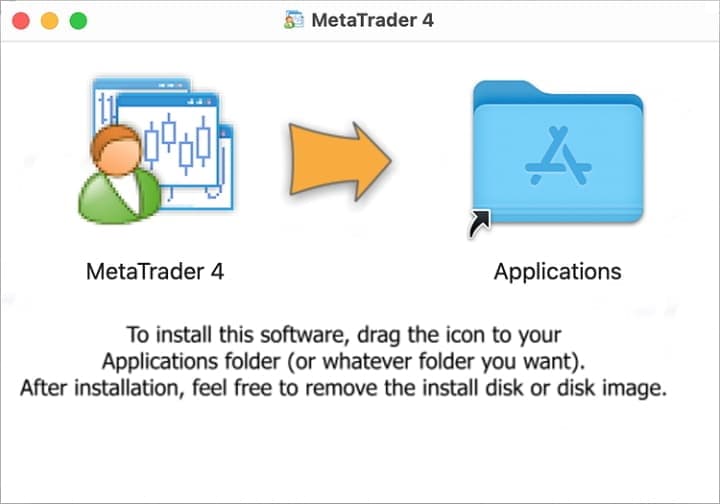
The MetaTrader 4 package for macOS supports both Intel and Apple Silicon chips (M1, M2, M3, M4) and is compatible with macOS Big Sur (version 11) through the latest macOS versions, including Sequoia and Tahoe. On Apple Silicon Macs, the platform runs via Rosetta 2.
The package uses CrossOver technology, which is built on top of Wine — a compatibility layer that allows Windows applications to run on macOS. CrossOver is a commercial project, which means it is actively maintained, bugs are fixed promptly, and compatibility with Windows software is constantly improving. Because CrossOver is focused specifically on Windows application compatibility, it is well-optimized for office and trading software, and the MetaTrader 4 terminal is a good example of stable CrossOver performance.
Please note that you do not need CrossOver installed separately on your Mac. The DMG package from MetaQuotes is free to use and includes everything required — no additional plugins or utilities are needed. After installation, you can launch the terminal immediately and access all of its functionality.
Option 2: Installing the Terminal Using the PlayOnMac Application
PlayOnMac is a free Wine-based application that lets you install and run Windows software on a Mac. Please note that PlayOnMac works reliably on Intel-based Macs. On Apple Silicon Macs (M1 and later), it runs via Rosetta 2 and may be less stable — in that case, we recommend using Option 1 instead.
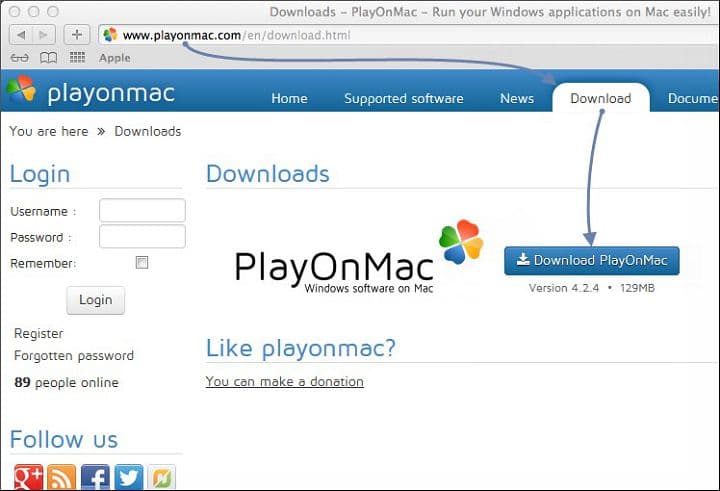
You can download the PlayOnMac application from the official website. The file can be found in the Downloads section:
After downloading, run the file. You can find it in the Downloads folder:
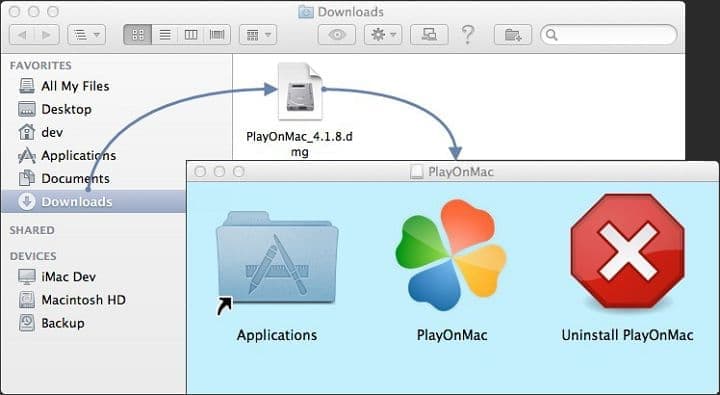
Run the downloaded distribution to install the necessary components:
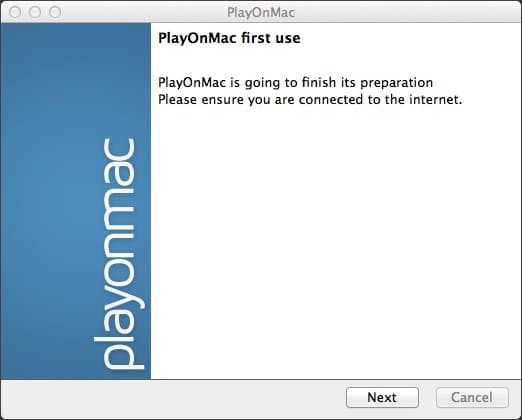
XQuartz is a required component that allows programs using the Windows graphics system to run on macOS:
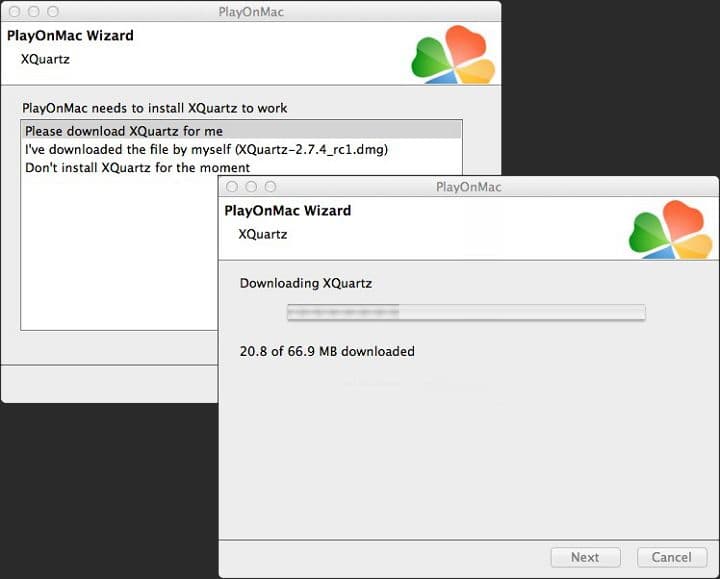
If you have already installed XQuartz previously, select "Don't install XQuartz for the moment".
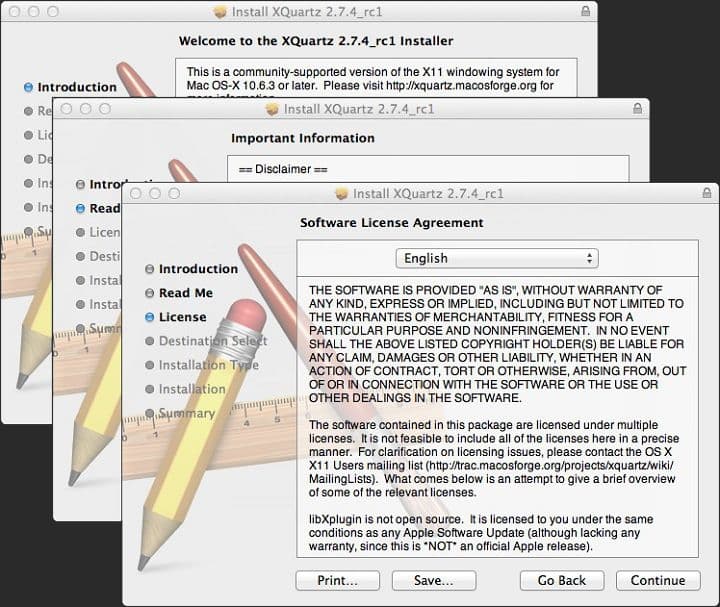
If you don't have the application yet, follow all the standard installation steps in order:
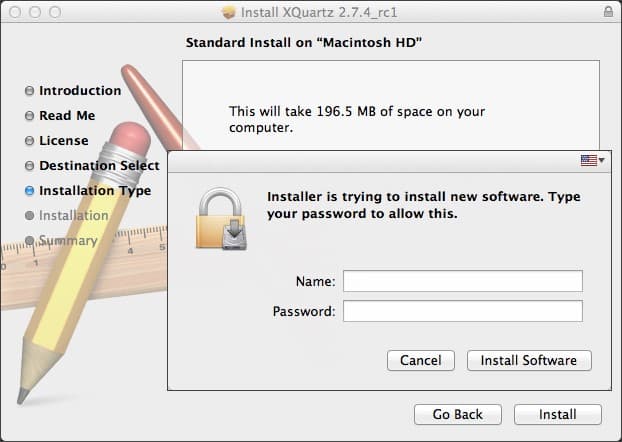
You will be prompted to enter your macOS password:
When the installation is complete, restart your computer:
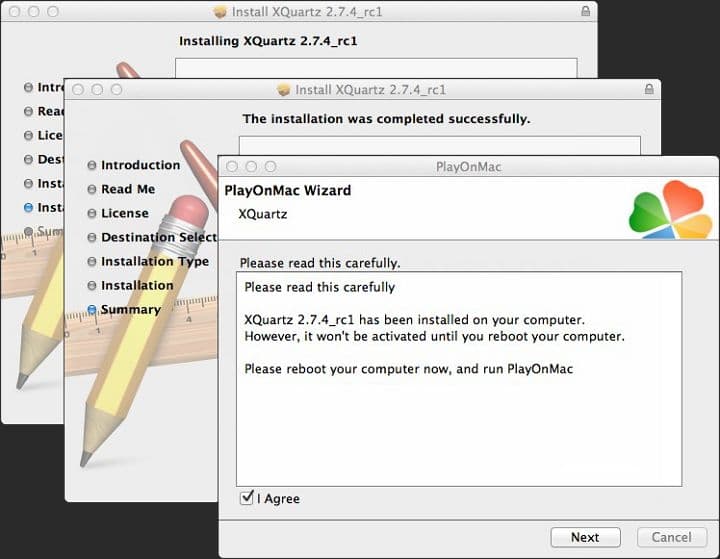
Now you can proceed with the PlayOnMac setup. This step is required to install the necessary MS Windows fonts, without which third-party applications such as MetaTrader 4 will not display correctly:
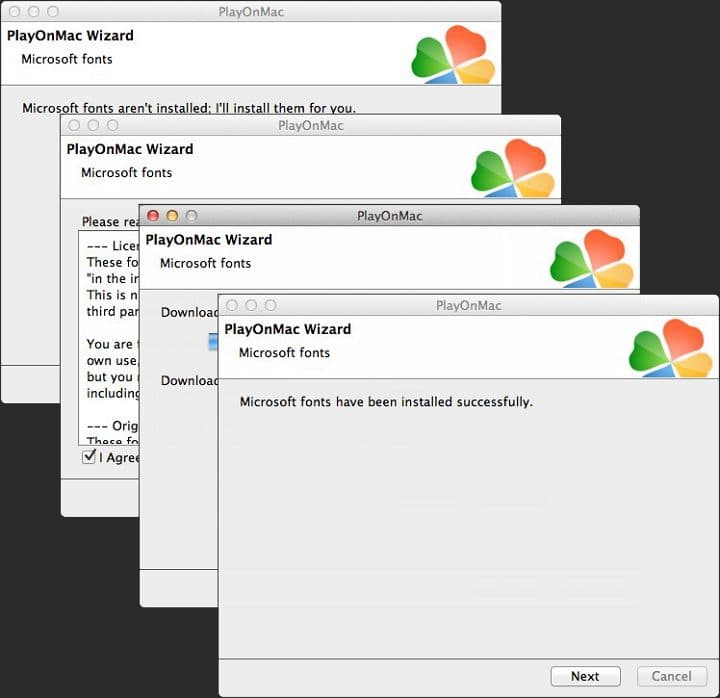
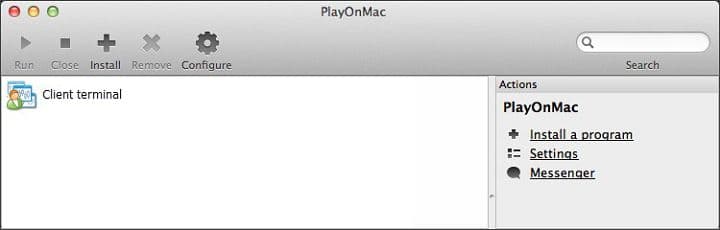
Follow the standard installation process. Once complete, the main PlayOnMac window should open:
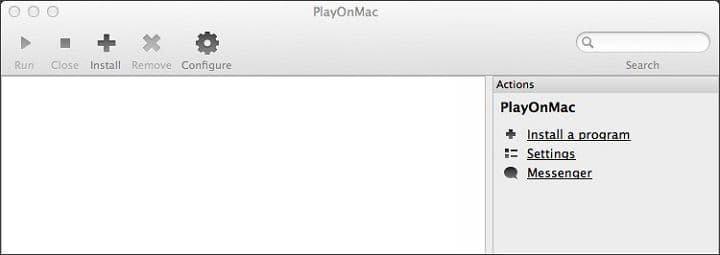
Wine App Update
Wine is a free application that allows Windows software to run on macOS. Wine is not a Windows emulator — it is a compatibility layer that reimplements Windows functionality.
To ensure the best performance, always install the latest available version of Wine.
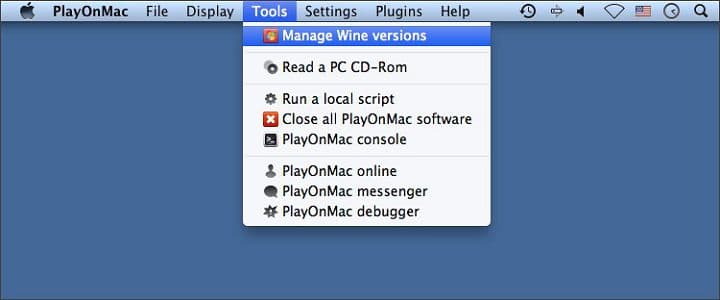
To update Wine, go to Tools => Manage Wine Versions:
In the window that opens, select the latest version:
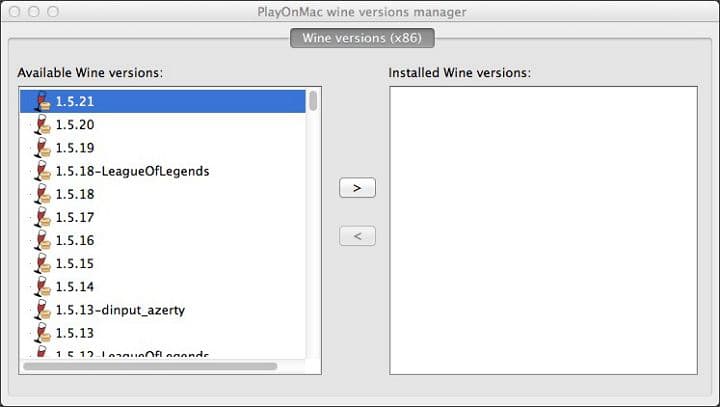
Use the arrow to move the selected version to the right-hand window. Installation should start automatically:
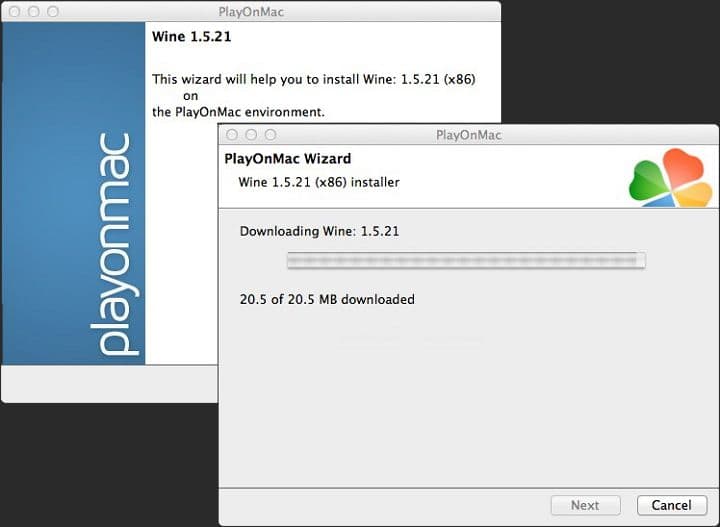
After the update, the new Wine version will appear on the left side of the PlayOnMac Wine versions manager.
Once all the steps above are complete, you can proceed to install MetaTrader 4.
Installing MetaTrader 4 on PlayOnMac
Download the "mt4setup.exe" file from your broker's website or from metatrader4.com. With PlayOnMac installed, you can now run this file directly — it will open automatically through PlayOnMac:
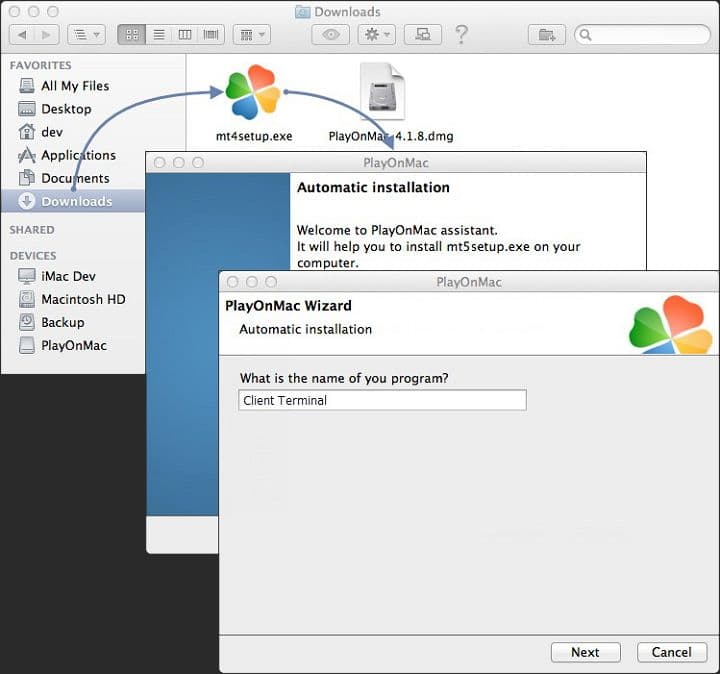
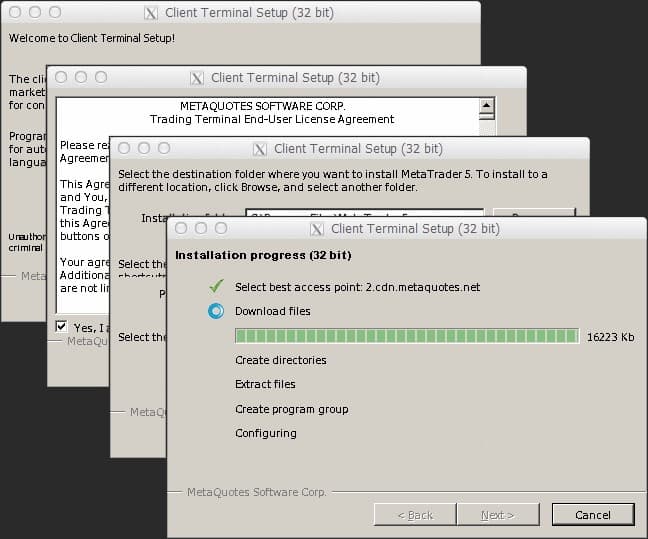
The installation follows the standard process:
At the end of the installation, create the shortcuts you need:
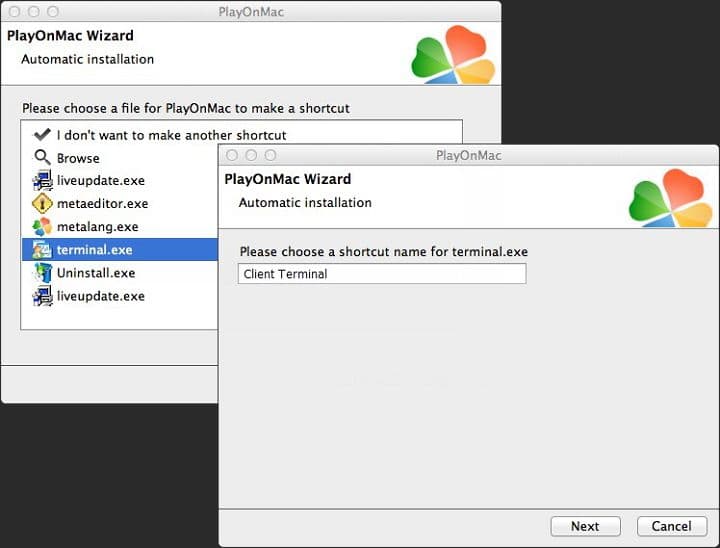
To launch MetaTrader 4, double-click the Client Terminal icon:
Possible Problems When Working with MetaTrader 4
If Wine is running unstably, the most commonly reported issue is that the Market section may not function correctly. No other significant problems have been widely reported. On Apple Silicon Macs, some users also experience performance overhead due to the x86 emulation layer, and Gatekeeper security prompts may appear after platform updates.
MetaTrader 4 Data Catalog
Installed terminal directory:
LibraryPlayOnMacWinePrefixClient_Terminal_Drive CProgram FilesClient Terminal
Conclusion
We hope this article has answered any questions you may have had about installing the MetaTrader 4 trading terminal on macOS. If you have any further questions, feel free to ask in the comments below or share your own installation tips.

See Also:
- How to make money with binary options
- What to do if your broker won't process a withdrawal
- Top 5 binary options trader mistakes
- How do binary options brokers make money?
- Chargeback. Is it possible to get money back from the broker?
To leave a comment, you must register or log in to your account.