
The PZ Trend Trading indicator for binary options takes a non-standard approach to trend identification. One of its key advantages is that it does not repaint signals. Using this indicator, signals are generated for binary options by dividing the price movement of a market asset into distinct phases. This makes it possible to:
- identify the trend direction;
- detect a pullback, meaning a price correction;
- recognize a change in trend direction.

Key Features of the PZ Trend Trading Indicator
The key specifications of PZ Trend Trading are as follows:
- Trading platform: MetaTrader 4.
- Currency pairs: all pairs, excluding crosses.
- Trading time: 08:00–21:00 UTC.
- Indicator type: composite — combines a trend component and an oscillator.
- Recommended brokers: Quotex, PocketOption, Binarium.
PZ Trend Trading Indicator: Overview and Settings
The indicator identifies the following market conditions:
- trend direction;
- the onset of a correction;
- resumption of the trend after a correction;
- a full trend reversal.
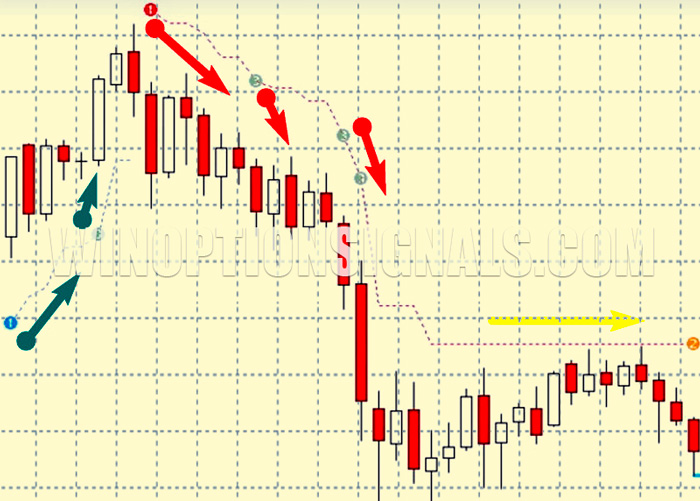
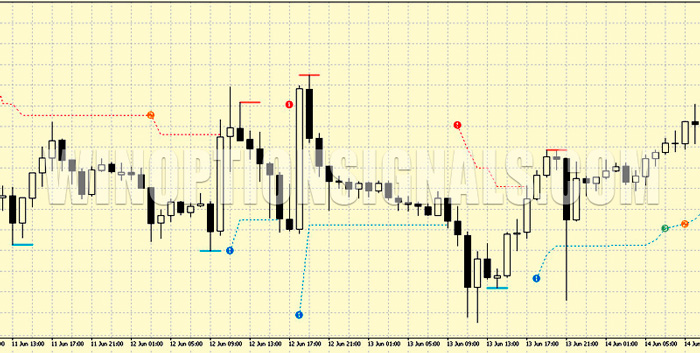
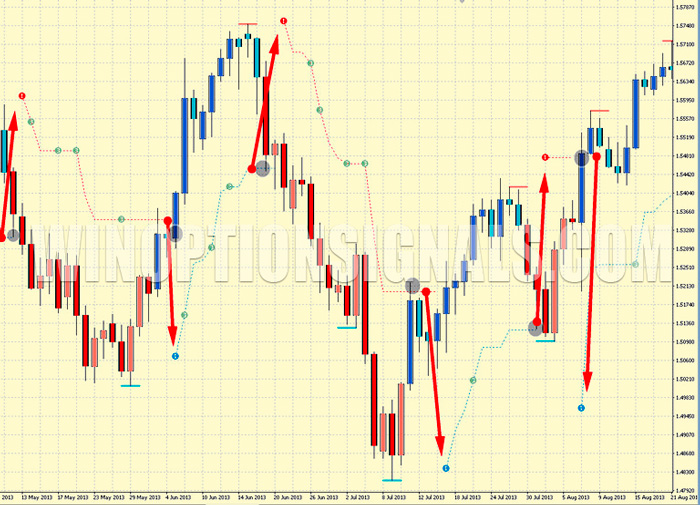
Trend phases are clearly displayed through a combination of numbers, colors, and line styles:
- 1 — blue indicates an uptrend; red indicates a downtrend;
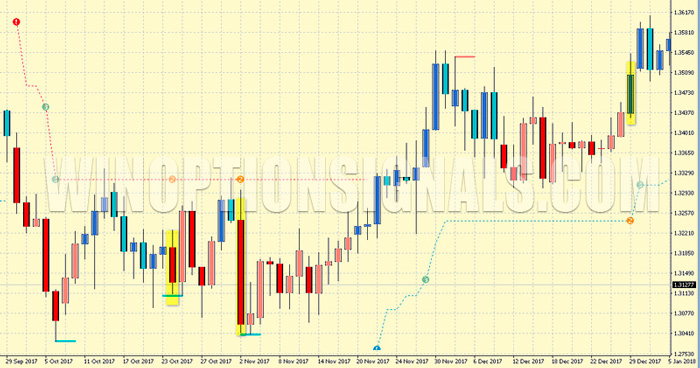
- 2 — the price is in a correction phase;
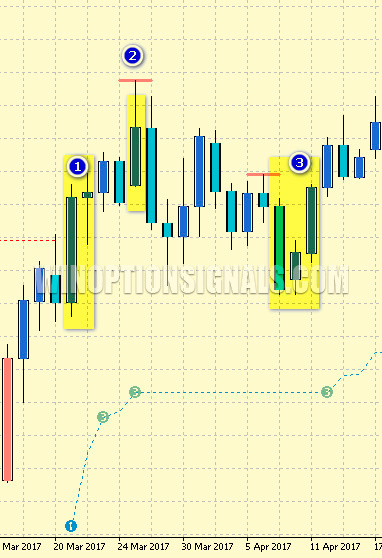
- 3 — gray coloring signals the resumption of movement in the same direction as the preceding phase 1;
- dashed or broken lines — price channels;
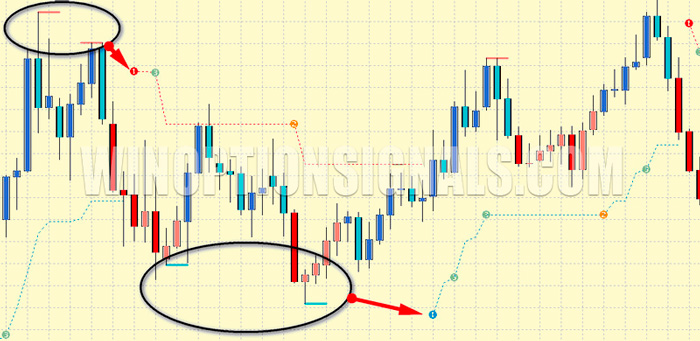
- solid lines — support and resistance boundaries.
PZ Trend Trading is not the simplest indicator to use. The developers offer the following guidance:
- choose the timeframe carefully — do not go below H1;
- always apply additional filters, such as oscillators, support and resistance levels, and chart patterns.
The developers report positive performance statistics: up to 85% profitable trades. This is attributed to the relatively low number of false signals the indicator produces during trending conditions on daily candles. An additional advantage is its ability to identify corrections, which creates opportunities to profit from counter-trend moves.
How the PZ Trend Trading Indicator Works
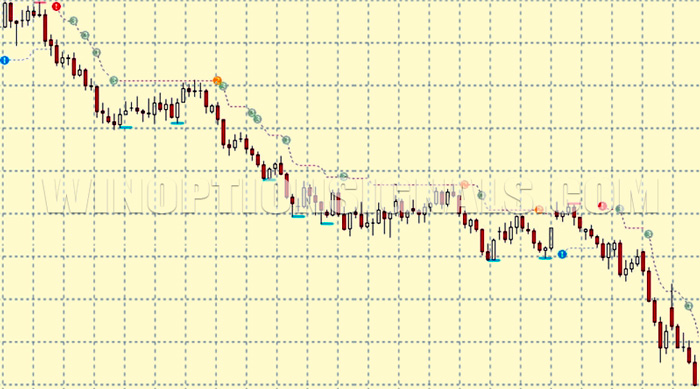
The indicator is based on identifying a trend within a trend, according to its configured settings and a defined number of candles for analysis. Price movement is divided into segments, each determined at the moment a candle closes within a specific timeframe. Corrections are identified by analyzing historical bars. The resumption of a trend is marked by the formation of a new local low (in a downtrend) after the correction candle, both within the trend and beyond its boundaries.
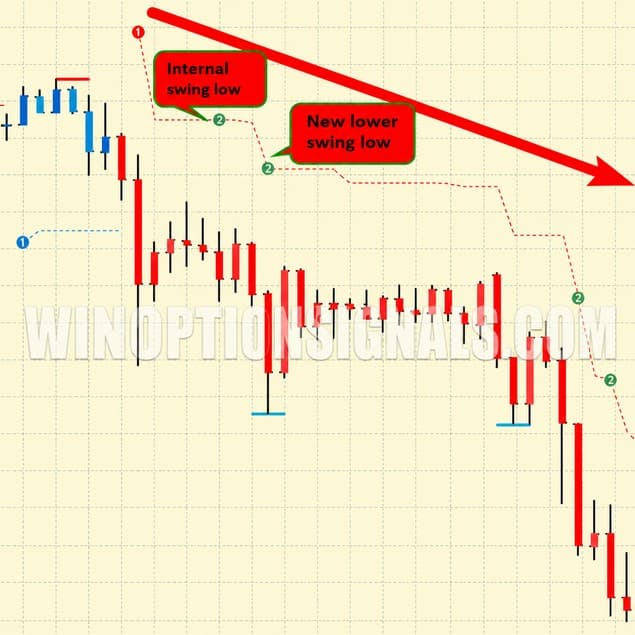
The ability to distinguish between a trend and a pullback (correction) allows traders to avoid entering on a phase 1 signal alone — something especially useful for beginners. Both correction confirmation signals and trend continuation signals are taken into account. When tested with appropriate tactics, the indicator's performance is strong, and its signals do not repaint.
The chart section below illustrates the following sequence:
- correction signal 2 within a downtrend did not develop into a continuation of the prior move (phase 3);
- instead, a reversal occurred at point 1 (shown in blue), followed almost immediately by a trend change to the downside — phase 1 (red).
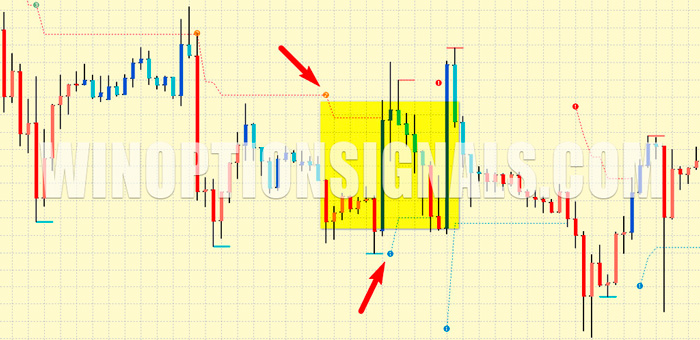
In this situation, a saw-tooth pattern emerges — a classic sign of market volatility that typically produces a high number of false signals. Such conditions are a useful environment for testing arrow indicators for binary options that are designed to minimize losing trades in complex market phases.
The indicator settings allow you to control which signals are displayed and to define the time window within which trends are recorded based on historical quotes.
Indicator and Scanner for Binary Options
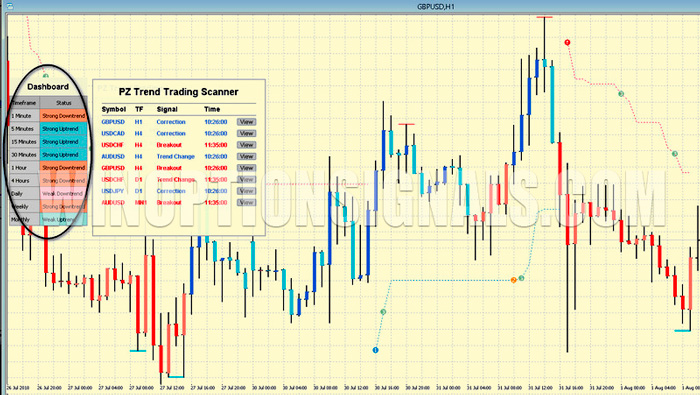
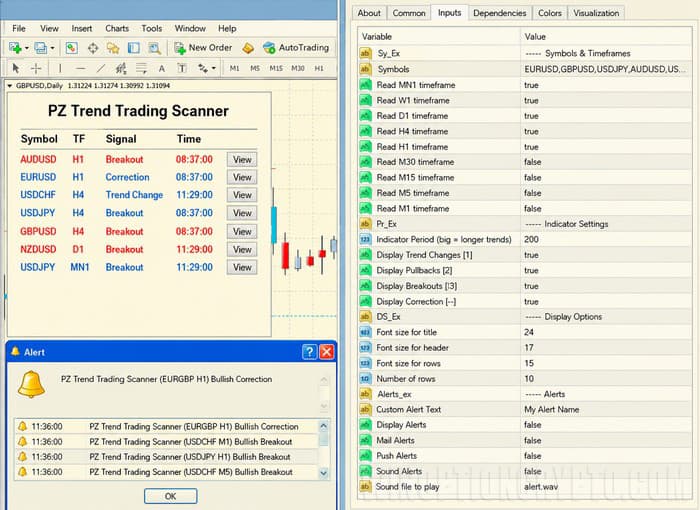
The indicator archive (linked at the end of this article) includes a companion application called PZ Trending Scanner. It displays Forex assets in a separate window, making it faster to access them. The scanner is used to identify strong trends on the current timeframe and track corrections across the M1–MN1 timeframe range.
This simplifies the trader's workflow by making it possible to monitor multiple currency pairs within a single chart. Pairs trading with binary options also becomes accessible.
The indicator also includes a built-in table that monitors price movement across the M1–MN1 timeframe range. In addition to color coding, the table uses the following trend labels:
- weak — a weak trend;
- strong — a strong trend.
Installing the PZ Trend Trading Binary Options Indicator
The indicator archive contains an MQL4 folder with two subdirectories: Indicators and Libraries. Install the files following the instructions provided. Note that the files must be copied to the correct folders within the MetaTrader 4 terminal.
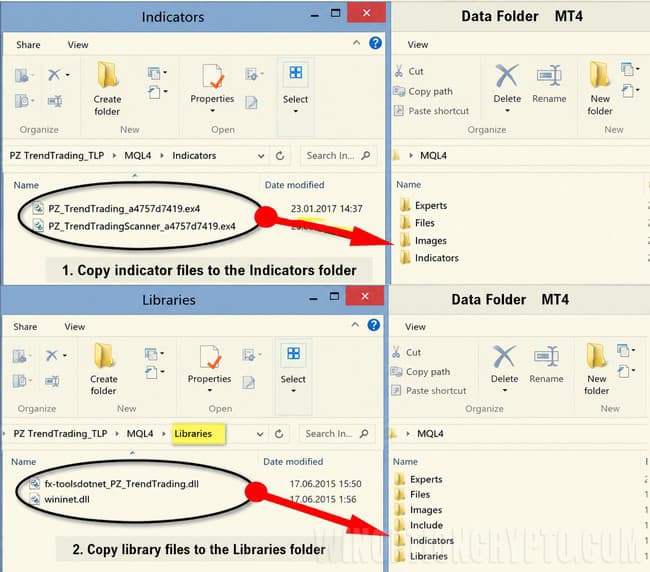
If DLL imports are enabled in the terminal and the files have been placed correctly, the installed objects will appear in the Custom Indicators menu.
Instructions for installing indicators in MetaTrader 4:
PZ Trend Trading Indicator Settings
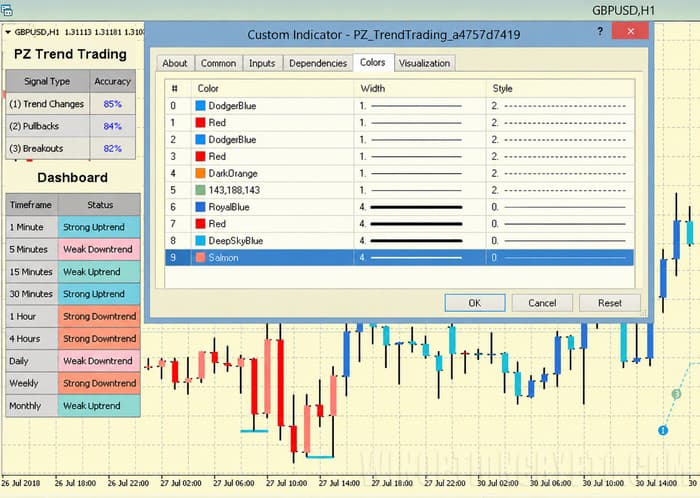
To start using the indicator, add it to a chart displaying a currency pair's trend. Settings can be adjusted in the corresponding window if needed. All changes should be made exclusively in the Input Parameters tab; the other tabs should be left as they are. Line colors and signal colors can be adjusted separately in the Colors section.
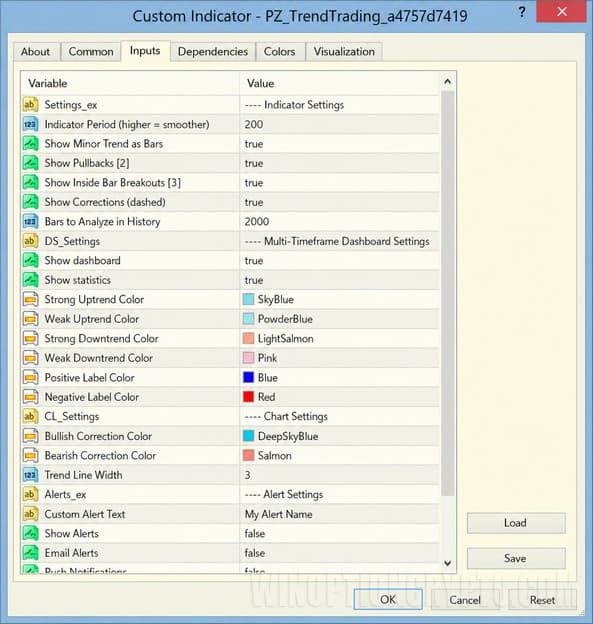
Settings are divided into 3 blocks:
- Indicator Settings — parameters that control how the indicator functions.
- Dashboard — color scheme for signals across different instruments and timeframes.
- Alerts — notification settings.
Indicator Settings contains the following parameters:
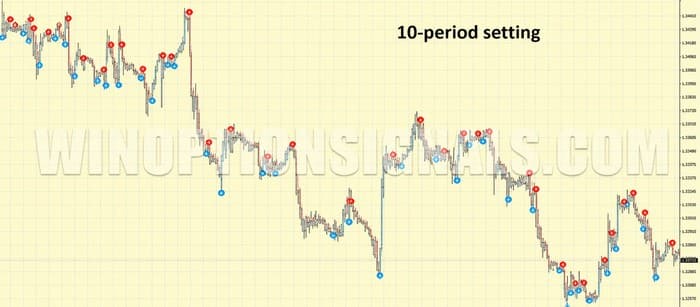
- Indicator Period — the number of candles in the analysis window. A value of 200 is recommended. A shorter period makes it impossible to track the trend properly, including pullback identification and resumption signals.
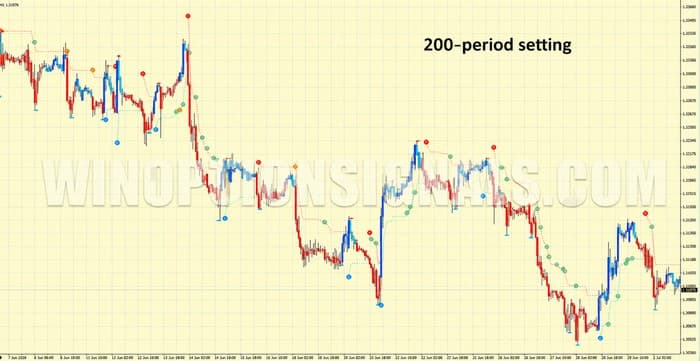
The chart above uses a period of 200; the one below uses a period of 10. With the shorter period, phases 2 and 3 are no longer visible, and the channel lines — including support and resistance — disappear as well.
- Display Trends Smaller as Bars — accepts true or false. When set to true, candle coloring is enabled; when set to false, it is disabled.
This option is useful when combining PZ Trend Trading with other indicators that use their own methods of displaying the price range. Numbers and lines can be customized, and timeframe colors are configured in the terminal settings.
- Display Pullback (2) — enables (true) or disables (false) the display of correction signals (phase 2).
- Display Inside Bar Breakouts (3) — enables (true) or disables (false) the display of candles marking the continuation of the trend (phase 3).
- Display Corrections (dashes) — enables (true) or disables (false) the display of dashed support and resistance lines.
- History Bars to Evaluate — sets the number of candles within the selected timeframe used to analyze the current trend. This value should be set as high as possible without causing performance issues on your PC or in the terminal. The maximum accepted value is 10,000; the recommended value is 2,000.

How to Set Up PZ Trending Scanner
The scanner can be placed on any chart via the Custom Indicators section. Once added, its settings window becomes accessible. All changes should be made in the Input Parameters tab; the other tabs do not require any input.
Scanner settings are organized into 4 blocks:
- Symbols and Timeframes — select the market assets (currency pairs) and the depth of trend scanning, ranging from 1 minute to monthly candles.
- Indicator Settings — set the period and exclude specific trend signal components.
- Display Options — configure window dimensions and font settings.
- Alerts — notification settings.
Reading PZ Trend Trading Signals for Binary Options
Signal 1 indicates a trend reversal or the beginning of one. It is characterized by quotes breaking outside the channel boundaries. Traders can use pending orders relative to the Buy, Sell, and Stop lines, or enter at candle close. This approach is reliable because the indicator does not repaint its signals.
Signal 2 appears on the candle that marks the end of a correction on the current timeframe. In approximately 85% of cases, these signals confirm the prevailing trend. Enter a trade only at candle close, and only in the direction of the trend — confirmed by candle color or phase 1 (blue for a Call option, red for a Put option).
Signal 3 carries less weight than signals 1 and 2. It marks the continuation of an existing trend. The developers' recommendation here is to open an additional Call or Put option, provided a trade in the same direction is already open.
Support and resistance lines mark levels formed during significant price reversals. When these levels appear, they signal that a trend moving in the opposite direction may be forming.
PZ Trending Scanner Signal Examples
PZ Trending Scanner is not a trading indicator in itself — it is a filter tool used to identify strong trends at any given moment, based on the user's configured settings.
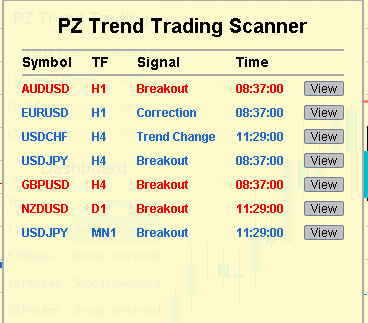
A specific example is shown in the figure below, displaying several currency pairs:
- AUDUSD (H1), GBPUSD (H4), NZDUSD (Daily) — the trend is classified as downward (Breakout). According to the timestamp, this trend on the daily chart was recorded the previous day; on the H1 and H4 charts, it was recorded more recently.
- USDJPY — strong upward movement on H4 and MN.
- USDCHF — reversal to the upside on H4.
- EURUSD — correction on H1 (underlying trend is upward).
Using the Indicator and Scanner for Binary Options Trading
Elder's Three Screens strategy pairs well with the PZ Trending Scanner and PZ Trend Trading indicator for binary options trading.
To enter a trade based on a scanner signal, wait for two strong trends (Breakout) to form on adjacent timeframes of the same asset. The View button can be used to open the corresponding chart.
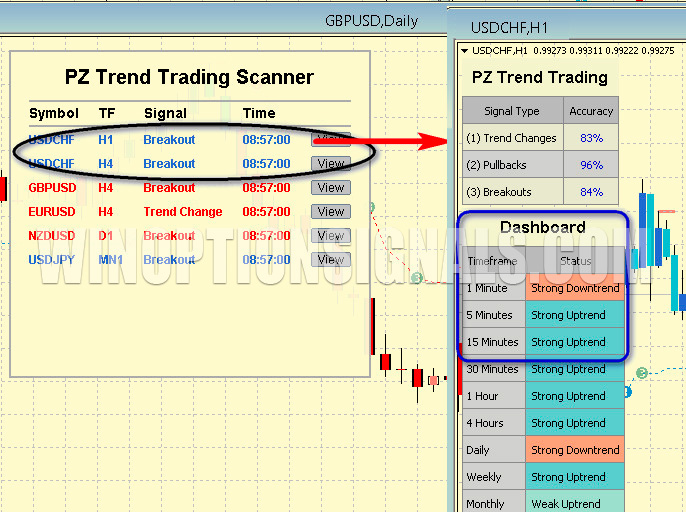
In this example, the currency pair is USDCHF and the trade is opened in the direction of price growth (Call option). To identify the precise entry point, the Three Screens strategy is applied using PZ Trend Trading with default settings.
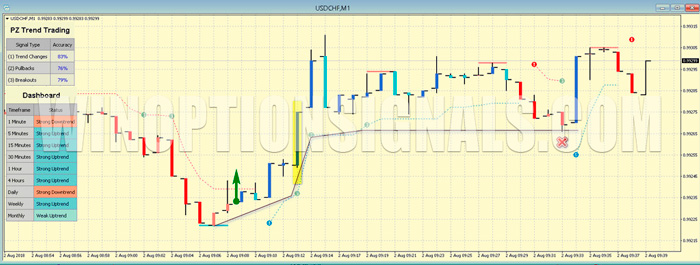
The Three Screens strategy involves identifying three timeframes that all show trends in the same direction. A suitable entry point appears when a support line forms on the shortest timeframe. This is a reliable approach because trend reversals frequently occur after continuous support and resistance levels appear on the chart.
In the Dashboard, a downtrend is visible on M1, while M5 and M15 show an uptrend.
The Call option is opened when the trend on M1 reverses to the upside.
Conclusion
PZ Trend Trading breaks price movement down into phases — an approach that is both interesting and genuinely useful for trading. The companion trend scanner adds further value. That said, PZ Trend Trading should not be treated as a standalone profitable strategy for binary options; however, with proper money management it can contribute to consistent results.
Download the PZ Trend Trading Indicator
Not sure how this indicator works? Leave a comment below, and subscribe to our YouTube channel WinOptionCrypto — we'll answer your questions in an upcoming video.
To leave a comment, you must register or log in to your account.