
Almost anyone can learn to trade binary options. Although the step-by-step learning process takes time, with the right forecast this type of trading can generate solid profits. Trading digital binary options on Pocket Option is as straightforward as possible, and placing trades on the broker's trading platform is not difficult — but to make a profit, you need to follow a number of rules, which we will cover below.

Placing a Trade Order in (Digital) Binary Options on Pocket Option
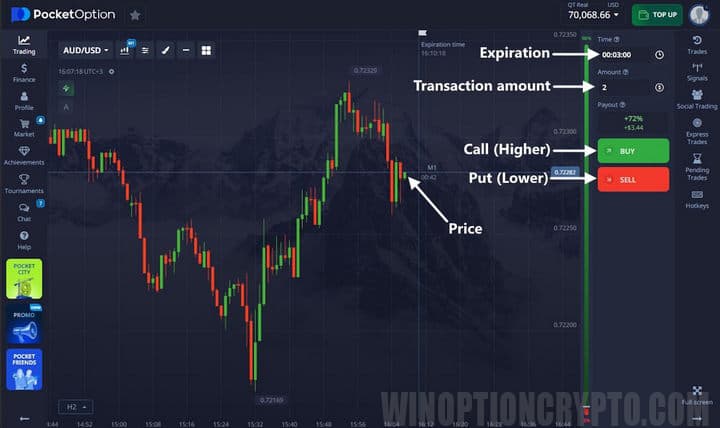
Using the Pocket Option trading panel, traders can configure parameters that will affect each trade. With this tool, users place a trade by selecting the direction of price movement for their chosen asset. The Pocket Option terminal lets you adjust two parameters that define how each trade is structured:
- investment size;
- expiration time.
As mentioned above, trading binary options on Pocket Option comes down to determining the direction in which the price of a selected asset will move, and then buying a Call (Up) or Put (Down) option:
Also keep in mind that for additional profit you can use Pocket Option promotional codes, which allow you to receive a deposit bonus or take advantage of useful features such as cancel loss trade. Best of all, these promotional codes are free.
Selecting Assets in Binary Options on Pocket Option
Pocket Option offers hundreds of different assets for trading:
- currency pairs;
- commodities;
- stocks;
- cryptocurrencies;
- indices.
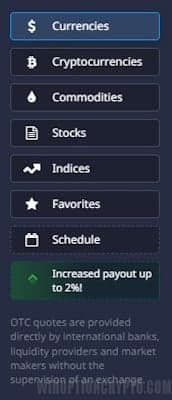
To select a trading asset, first specify the asset type:
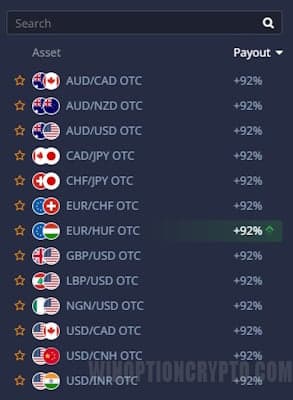
Then find the asset you need using the search bar, or select it directly from the list:
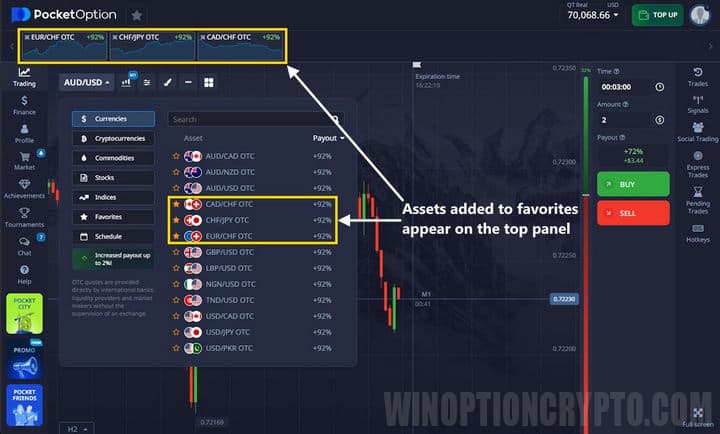
To work with trading assets more efficiently, it is recommended to add them to your favorites so you can switch to the desired chart at any time. To do this, click the star icon next to any asset. Your selected instruments will then appear in the top panel:
Next to each asset is a percentage indicating its payout rate. The higher this figure, the greater the profit the trader receives on a successful trade. For example, if a user selects an asset with an 80% payout and places a $10 trade, a successful outcome will credit $18 to the account — the original $10 investment plus $8 in profit.
Setting the Expiration Time in Digital Binary Options on Pocket Option
The broker's trading panel includes an expiration window labeled "Time," where you can set the trade duration. On the chart itself, a line is displayed with "Time to buy" on one side and "Time to sell" on the other. This area also shows a countdown timer until the trade closes. Note that you can open a trade at any time, but it will close within the period shown on the chart — this is a characteristic of digital binary options. The exact closing moment is the purchase time plus 30 seconds:
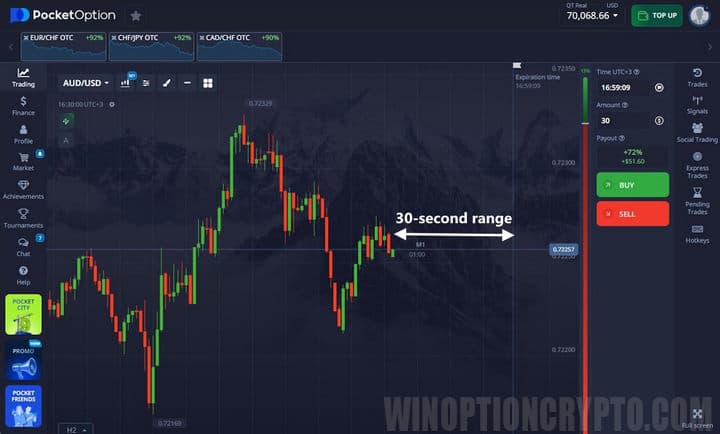
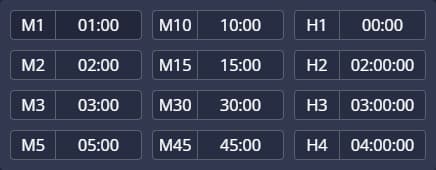
To set the desired expiration time for a Pocket Option binary option, click on the time panel (located on the trading panel) and select the range that matches your chosen trading option:
You can also set a specific time for a quick Pocket Option binary option. To do this, switch to this panel by clicking the "Clock" icon on the time panel, then open the expiration panel and enter the time manually:
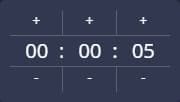
With this approach, the option expires exactly after the set time — unlike digital options.
Changing the Trade Amount in Binary Options on Pocket Option
To change the investment amount for a trade (i.e., the amount for which the option will be purchased), click the "+" or "−" buttons under the "Transaction Amount" section. For faster entry, you can also type the required amount directly into the field above.
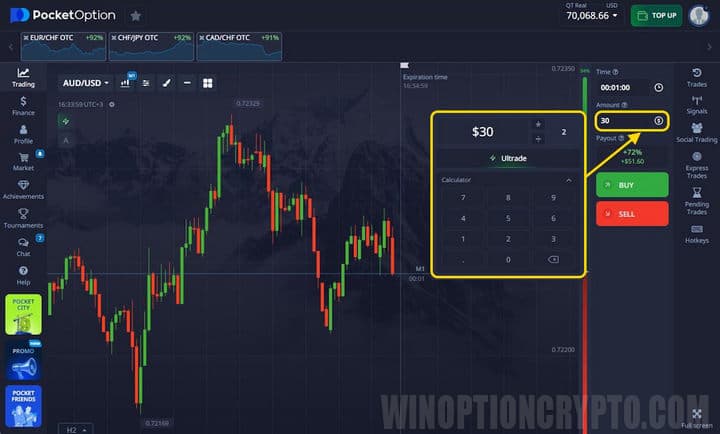
Strike Price Settings
Using the strike price feature (one of the available binary option types), traders can open trades at a price above or below the current market rate of the selected asset. Adjusting this parameter changes the payout percentage for the trade. To enable this feature, click the corresponding button on the toolbar before placing a trade:
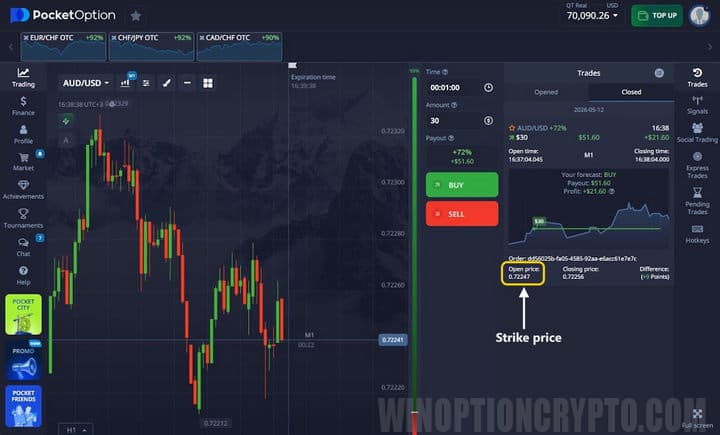
The risk level and payout percentage are determined by the difference between the market price and the strike price. In other words, the trader specifies not only the direction of price movement, but also the threshold value (the strike price) that the asset must reach.
It is important to understand that when this feature is enabled, all trade parameters will be set above or below the current market price, depending on the selected direction. Standard orders are placed at market prices. Additionally, strike prices are only available to traders using the digital trading mode.
Before opening a trade, it is recommended to analyze the market. Your analysis should form the basis of a forecast that determines the expected direction of price movement — up (green button) or down (red button).
Trade Results in Binary Options on Pocket Option
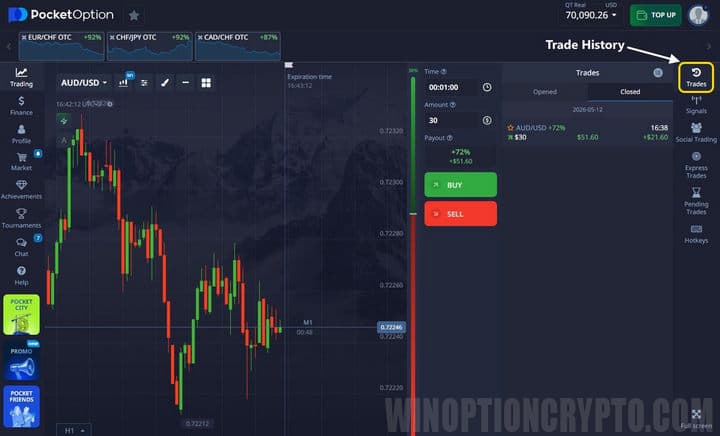
Once you have purchased options, each trade closes automatically when the expiration time is reached. The outcome will be either a profit or a loss. Profit is calculated as the amount invested in the trade plus the trading return. In the case of a loss, the trader's funds are reduced. If the forecast is incorrect and the price moves in the opposite direction, the entire amount invested in the trade is deducted from the account. All your trades can be found in your trade history:
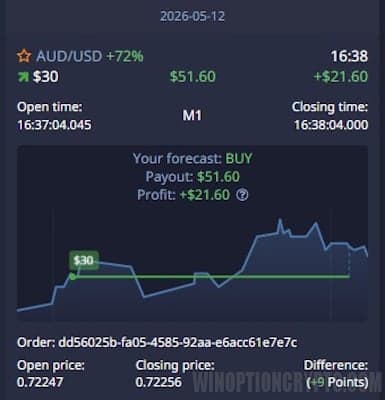
By clicking on any trade, you can view more detailed information about it:
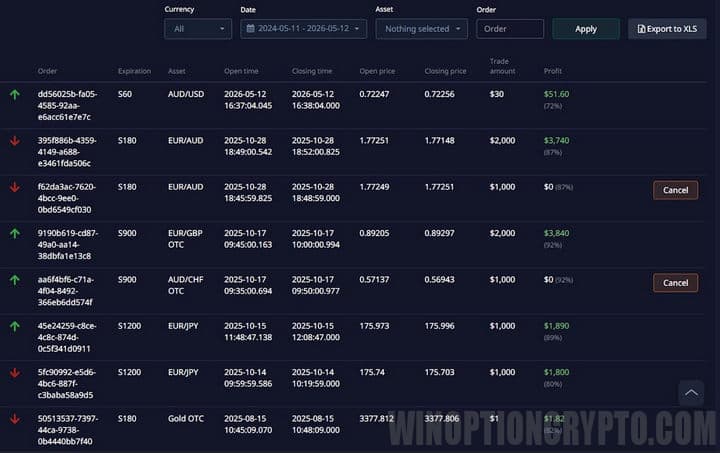
Trade history filtered by date range or other criteria can be viewed in your account under the "Trade History" tab:
Canceling an Open Trade on the Platform
Pocket Option allows traders to cancel a trade after it has been opened, if they realize their forecast is likely to result in a loss. Early cancellation is available for approximately 10 seconds after opening; after that, the trade can no longer be closed early. To cancel a trade, open the trade history panel (located on the right side of the window) and click the "Close" button on the active order:
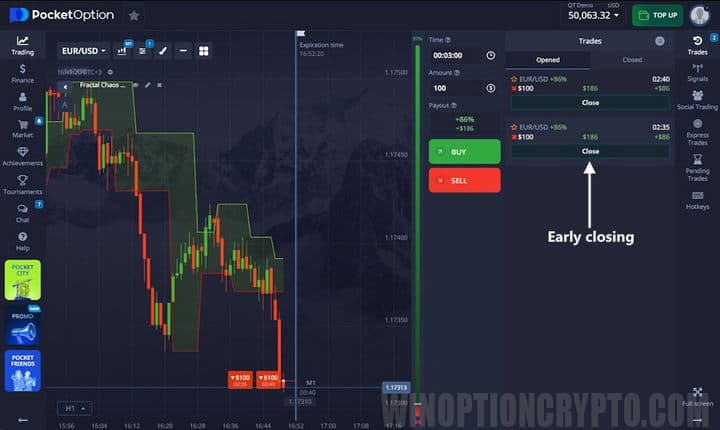
Trading Express Options on Pocket Option
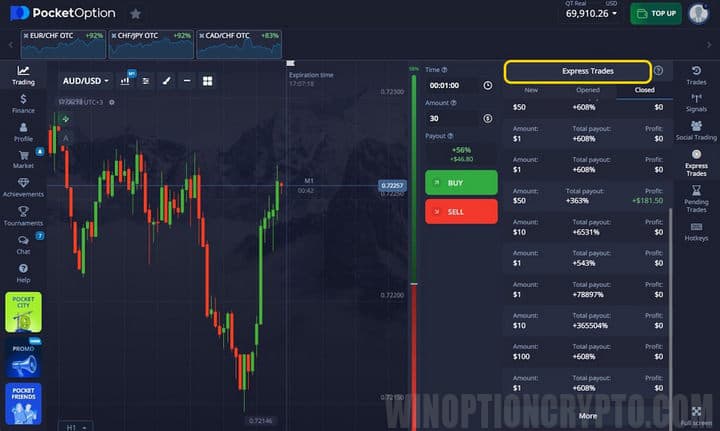
Express trading on Pocket Option involves opening trades on several assets simultaneously. This mode is based on a forecast that accounts for events affecting not just one asset, as in standard trading, but several at once.
Express trading differs from other trading modes in that, if all trades are successful, the total payout exceeds 100% and can reach 5,000%. To access this mode, go to the Pocket Option express trading panel:
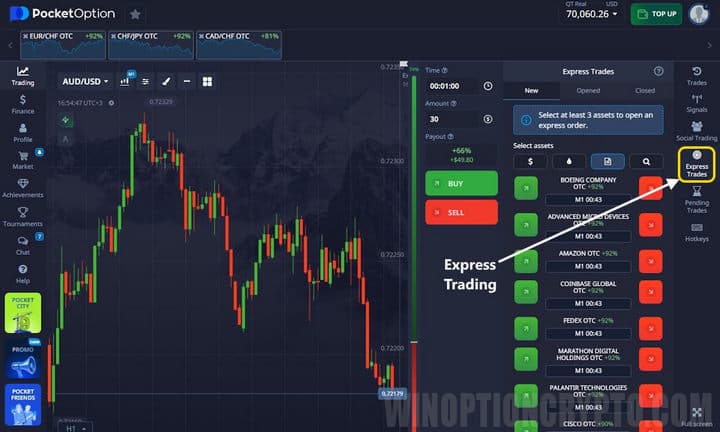
Once express trading is active, each subsequent trade (placed by clicking the red or green button) is added to the previous ones. The total payout is calculated by multiplying the returns of all successful forecasts. As a result, the final profit can be several times higher than the payout from a single quick or digital trade on Pocket Option.
After activating this mode, you must select at least 3 assets for which orders will be placed:
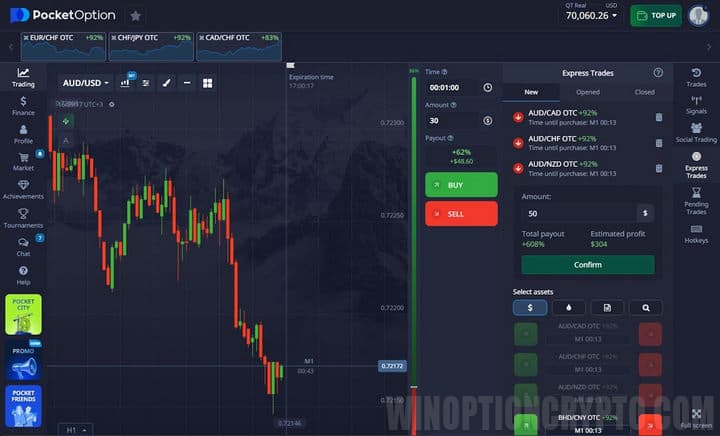
All orders opened under express trading are listed on the "Open" tab:
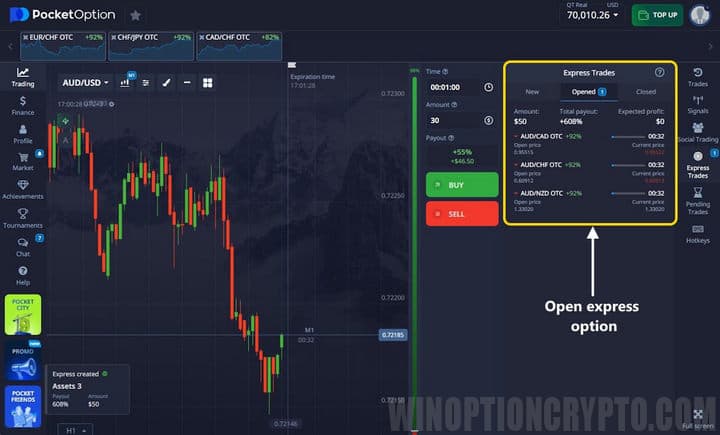
To review previously closed express orders, go to the same section and select the "Closed" tab:
Pending Binary Options on Pocket Option
Pocket Option supports a pending order feature that allows traders to open trades at a specific time or when the price reaches a target level. The order is placed automatically once the specified conditions are met. This means traders can participate in the market without having to monitor the terminal continuously.
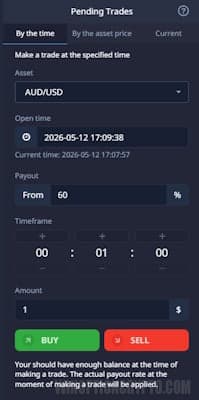
To place a time-based pending order, open the pending orders panel by clicking the hourglass icon in the left menu:
Next you need to:
- select the asset and, by clicking the clock icon, set the exact date and time at which the broker will automatically open the trade;
- select the minimum payout percentage — if the actual payout falls below this threshold, the trade will not be opened;
- set the timeframe and investment size for the trade.
Finally, select the direction of price movement — that is, choose a Call or Put option.
To place a price-based pending order, follow the same steps. However, in this case the trade is triggered when the price reaches your specified level. When placing this type of order, you must set:
- the asset to be traded;
- the trigger price;
- the payout percentage.
The conditions for opening this type of trade are the same as above — the specified payout percentage must not exceed the actual one.
Additionally, note that a price-based pending order is triggered on the next tick after the rate reaches the set level.
Pending orders are listed in the "Active" section. Keep in mind that an order will not be executed if the trader's account balance is insufficient. To cancel a pending order, click the cross icon in that same section:
Differences Between Digital and Fast Trading
Digital trading is the standard trading mode. The trader determines the timeframe within which the trade will be executed. The chart displays two vertical lines — a minute-by-minute corridor — indicating "Time to buy" and "Time to close" (the second is 30 seconds after the first).
In short, digital trading operates on a fixed time interval, at the end of which the order is automatically closed at the start of the next minute.
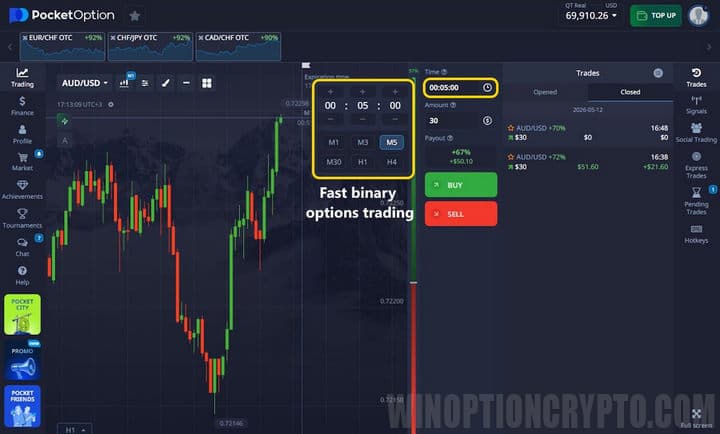
In fast trading, the trader sets an exact time interval after which the trade closes. Traders typically use short timeframes — from 30 seconds.
Once fast trading begins, only one vertical line appears on the chart, marking the moment the order closes. This is determined by the selected timeframe. Fast trading is considered the simpler format, and trades are completed more quickly.
Switching Between Trading Modes
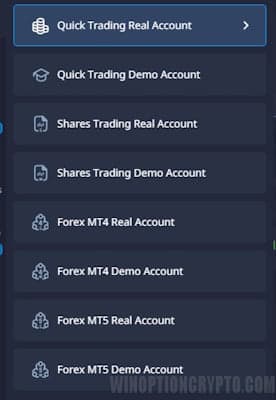
The "Trade" button on the left-side panel allows a trader to switch between trade types at any time:
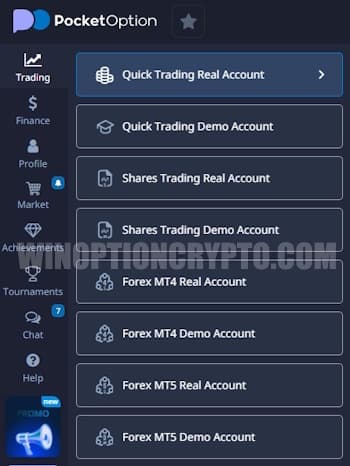
You can also switch by clicking the "Flag" or "Clock" symbols on the "Time" panel.
Which option to use is entirely up to the trader — the end result is the same in either case.
Conclusion
Pocket Option allows traders to work with a wide range of asset types and option formats. For traders who prefer precision, fast binary options trading lets you set an exact expiration time. Pending orders, meanwhile, allow you to open trades at a specific price level or time.
The broker also supports options with a strike price and express orders, both of which offer the potential to earn significantly more than with standard trading.
START TRADING WITH POCKET OPTION

See Also:
- Free Robot for Pocket Option
- How to Trade from Mobile Devices on the Pocket Option Platform
- Pocket Option Broker Platform for Windows
- How to Trade Express Orders with the Pocket Option Broker
- How to Participate in Tournaments on the Pocket Option Platform
- Minimum Deposit and Bonuses at the Pocket Option Broker
- Bonuses for Pocket Option Broker
- Working Promotional Codes for Pocket Option
- Pocket Option Broker Affiliate Program
To leave a comment, you must register or log in to your account.