
TradingView is not only a universal graphical analysis platform, but also a social network that brings together more than 100 million traders and investors around the world. In this guide, we will explain how to add an indicator to TradingView, what you need to do, and which steps will get you to the result.
Contents:
- TradingView Subscription Plans
- Preparing the Chart
- Working in the Pine Editor
- Adding an Indicator to a TradingView Chart
- Removing an Indicator from the Library
- Conclusion
TradingView Subscription Plans
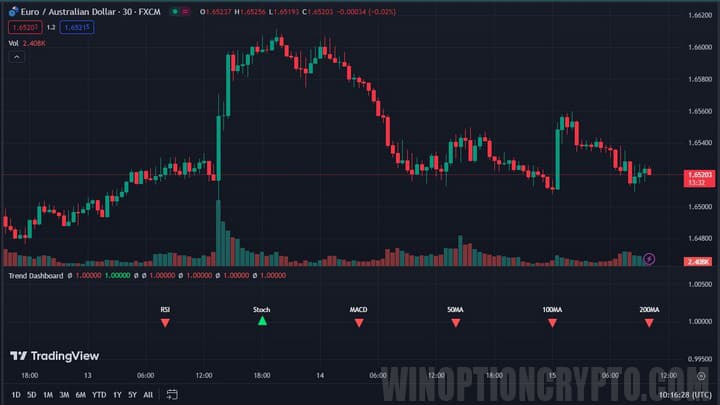
Before you get started, make sure you have a registered TradingView account. The free Basic plan is available at no cost, but keep in mind that it limits you to two indicators per chart on a single chart per tab. If that is not enough for your setup, you will need to upgrade to one of the paid plans. TradingView currently offers four non-professional paid tiers: Essential, Plus, Premium, and Ultimate, each providing progressively higher indicator limits, more charts per tab, additional alerts, and extra features.
Preparing the Chart
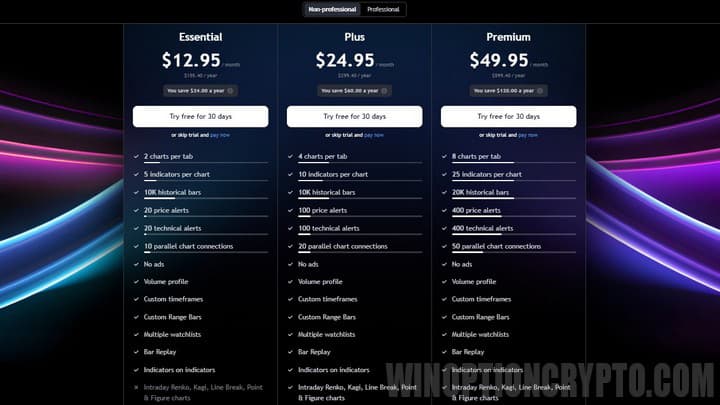
Before you start, please log in to your account.
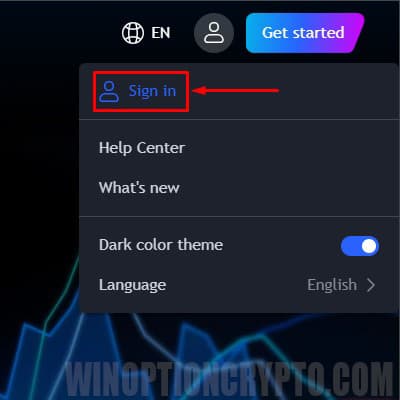
Then on the main page of the platform, in the “Products” menu, select “Supercharts”.
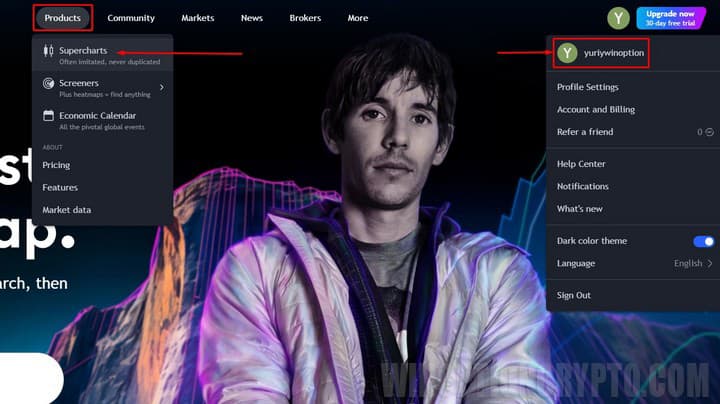
A chart with a randomly selected instrument will appear. To select a specific currency pair, click the “magnifying glass” icon in the upper left corner of the screen.
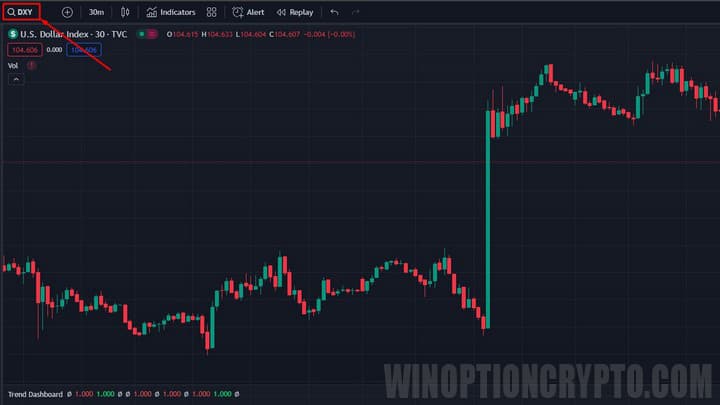
A symbol search menu will appear.
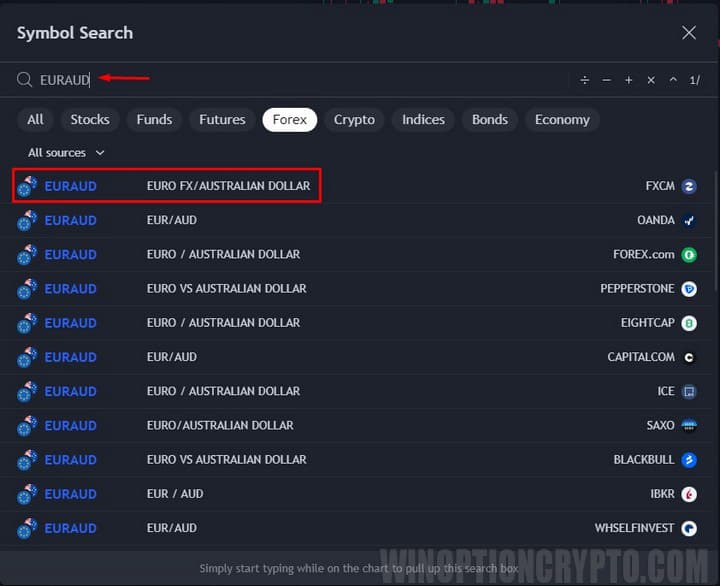
In the search bar, enter the ticker of the desired currency pair or cryptocurrency. In our example, this is the EURAUD cross rate. After completing the steps above, you will have a candlestick chart of EURAUD on screen.
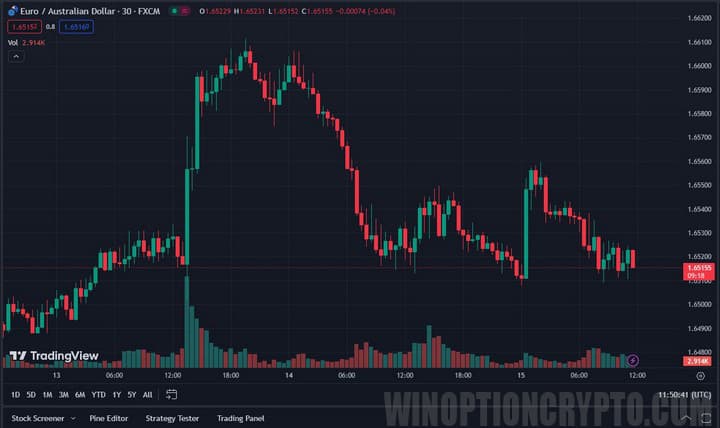
The preparatory stage is now complete, and you can proceed to importing a custom TradingView indicator.
Working in the Pine Editor
Open the Pine Script editor, which is designed for writing code for indicators and strategies.
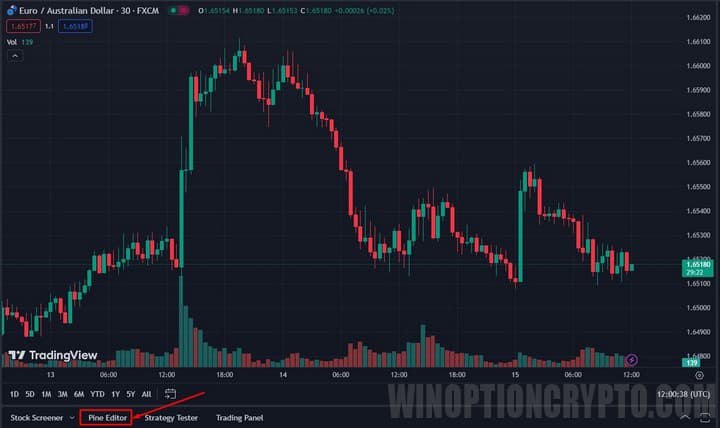
To do this, click the “Pine Editor” button on the bottom panel of the platform.
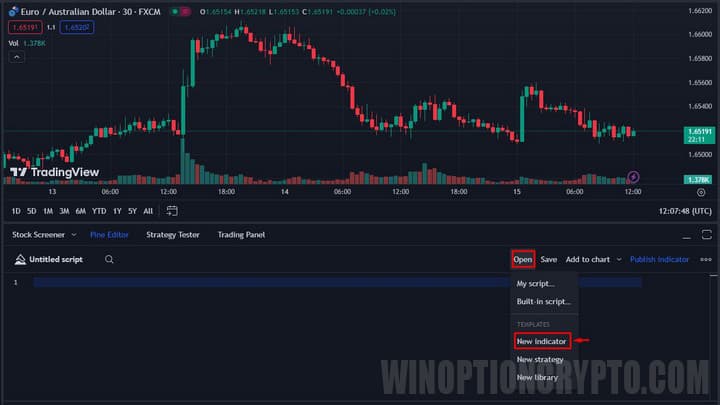
An editor window will open. In the top right menu, click “Open” and select “New indicator”.
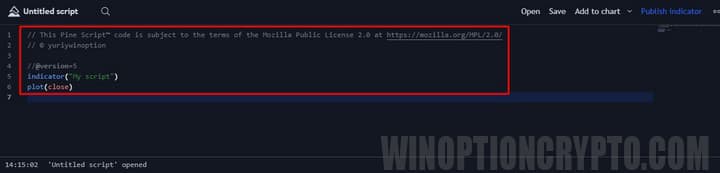
A template indicator script will be loaded into the editor window. You need to delete it. Select all the text using Ctrl+A (or with your mouse) and press Delete.
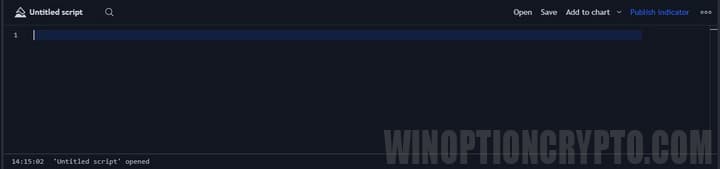
The editor is now empty. You can start importing your custom indicator. As an example, let’s add the Trend Dashboard trend indicator.
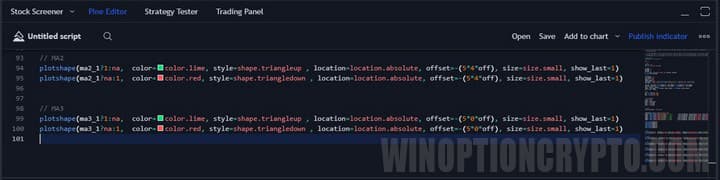
Paste its code from the source into the cleared Pine Editor window. To save it to the platform, click “Save”.
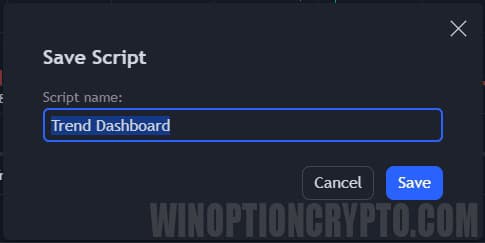
A confirmation pop-up will appear. Once saved, the indicator will be available for display on the chart.
Adding an Indicator to a TradingView Chart
There are two ways to display a saved indicator on a chart:
- Using the “Add to chart” function;
- Using the Import panel.
Adding via “Add to Chart”
The quickest way to display your saved custom indicator on the chart is to click the “Add to chart” button on the top panel of the editor, or press Ctrl+Enter.
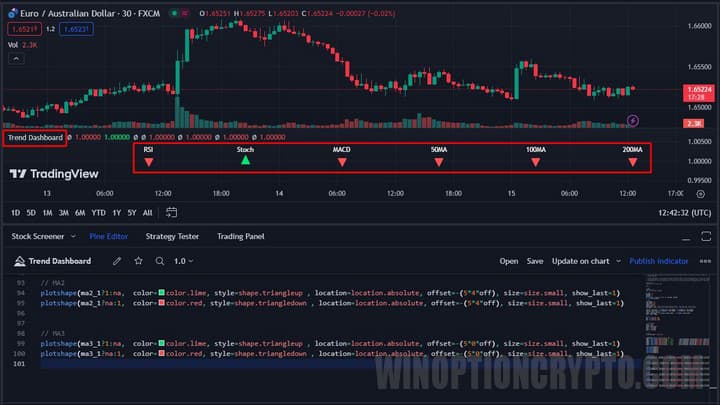
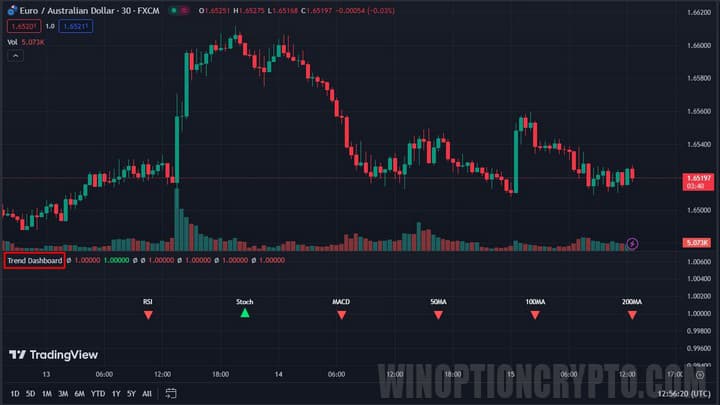
The new technical analysis tool is now ready to use.
Adding via the Import Panel
A more common way to add analytical tools is through the “Indicators, Metrics & Strategies” panel, which you can open by clicking the “Indicators” button in the main window.
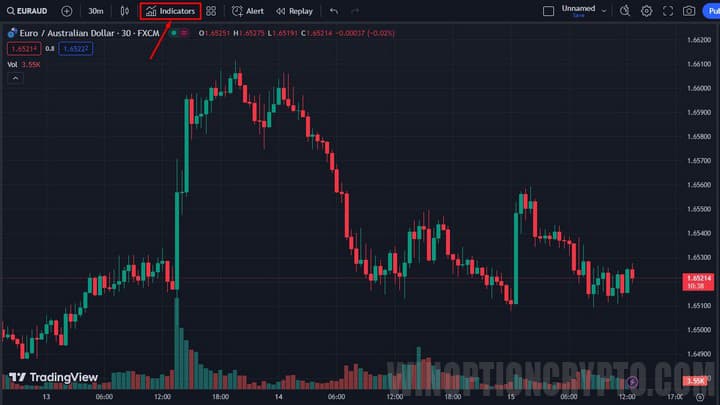
Inside the panel, go to the “My Scripts” section and locate the previously saved indicator — Trend Dashboard.
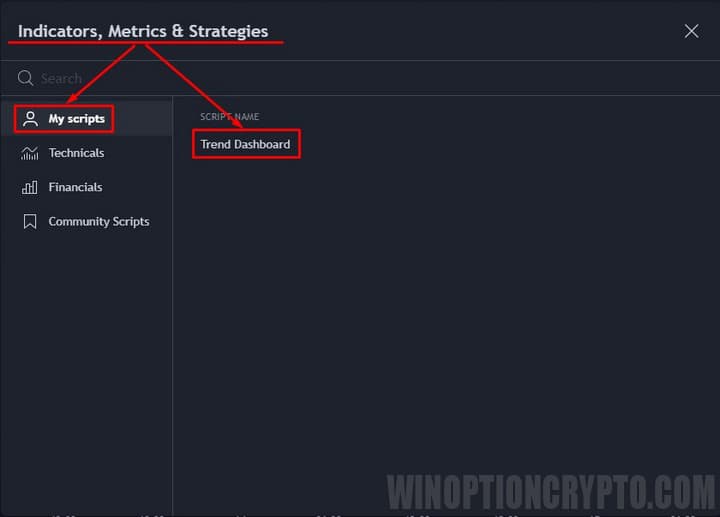
Double-click the name to display the indicator on the chart.
Removing an Indicator from the Library
To remove an unwanted indicator, open the “Indicators, Metrics & Strategies” panel via the “Indicators” menu in the main window. When you hover over the indicator name, two buttons appear: one for editing the script (Source code) and one for deleting it (Delete script).
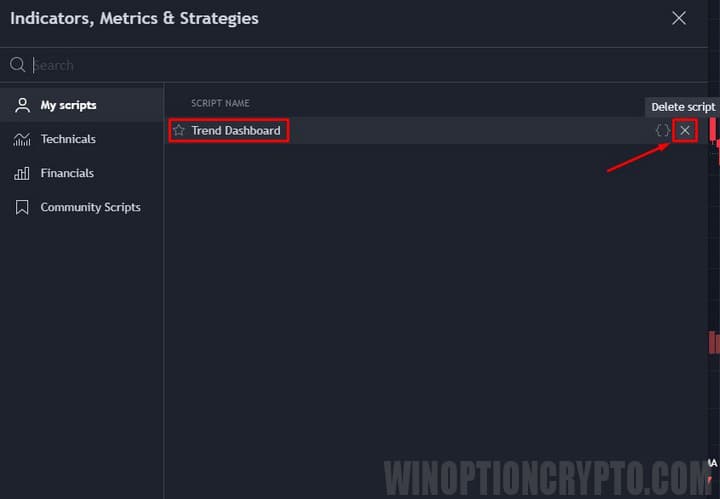
Clicking “Delete script” will permanently remove it from your personal library.
Conclusion
In this guide, we have covered how to add an indicator to TradingView. The platform’s extensive capabilities allow you not only to import indicators built by other traders, but also to create your own and exchange ideas with the community.
We recommend experimenting with different indicator combinations to find the setup that best suits your trading style and gives you an edge in the markets.

To leave a comment, you must register or log in to your account.