
The Auto Trend binary options indicator is a visual analysis tool that uses automatically drawn trend lines to help traders assess the likelihood of a trend continuation or reversal. In addition to tracking trend development, the indicator alerts the user promptly when the trend changes, allowing trades to be opened right at the start of an emerging price impulse — and at the point with the most favourable risk-to-reward ratio.
Auto Trend can be used alongside other technical analysis tools and makes a strong addition to any trading system. The developer's website lists this tool at $44.99. In this review we assess whether it lives up to its price — but in the meantime, you can download it from our website free of charge for evaluation purposes.
Contents:
- Key Features
- Installation
- Overview and Settings
- Trading Rules for Auto Trend
- Opening a Call Option
- Opening a Put Option
- Conclusion
- Download Auto Trend
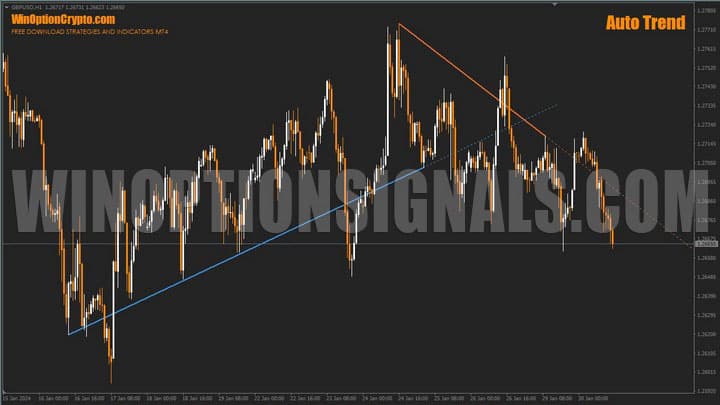
Key Features of the Auto Trend Indicator
- Terminal: MetaTrader 4;
- Timeframe: M15;
- Expiration: 3 candles;
- Option types: Call/Put;
- Indicators: AutoTrend.ex4;
- Trading instruments: currency pairs, commodities, cryptocurrencies, stocks;
- Trading hours: 08:00–21:00 UTC;
- Recommended brokers: Quotex, Pocket Option, Binarium.
Installing the Auto Trend Binary Options Indicator
The indicator is installed using the standard procedure in MetaTrader 4. Copy the indicator files to the terminal's root folder by selecting "File" in MT4, then "Open Data Folder". In the folder that opens, navigate to "MQL4" and then "Indicators", and place the indicator file there. Templates are installed in the same way, but go into the "Templates" folder. For a full step-by-step walkthrough, see our video:
Overview and Settings of the Auto Trend Binary Options Indicator
The Auto Trend indicator automatically plots trend lines on the chart. Trend indicators are valued by many traders and are a staple of graphical analysis toolkits. Auto Trend is particularly useful for beginners: by observing how it draws trend lines, traders can develop an intuition for doing so themselves, without relying on automated tools in the long term.
Experienced traders, in turn, can use it to save time when plotting trend lines on a chart. The indicator scans for all candidate trend lines, filters them for quality, and ultimately plots the two best ones.
At any given moment, there are exactly two trend lines on the chart:
- Uptrend (bullish market — blue line);
- Downtrend (bearish market — orange line).
The indicator displays two types of lines:
- Solid — represents the primary direction of price movement as identified by the indicator;
- Dotted — represents the projected price path and the zone where price is expected to interact with the trend line.
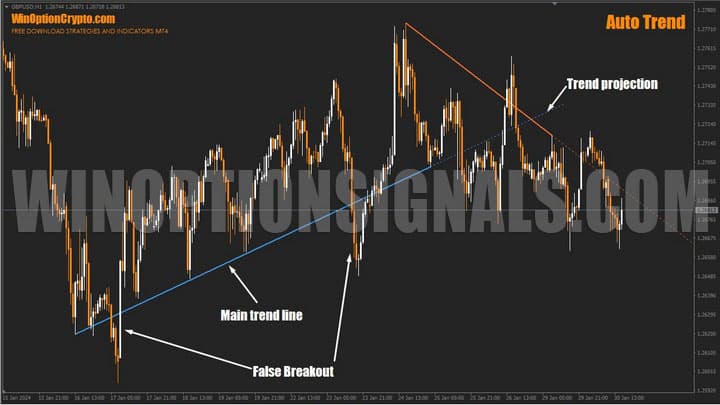
As shown in the chart above, the primary trend vectors are plotted with a high degree of accuracy, confirmed by the subsequent price reaction.
The settings are minimal. Users can adjust the trend analysis period (short-term, medium-term, and long-term), the number of bars used in the projection (default settings are recommended), and the colour scheme.
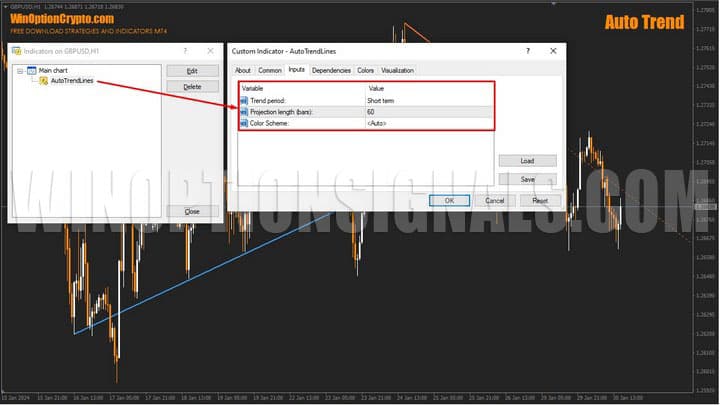
The short-term analysis period corresponds to 300 bars, medium-term to 600, and long-term to 1,200. Line colours are assigned automatically based on the background of the chart to which the indicator is applied.
Trading Rules for the Auto Trend Binary Options Indicator
Trading approaches using Auto Trend fall into two categories: trend rebound and trend breakout. Trading in the direction of the main market trend is widely regarded as the most effective approach, so we cover that technique first.
To enter a trade in continuation of an uptrend (on a rebound from its line), confirm the trend direction based on the last bar that closed above the blue line. Then wait for price to touch or approach the blue trend line as closely as possible. Wait for the candle to close — if it closed upward, buy a Call at the opening of the next candle.
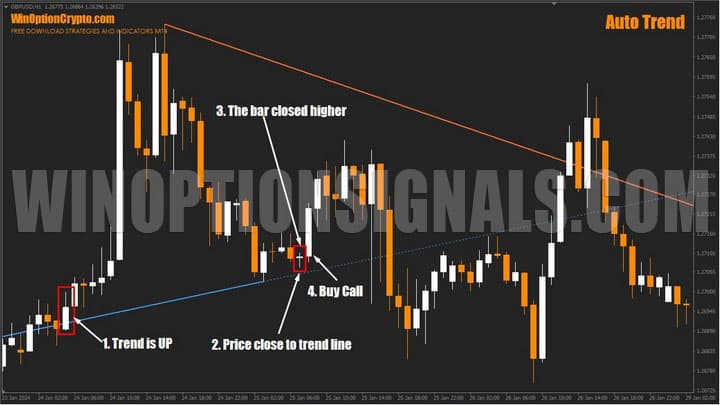
To enter a trade in continuation of a downtrend (on a rebound), first confirm the trend direction based on the last bar that closed below the trend line. Then wait for a candle whose shadow touches or approaches the trend line, with a close in the downward direction. At the opening of the next candle, buy a Put. Set the expiration to three candles.
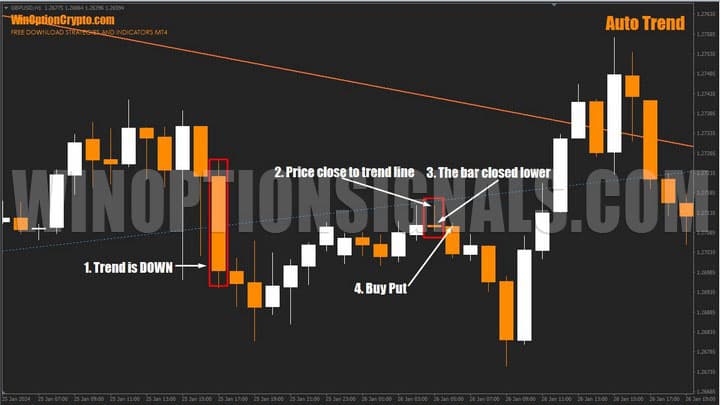
Every trend eventually ends, and experienced binary options traders look to profit from that too — through breakout trading, which is no less effective than the rebound approach described above.
To enter a breakout trade in an uptrend, wait for a candle to close above the trend line, then buy a Call at the opening of the next candle.
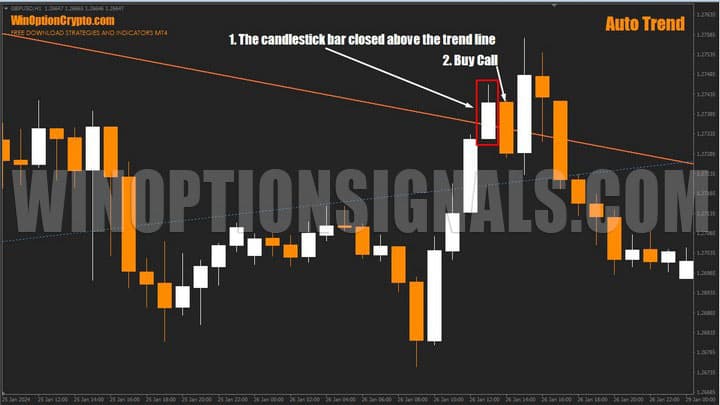
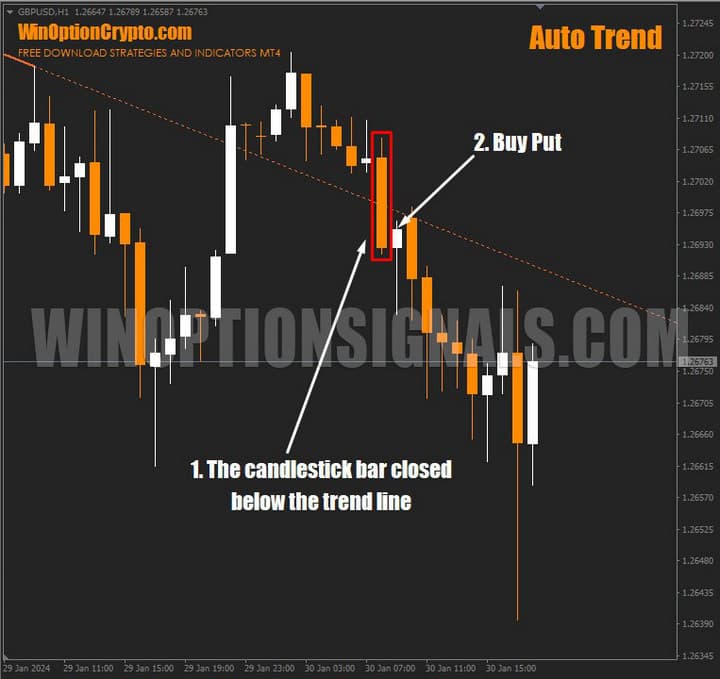
To enter a breakout trade in a downtrend, wait for a candle to close below the trend line, then buy a Put at the opening of the next candle.
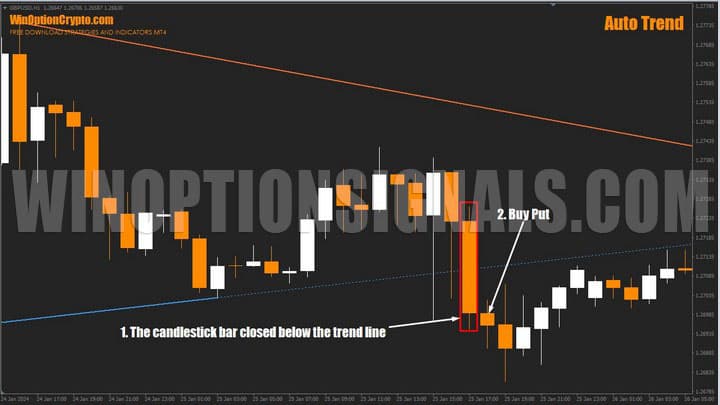
Opening a Call Option
When a candle closes above the line, buy a Call at the opening of the next candle with an expiration of 3 candles.
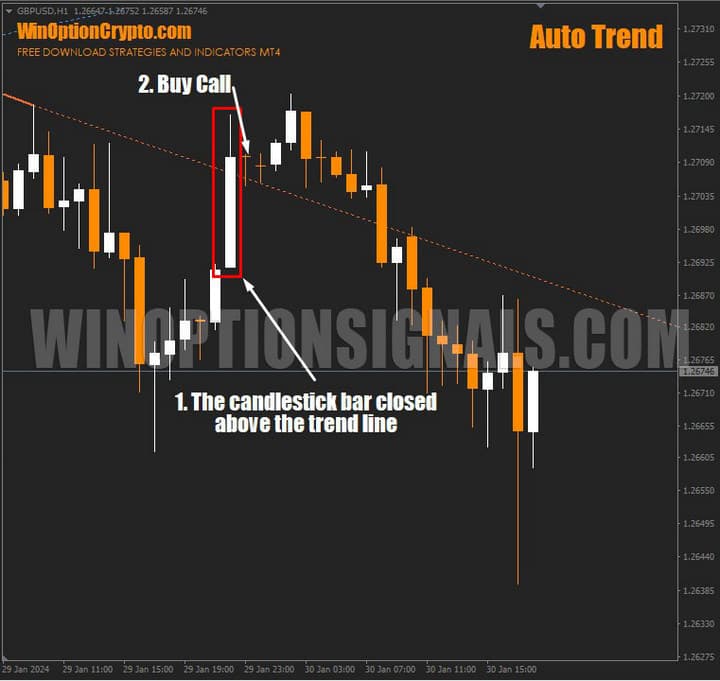
Opening a Put Option
When a candle closes below the line, buy a Put at the opening of the next candle with an expiration of 3 candles.
Conclusion
Auto Trend can be used effectively for both rebound trading and breakout trading. It generates a good number of accurate signals and does not require additional filtering. The indicator performs well on the hourly timeframe but can also be applied to lower timeframes for binary options scalping.
Before using it in live trading, test it thoroughly on historical data. Once you are confident in the quality of its signals, the best next step is to try it on a demo account with a reliable broker, applying sound risk management and money management practices throughout.
Download the Auto Trend Binary Options Indicator

To leave a comment, you must register or log in to your account.