
The Pocket Option broker's trading platform is a feature-rich web terminal with a wide range of tools and capabilities. Because of this, novice traders may not immediately know how to make the most of it — Pocket Option lets you customize the chart, use indicators and drawing tools, copy trades from the chart, and much more. In this article, we will look at how to configure the Pocket Option terminal.

Pocket Option: Adjusting Platform Settings on Screen
You can adjust the default settings of the Pocket Option terminal via the three-dot menu, located in the same area as the asset selection panel:
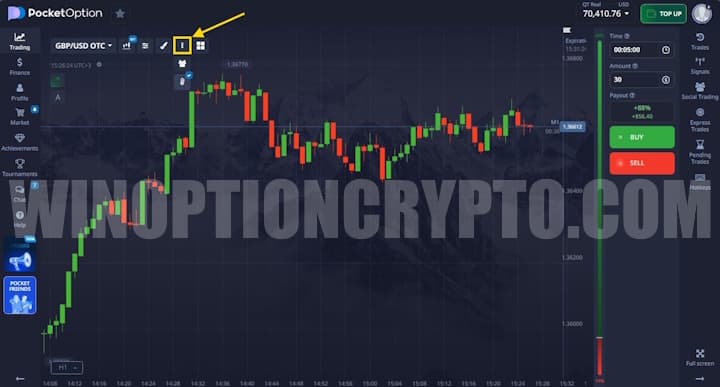
This menu contains the following options:
- social trading;
- market sentiment;
- trade monitoring.
Displaying and Copying Other Users' Trades
Pocket Option lets traders view other users' trades in real time, with each trade displayed directly on the chart. To enable or disable this feature, click the "Social trading" button in the settings section:
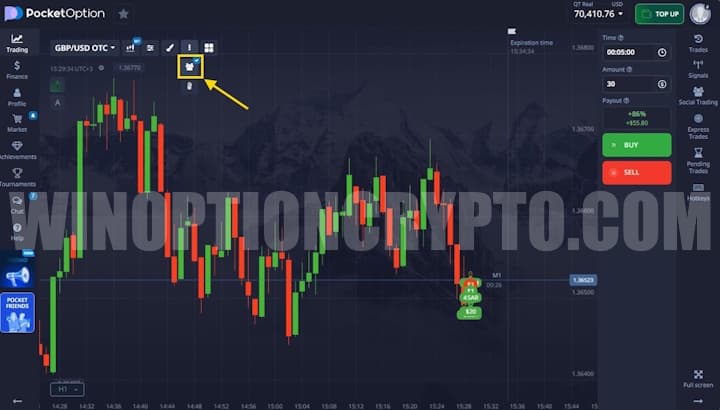
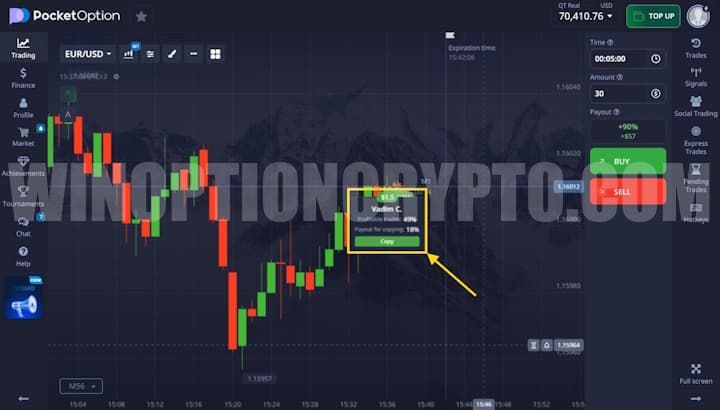
Any trader can copy trades placed by other users directly from the chart, but only within a 10-second window. When you copy a trade, a new order is opened at the same investment amount the other user placed. If your account balance is insufficient, the copy will not go through. To copy a trade, select any trade on the chart and click "Copy":
Market Sentiment
The Market Sentiment feature lets traders monitor the trades other users are placing in real time. It also displays the current ratio between Call and Put options (green for Calls, red for Puts), giving traders a sense of overall market mood.
You can enable this feature from the same trading terminal settings menu:
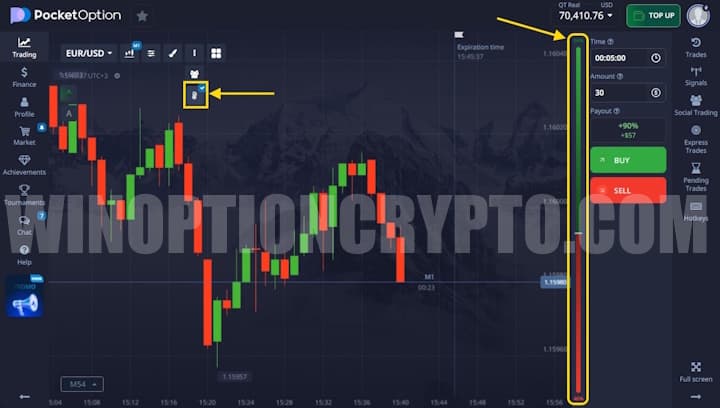
Chart Types
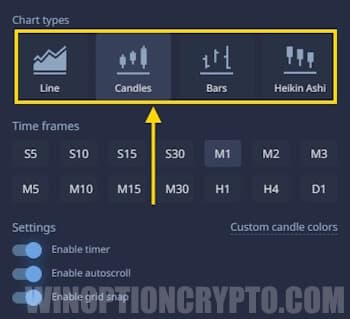
The Pocket Option platform supports 4 chart types:
- Line;
- Candles;
- Bars;
- Heiken Ashi.
The area chart is presented as a tick chart, displaying price movement using filled shapes that update in real time — each new price appears as soon as the rate changes. A tick is the smallest possible price movement. If the rate changes significantly, multiple ticks may appear on the chart at the same time. To enable the area view, select the "Line" chart, then choose "Display area" in the settings panel:
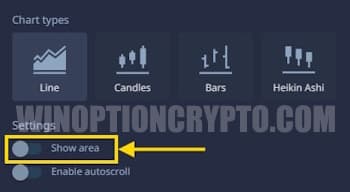
The "Line" chart looks similar to the area chart, but price movement is displayed as a continuous line.
A candlestick chart shows the change in exchange rate as a range from minimum to maximum within a given timeframe. The candle body represents the difference between the opening and closing prices, while the thin lines above and below are called shadows, which show the highest and lowest prices reached during the candle's formation. The chart also conveys the direction of price movement: when the trend is up (the closing price is higher than the opening price), the candles are green, and when the trend is down, they are red.
A bar chart looks visually similar to a candlestick chart. It also displays the opening price (shown as a short horizontal line on the left), closing price (on the right), and the highest and lowest prices in the period.
The Heiken Ashi chart is visually similar to a candlestick chart, but the candles are formed using an algorithm that smooths prices and reduces the impact of market "noise."
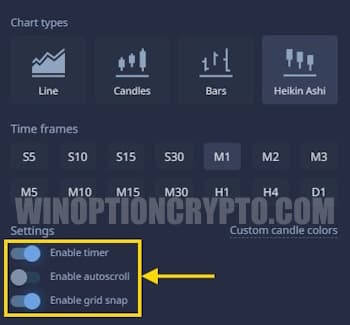
You can also enable or disable the following in the chart settings:
- display of the timer shown next to the price;
- automatic chart scrolling;
- snap to grid.
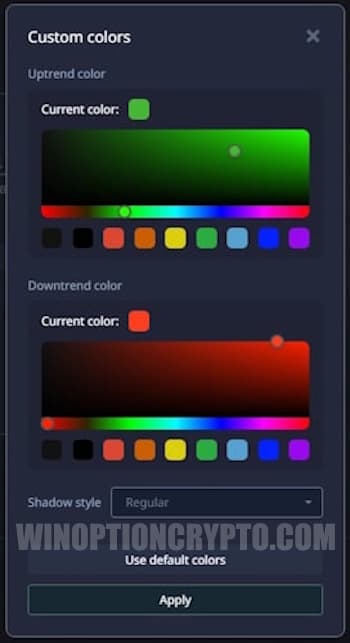
You can also change the candle colors if you wish. To do this, click the "Change candle color" button:
Hiding Balance and Personal Data
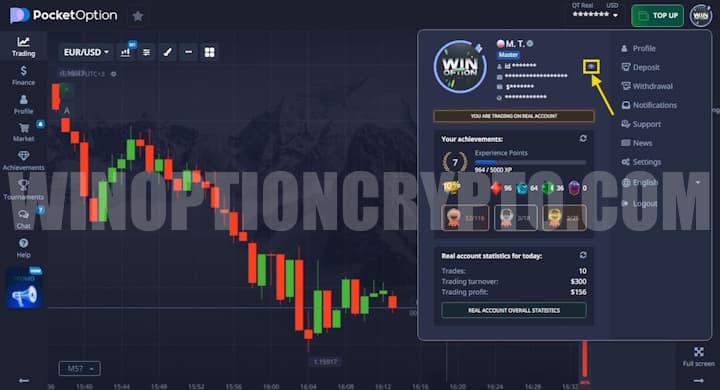
To hide your deposit balance and personal data shown on the chart, click your avatar and toggle off "Show data" by clicking the eye icon:
Hidden Settings
Not every trader is aware of these settings, as they are tucked away in the trading account information tab, which you can open by clicking your profile icon:
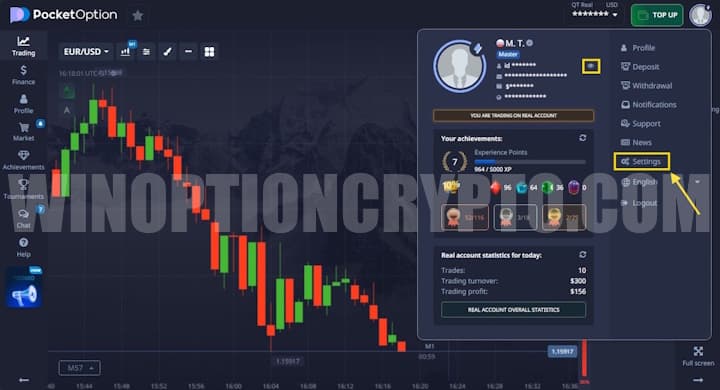
A window will then open with settings that may be useful to any trader.
Enable Sound
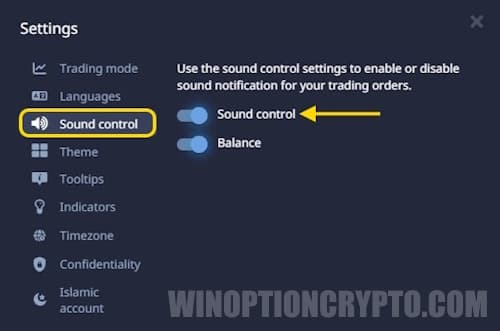
Traders don't always watch the chart and wait for their trades to close. However, it is useful to know promptly when a trade has been completed. For this, the Pocket Option terminal offers sound notifications. To enable them, open "Sound Control" in the settings section:
Change Color Theme
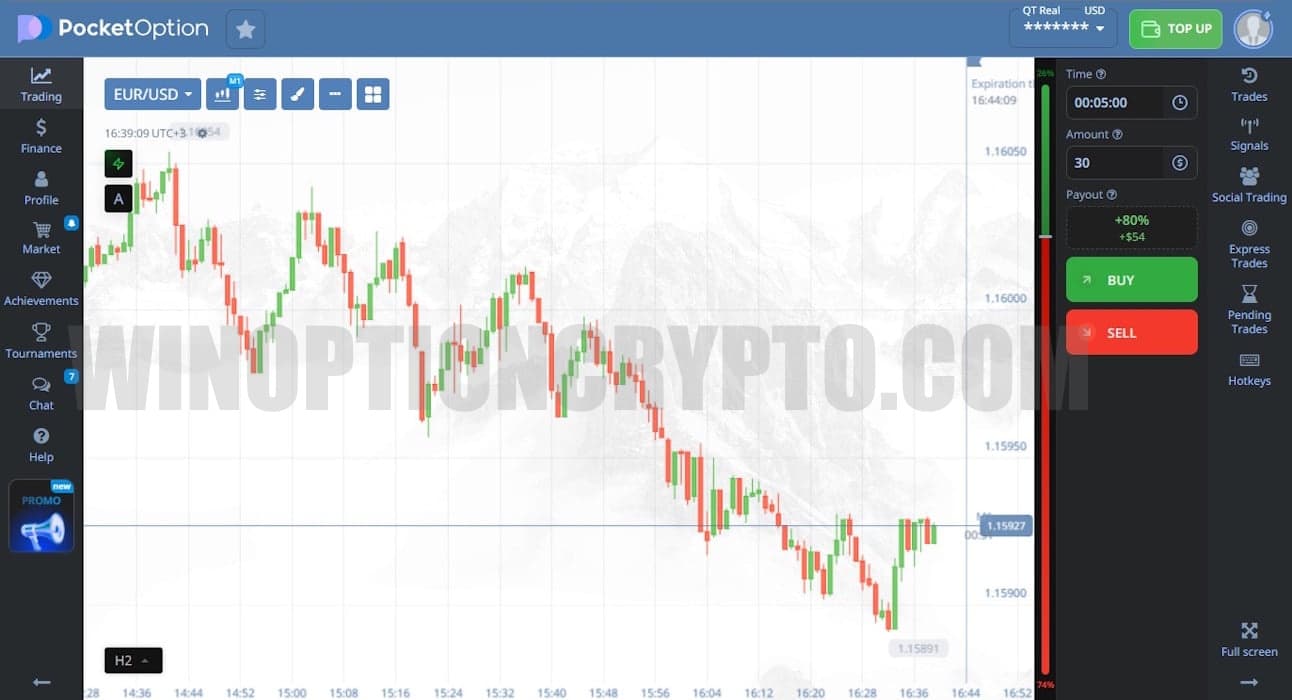
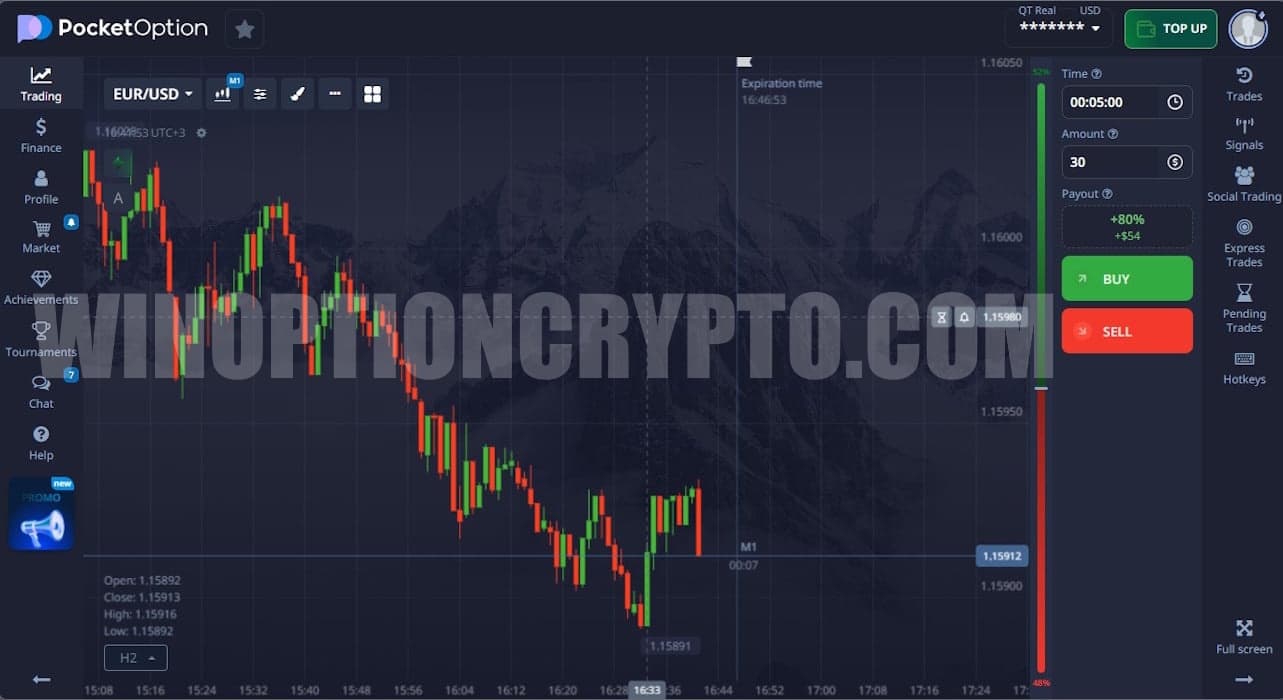
You can change the terminal's color theme to one of two options:
- light theme;
- blue theme.
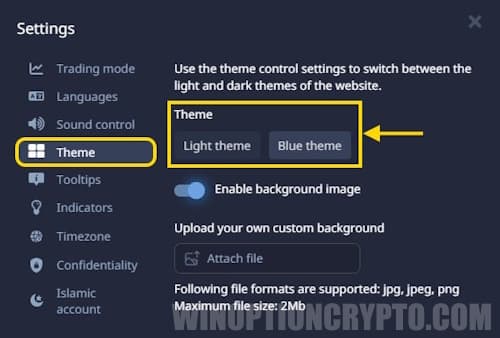
Here is what each theme looks like:
| Light | Blue |
 |
 |
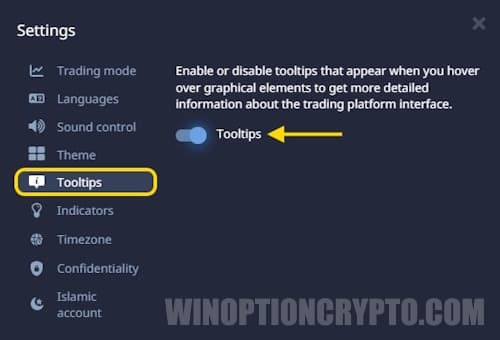
Tooltips
These tooltips inform the trader of the trade amount and the result after the trade closes, appearing directly on the chart:
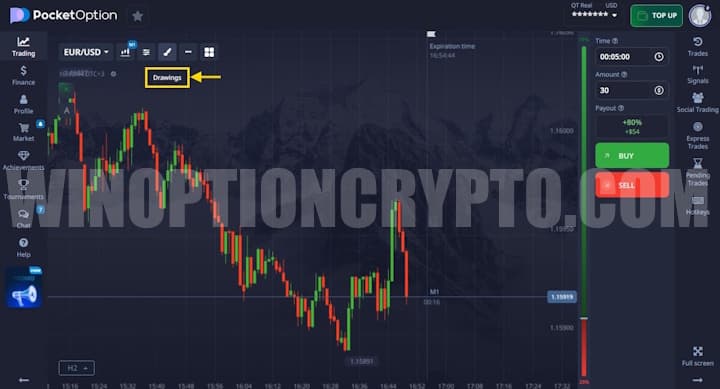
This option is toggled on or off in the settings menu under the "Tooltips" tab:
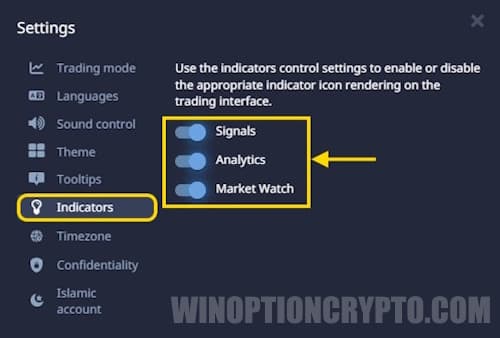
Indicators
Note that this section is not about technical indicators. Rather, this menu provides quick access to the economic calendar, free signals, and Pocket Option bonuses:
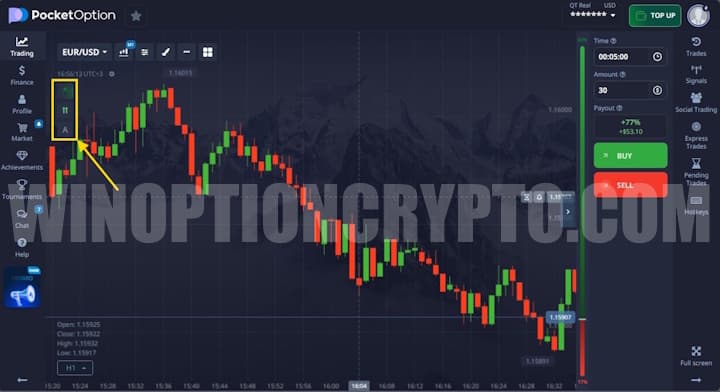
Once enabled, icons for bonuses, signals, and analytics will appear in the upper-left corner of the chart:
The "Signals" feature (shown as an arrow) gives traders information about the expected direction of price movement, generated by automated analysis of the current market. This parameter can be configured for a specific purchase time. The number of arrows reflects the strength of the trend — the more arrows, the higher the probability that the price will move in the indicated direction. Clicking the signals icon will display a trading recommendation:
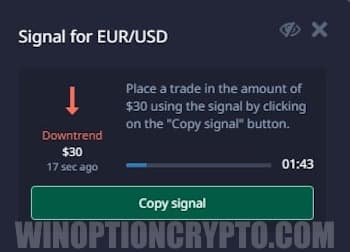
Warning: clicking the red or green button will immediately open a trade!
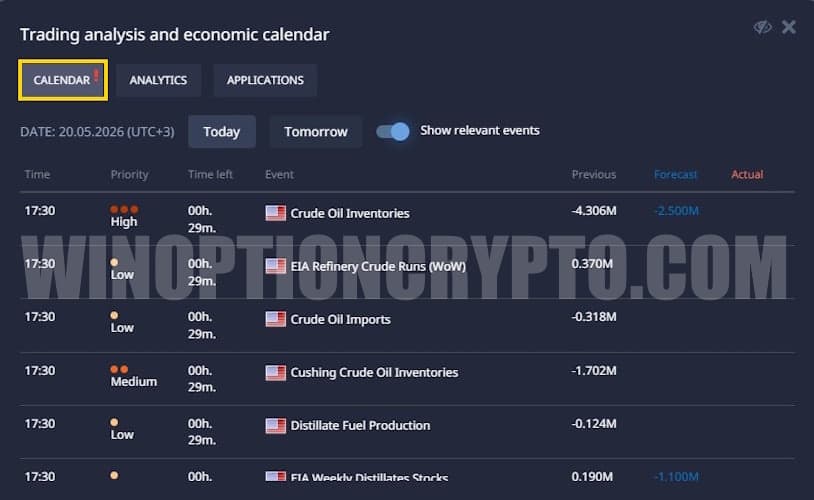
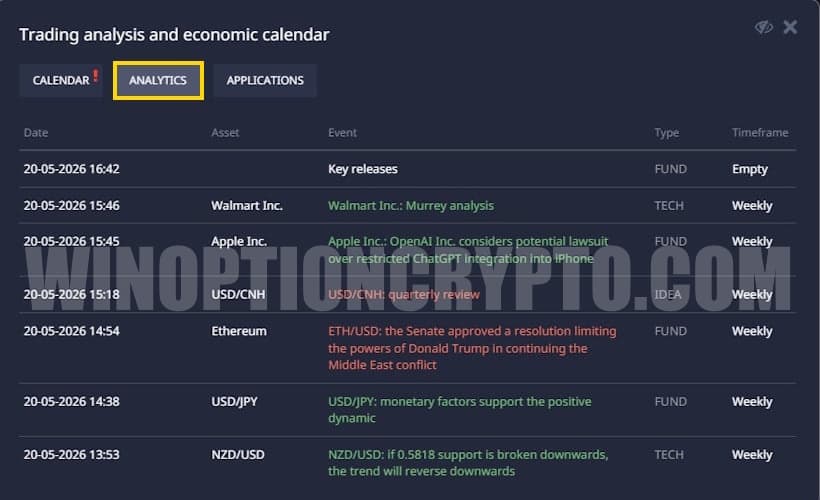
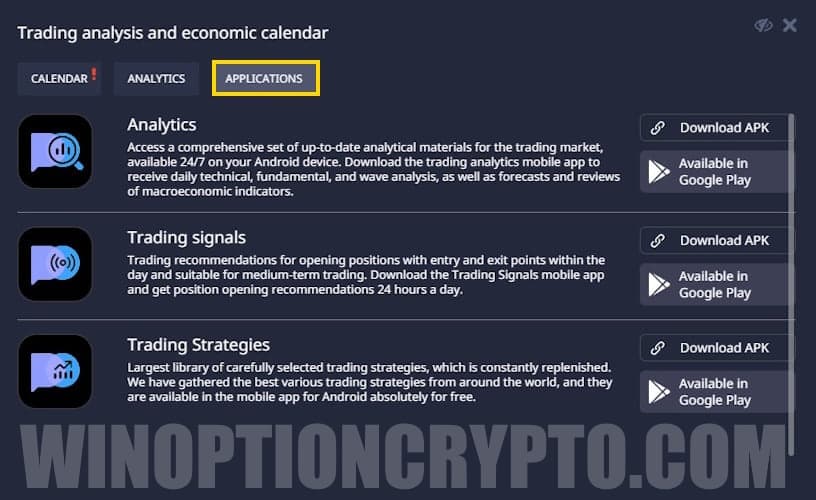
Clicking the analytics icon opens a window with three tabs:
- economic calendar;
- analytics;
- applications.
| Economic calendar | Analytics | Applications |
 |
 |
 |
The bonus icon appears when you have an active Pocket Option promotional code. Clicking it displays a pop-up showing which bonus is currently in use:
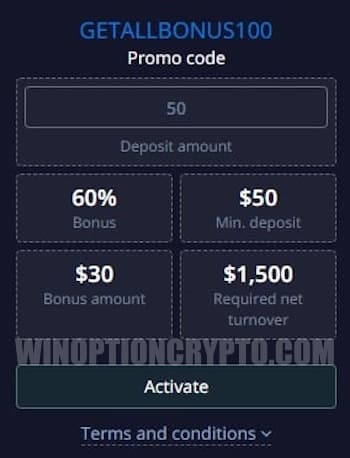
You may also see icons showing active risk-free trades, boosters, and the gem lottery.
Boosters are marked with a "B," and the risk-free trade feature, used to refund losing orders, is marked with an "R."
Gems are a unique Pocket Option feature: they grant traders access to additional bonuses. Pocket Option also runs regular gem lotteries — you can view details by clicking the "G" icon.
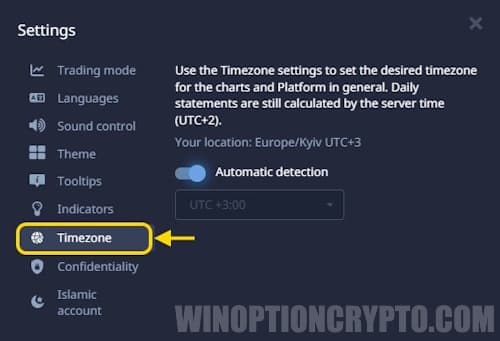
Timezone
The Timezone setting lets you select the time zone displayed in the trading terminal. Daily trading reports are generated using server time (UTC+2).
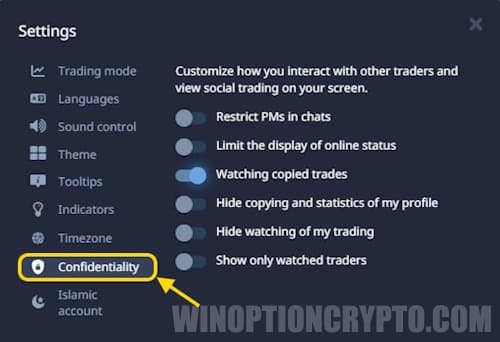
Privacy
These settings let you customize how you interact with other traders on the Pocket Option platform, and how social trading is displayed on your charts.
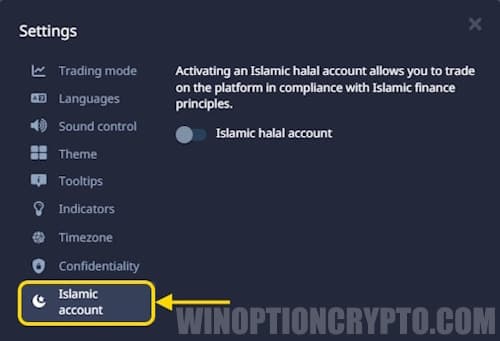
Islamic Account
The final section of the platform settings is the Islamic account. Activating this account type allows you to trade in accordance with Sharia law.
Trading Assets Window
Click the asset icon in the upper-left corner to open the trading assets window. This window provides the following settings and features:
- Search;
- Add to favorites;
- Sort by profitability or alphabetically;
- View trading schedule.
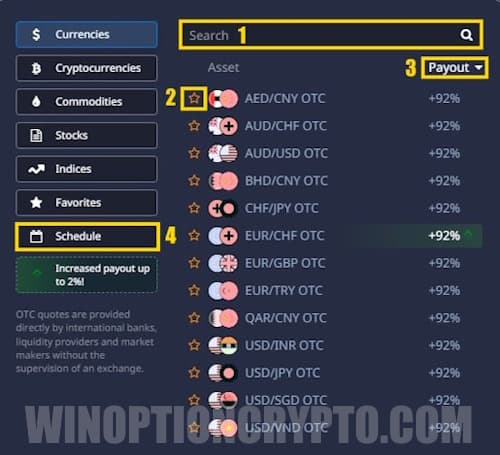
Search lets you quickly find an asset by name.
Add to favorites is useful for traders who consistently use the same assets — marking them with a star saves you from having to search for them each time.
Sorting by profitability or name shows the most profitable instruments first or arranges assets alphabetically.
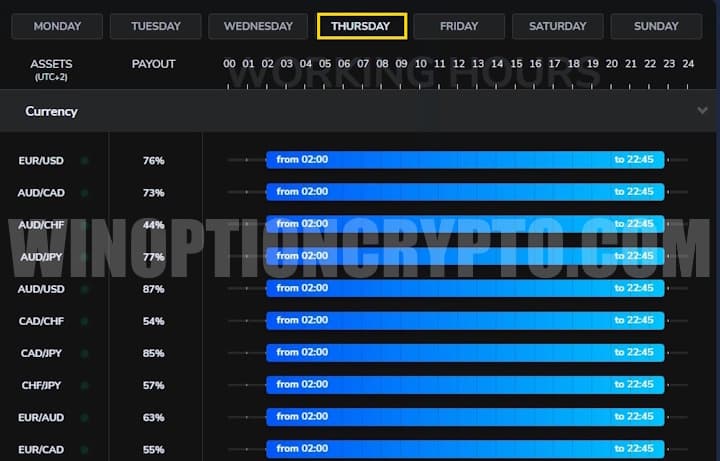
The schedule shows which assets are currently being traded, which are closed, and which are quoted as OTC:
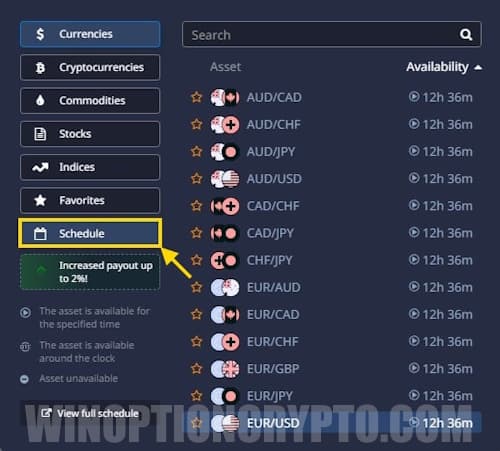
Clicking the "View full schedule" button displays the schedule for every trading instrument on Pocket Option:
Multi Chart
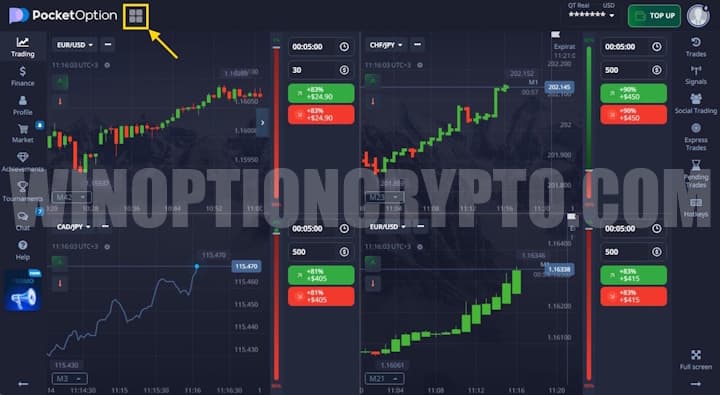
To monitor several charts at once, use the multi-chart feature — it lets you open up to 4 windows at the same time in various layouts.
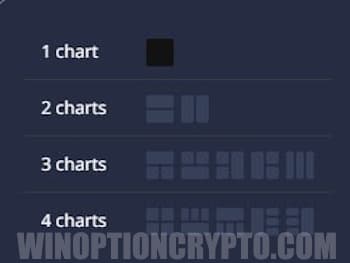
The default four-pane layout provides a clean, balanced view:
Hotkeys
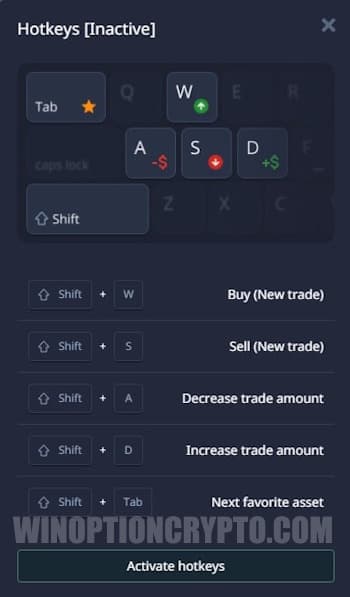
A "keyboard" icon is located on the right-side toolbar. Click it to open the hotkey settings.
Hotkeys are mainly useful for experienced traders who place many trades and need to open orders within seconds. In this section, you can assign a specific action to each key based on your personal preferences.
Conclusion
Pocket Option offers a wide range of settings that can streamline trading from a technical standpoint. Note that it is best to explore all the settings you need on a demo account first, since some of them affect real trading and are best tested with virtual money.
Open an Account with PocketOption

To leave a comment, you must register or log in to your account.