
Trading binary options is incomplete without indicators for binary options. While professionals know how to install an indicator in MetaTrader 4, beginners may struggle with this and often run into issues. However, installing an indicator in MT4 is quite straightforward. With a little practice, you'll be able to do it automatically. If not, you can always refer back to this simple guide.
- Instructions for installing the indicator
- How to add an indicator to a chart
- How to install presets for settings
- How to install an advisor or script
- How to install an indicator on Android
- Conclusion
- Download
Let's walk through installing an indicator in MetaTrader 4 using the Stochastic RSI as an example, which you can download from our website.
MT4 Install Indicator: Instructions
Indicators are usually downloaded as a .zip or .rar archive. To extract them, you can use any archiving program, such as WinRAR or 7-Zip. Occasionally, indicator files are downloaded without an archive, in which case no extraction is needed.
If the indicators are in an archive, the contents can typically be divided into:
- Files with the .ex4 and .mq4 extensions
- "Templates" and "MQL4" folders
Below, we will cover each method for installing indicators in MetaTrader 4.
Installing Indicators in MetaTrader 4 from .ex4 and .mq4 Files
After downloading the indicator, extract it from the archive — it may contain one or more files. In our case, there are two files with both extensions:
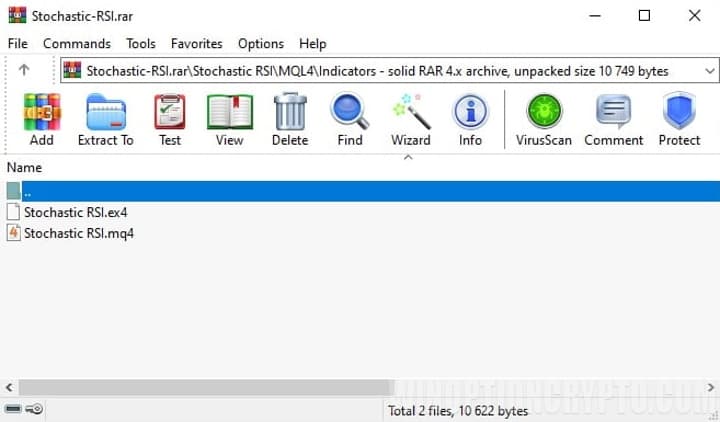
Indicators downloaded without an archive will have the same extensions.
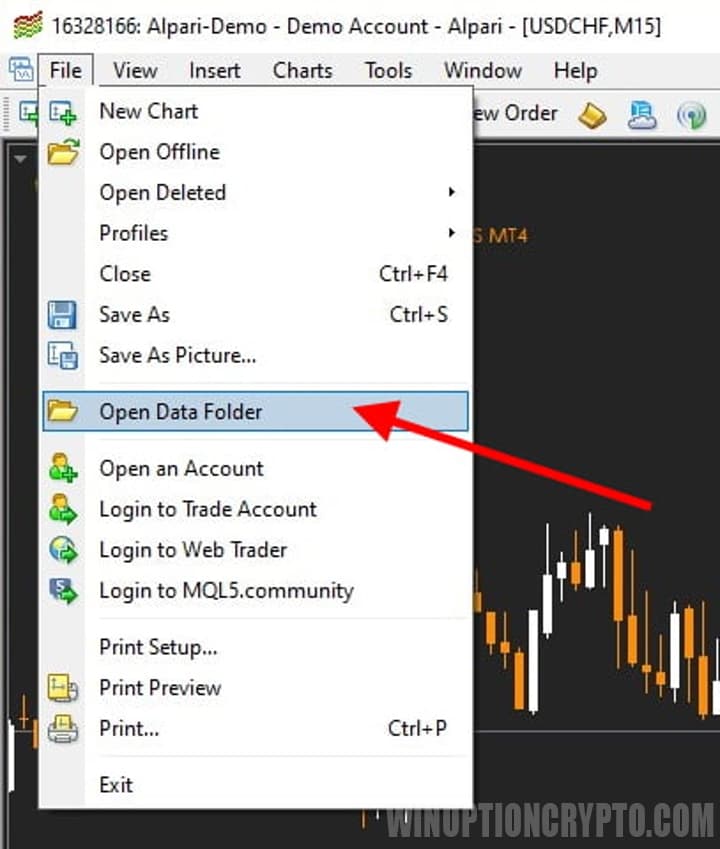
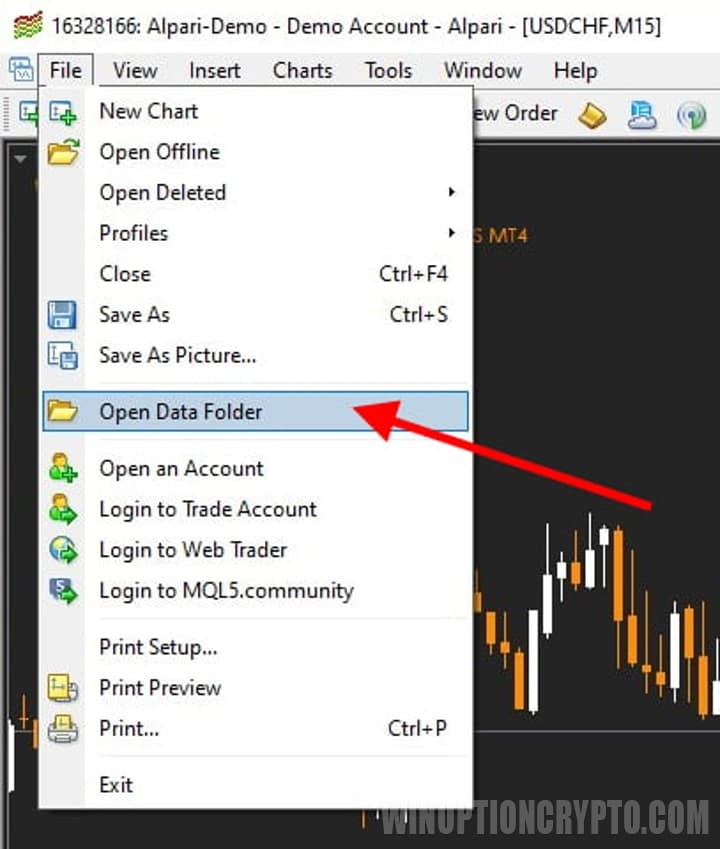
Once you have extracted the indicators from the archive, you need to move them to the terminal folder (install in MT4). To do this, open the terminal, click the "File" tab in the upper left corner, and select "Open Data Directory":
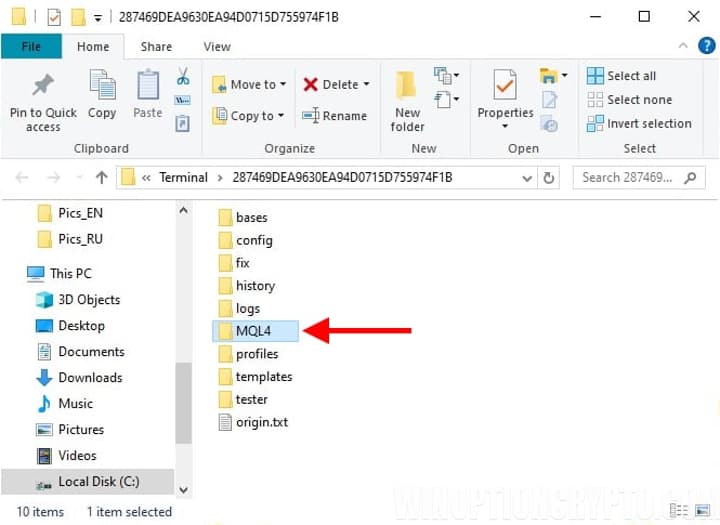
The required directory will open. To continue installing the indicator in MT4, navigate to the "MQL4" folder, then open the "Indicators" subfolder:
The "Indicators" folder holds all the indicators you install in the MT4 terminal. Move your two files (Stochastic RSI) into this folder:
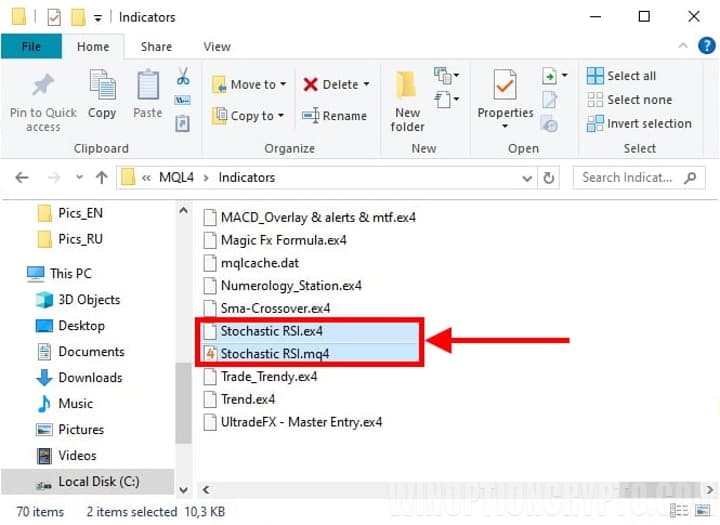
After moving the files, the installation is only halfway done. You still need to locate the indicators in the MT4 terminal and add them to a chart — which we will cover next.
Installing Indicators in MetaTrader 4 from the "Templates" and "MQL4" Folders
It often happens that the downloaded archive contains folders named "Templates" and "MQL4":
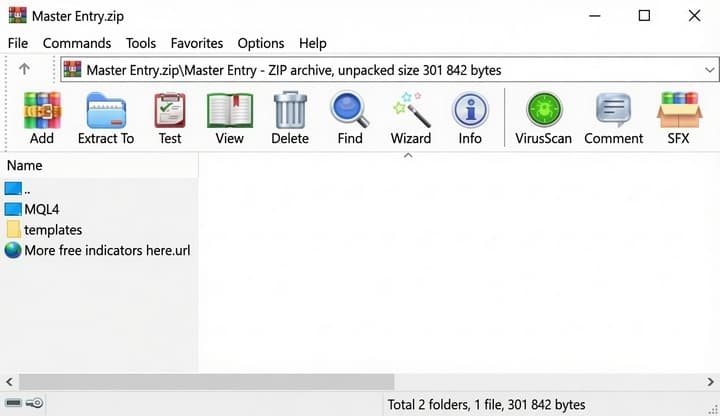
In this case, simply extract the folder contents, then open the MetaTrader 4 data directory the same way as shown above:
Then move both folders into the MT4 terminal data directory:
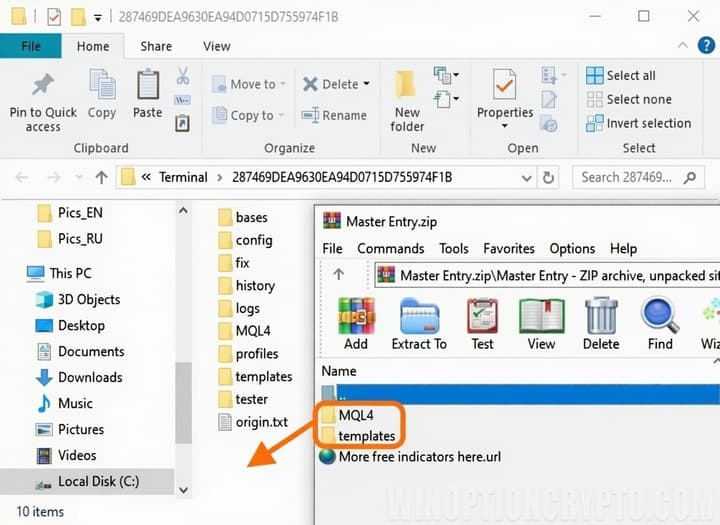
After the transfer, confirm the replacement when prompted (only the necessary files will be replaced; existing files will not be affected), and the indicators will be successfully installed in MT4.
MT4: How to Add an Indicator to a Chart
We have covered most of the steps for installing an indicator in MT4 — just a little more to go.
For the indicators to appear in the terminal, you need to restart it (close and reopen). You can also click the "Refresh" button in the indicators list, but restarting is quicker and simpler.
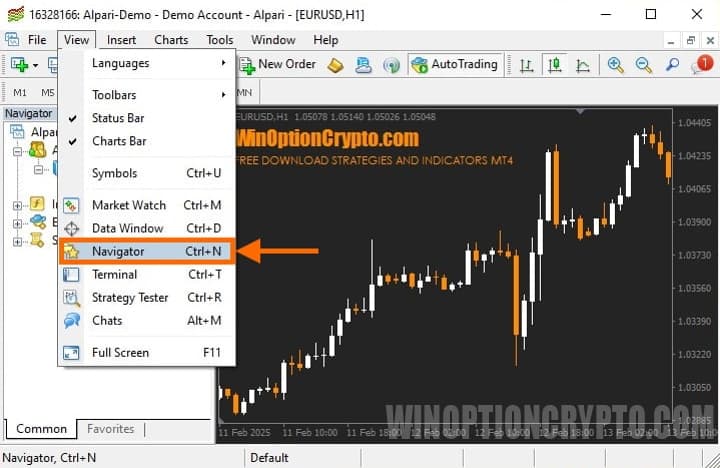
You can find the installed indicators in the "Navigator" panel, which can be launched from the toolbar, found under the "View" tab, or opened with the "Ctrl+N" keyboard shortcut:
In the "Navigator", open the "Indicators" tab and find the installed indicator in the list:
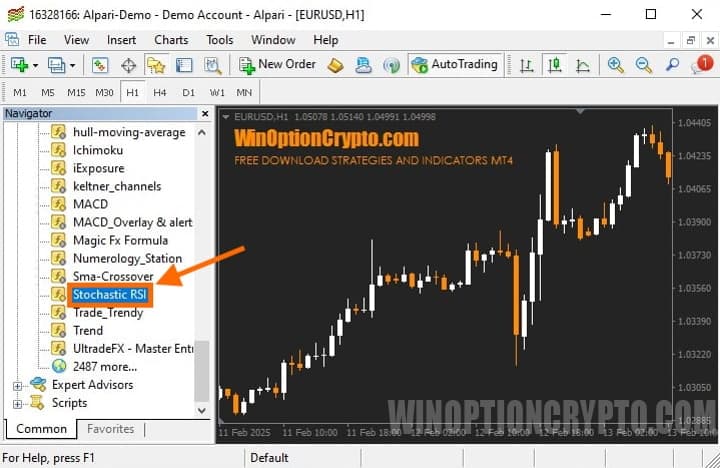
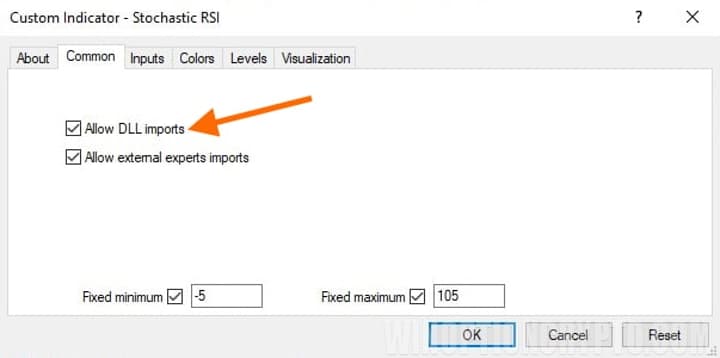
To add an indicator to a chart in MT4, open the chart of the asset you are trading, then drag the indicator onto it or simply double-click it. The settings window will open. Note that not all indicators require DLL import permission, but it is best to enable it regardless:
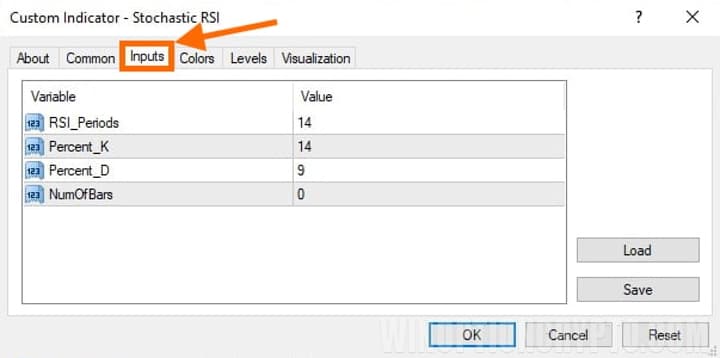
You can also switch to the "Input Parameters" tab to configure the necessary settings right away:
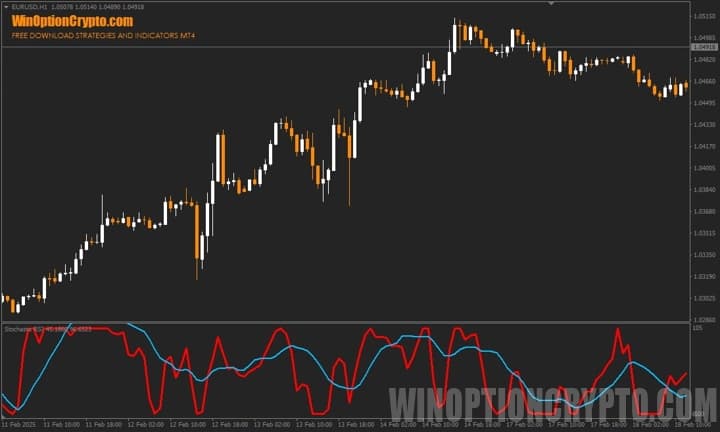
The indicator is now added to the chart, confirming that installing an indicator in MT4 is a straightforward process:
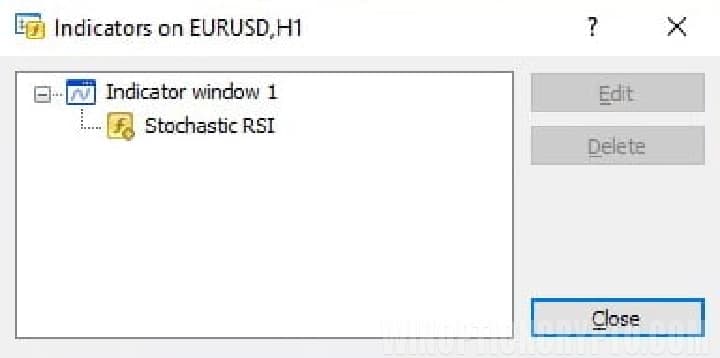
If you need to change the settings of an indicator already added to the chart, you can do so at any time. Right-click on the chart where the indicator is installed, select "Indicators List" from the menu, and a panel will open showing all indicators currently on the chart:
How to Install Presets for Indicator Settings in MT4
MT4 allows you to save and transfer successful parameter combinations for indicator settings. These files are called presets (file extension: .set) and are stored in the "Presets" folder. Some indicators come with custom preset files, and you may also want to save your own parameter adjustments to apply across other charts.
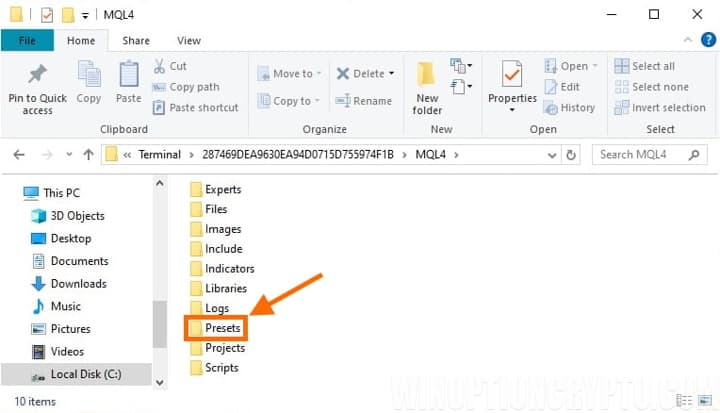
To install presets in MT4, open the terminal data directory, navigate to the "MQL4" folder, and move the .set preset files into the "Presets" subfolder.
You can apply a preset without restarting the terminal. Open the indicator settings and select the option to load a preset:
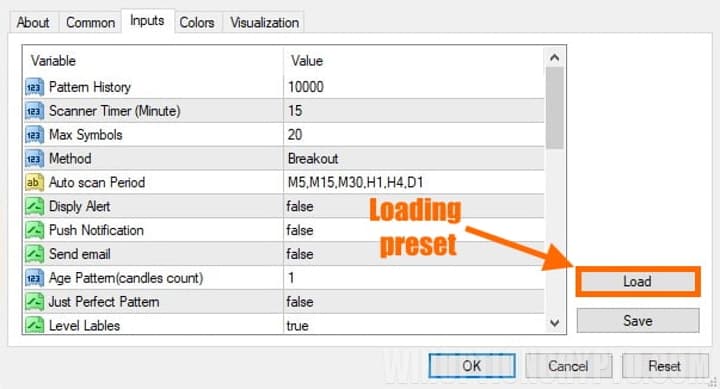
MT4 will automatically open the presets directory, where you can select the desired .set file. Click "Open", and the settings from the file will be applied to the indicator on the chart.
How to Install an Advisor or Script in MT4
You may also need to install an Expert Advisor (EA) or script in MetaTrader 4. It is worth noting that such tools are not always trading strategies or systems — they can also be useful utilities for testing strategies and indicators, or sophisticated EAs that operate on complex algorithms and process large volumes of data.
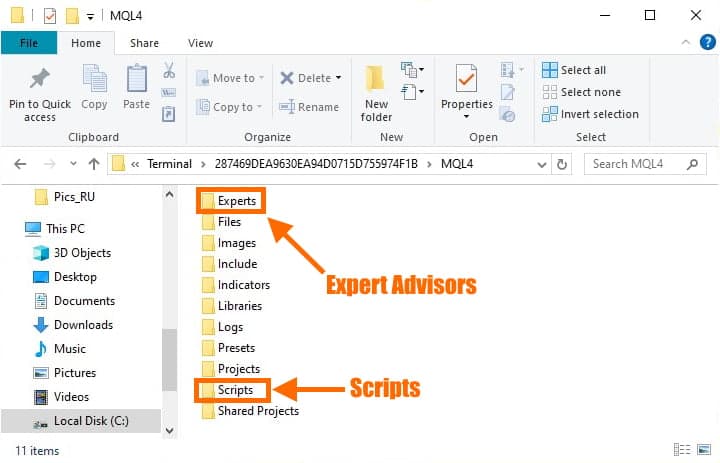
To install an EA or script in MT4, open the data directory from the terminal. In the "MQL4" folder, navigate to the "Experts" subfolder to add an Expert Advisor, or to the "Scripts" subfolder to add a script, then move the file into the appropriate folder:
To add an EA or script to a chart, restart the MT4 terminal, then go to the "Navigator" and select the installed file:
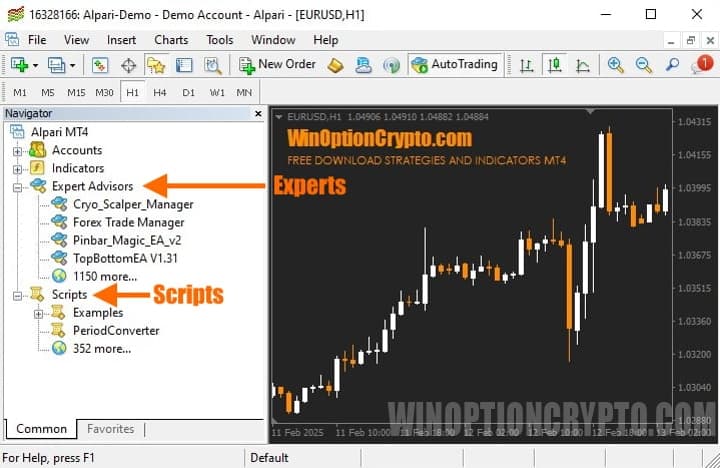
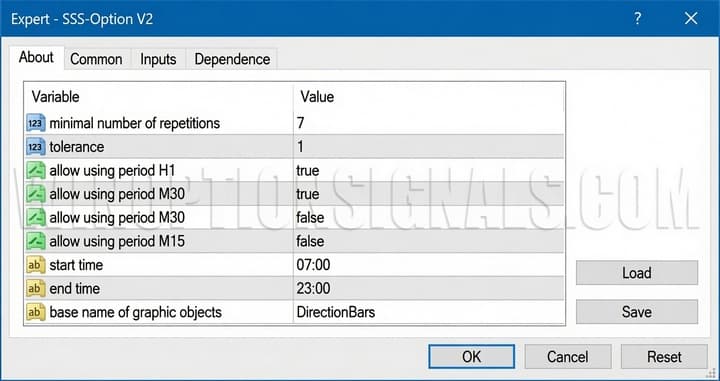
To add an EA to a chart, drag it onto the desired trading asset or double-click it to open the settings window. As an example, let's add the SSS-Option V2 indicator advisor to the GBP/USD chart. In the settings window, adjust the parameters on the "Input Parameters" tab if needed, then click "OK":
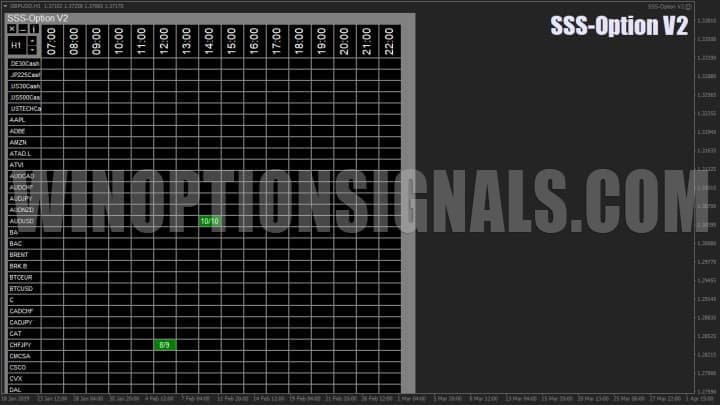
The EA is now added to the chart and visible in the advisor table with trading assets and timeframes:
The smiley face icon in the upper right corner of the chart also confirms that the EA is running correctly:

How to Install an Indicator in MT4 on Android
Many beginners want to know how to install an indicator in MT4 on Android, as they use mobile devices to monitor the markets. This is very convenient, since many binary options brokers offer trading apps that allow users to trade from anywhere with an internet connection. For example, Pocket Option and Quotex both provide mobile applications.
Unfortunately, Android and iOS devices do not support installing custom indicators for binary options, and the MetaTrader 4 mobile application does not offer this functionality.
Conclusion on Installing Indicators in MT4
After reading this guide, any beginner should have a clear understanding of how to install indicators in MT4 — whether from .ex4 and .mq4 files or from the "Templates" and "MQL4" folders. We also covered installing scripts and Expert Advisors, which follow a similar process but require placing files in different folders.
Even if installing an indicator in MT4 seems complicated at first, with a bit of practice any beginner can become confident in adding and installing indicators in the MT4 terminal — the process is simple.
Download MetaTrader 4 for Free
If you still have questions, you can watch our video on installing indicators, with a clear step-by-step demonstration:

To leave a comment, you must register or log in to your account.